🔐 How to Remove Password from PDF on Android
PDF files are widely used for documents, forms, reports, invoices, certificates, and other important information. To protect sensitive documents, many PDFs are secured with passwords. But if you already have permission to access a PDF and no longer need its password protection, removing the password can make the file much easier to use.
In this guide, we’ll explain how to remove a password from a PDF on Android, what type of password protection PDFs can have, and how an app such as SmartFiles PDF & Image Tools can help.
📄 What Does a Password-Protected PDF Mean?
A password-protected PDF is a document that has additional security applied to it. Depending on how the PDF was created, a password may be required to open the document, or restrictions may be placed on actions such as editing, printing, or copying.
Adobe identifies two common types of PDF passwords:
- Document Open Password: Required to open the PDF.
- Permissions Password: Controls restrictions such as editing, printing, and copying.
The permissions password is also commonly called the owner password.
🔓 Why Remove a Password from a PDF?
There are several legitimate reasons for removing password protection from a PDF you own or are authorized to modify.
For example:
- You frequently open the same document.
- You need to share an unlocked copy with authorized people.
- You want easier access to an important document.
- You need to work with a PDF in another application.
- The password protection is no longer necessary.
- You want to keep a convenient working copy of your own document.
Always make sure you have permission to remove the document’s security.
Best app to remove password from PDF on Android
📱 How to Remove Password from PDF on Android
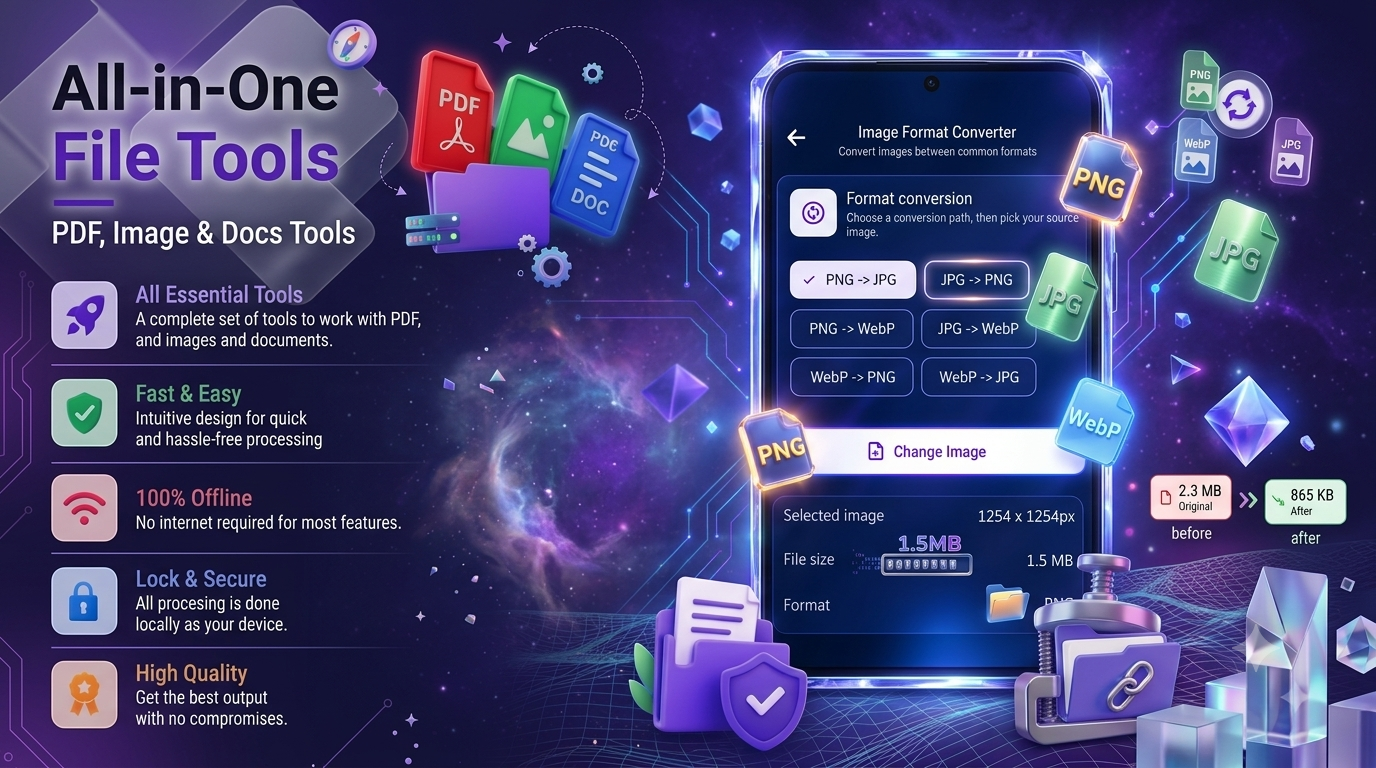
If you have the correct password and permission to modify the document, you can use a PDF utility such as SmartFiles PDF & Image Tools.
Step 1: Install SmartFiles PDF & Image Tools
Download SmartFiles PDF & Image Tools from Google Play.
The app combines PDF, image, and document utilities in one application. Its Google Play listing includes a PDF Unlock feature and says that many of its file-processing functions work offline.
Step 2: Open the PDF Unlock Tool
Launch SmartFiles and look for the PDF tools section.
Select the option related to PDF Unlock or removing PDF protection.
Step 3: Select Your PDF
Choose the password-protected PDF from your Android phone.
Make sure you select the correct document before continuing.
Step 4: Enter the Password When Required
If the PDF requires a password to open or remove its restrictions, enter the password you are authorized to use.
A password-protected PDF should not be treated as something to bypass without permission.
Step 5: Unlock the PDF
Start the unlock process.
The app can process the PDF and create an accessible version when the document’s security allows it.
Step 6: Save the Unlocked PDF
After processing is complete, save the new PDF to your device.
You can then open the resulting document and check whether the password protection has been removed.
Best PDF unlock app for Android
🛡️ Can You Remove Any PDF Password?
No. PDF security depends on the type of protection applied to the document.
For example, Adobe states that removing certain password security requires the appropriate owner/permissions password. PDFs protected by server-based security policies, digital signatures, or DRM may have additional limitations.
So, if you don’t know the required password or don’t have permission to modify the document, you should contact the document owner rather than attempting to bypass its security.
🔐 Open Password vs Permissions Password
Understanding the difference can make PDF troubleshooting easier.
Document Open Password
This password prevents someone from opening the PDF without entering the correct password.
Permissions Password
This password controls restrictions placed on actions such as editing, printing, or copying.
A PDF can use one type of protection or multiple security settings.
Best app to unlock password-protected PDF files
📲 Why Use a PDF Unlock Tool on Android?
Using a dedicated PDF utility can be convenient because you don’t always need to move the document to a computer.
A mobile PDF tool can be useful when you need to:
- Unlock a document while travelling.
- Manage PDFs directly from your phone.
- Prepare a document for sharing.
- Organize important files.
- Perform other PDF tasks in the same app.
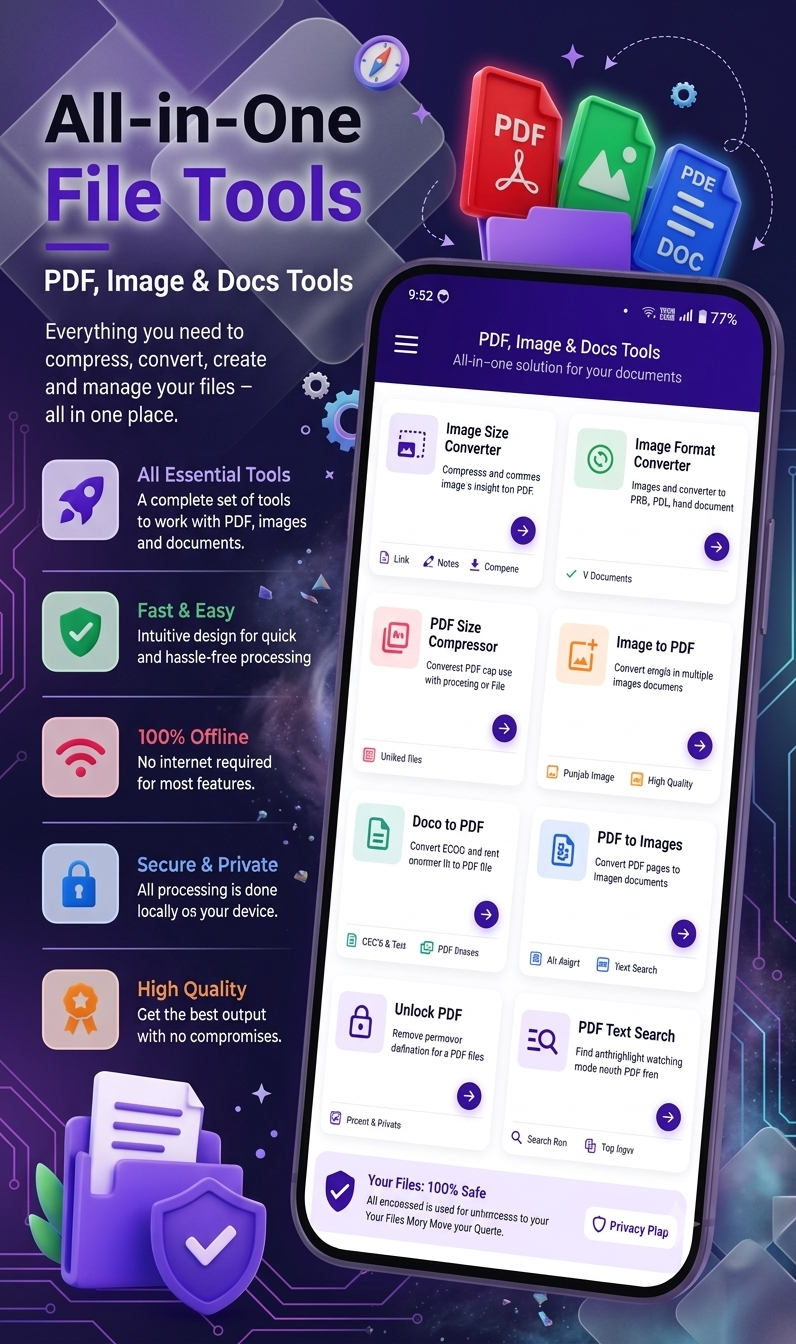
SmartFiles is designed as an all-in-one file utility with PDF and image tools, including PDF compression, PDF unlocking, PDF-to-image conversion, image-to-PDF creation, and document conversion.
Best Android app to remove PDF password easily
📄 Other Useful PDF Features
Removing password protection is only one type of PDF task. Depending on your needs, you may also need to:
Compress PDF Files
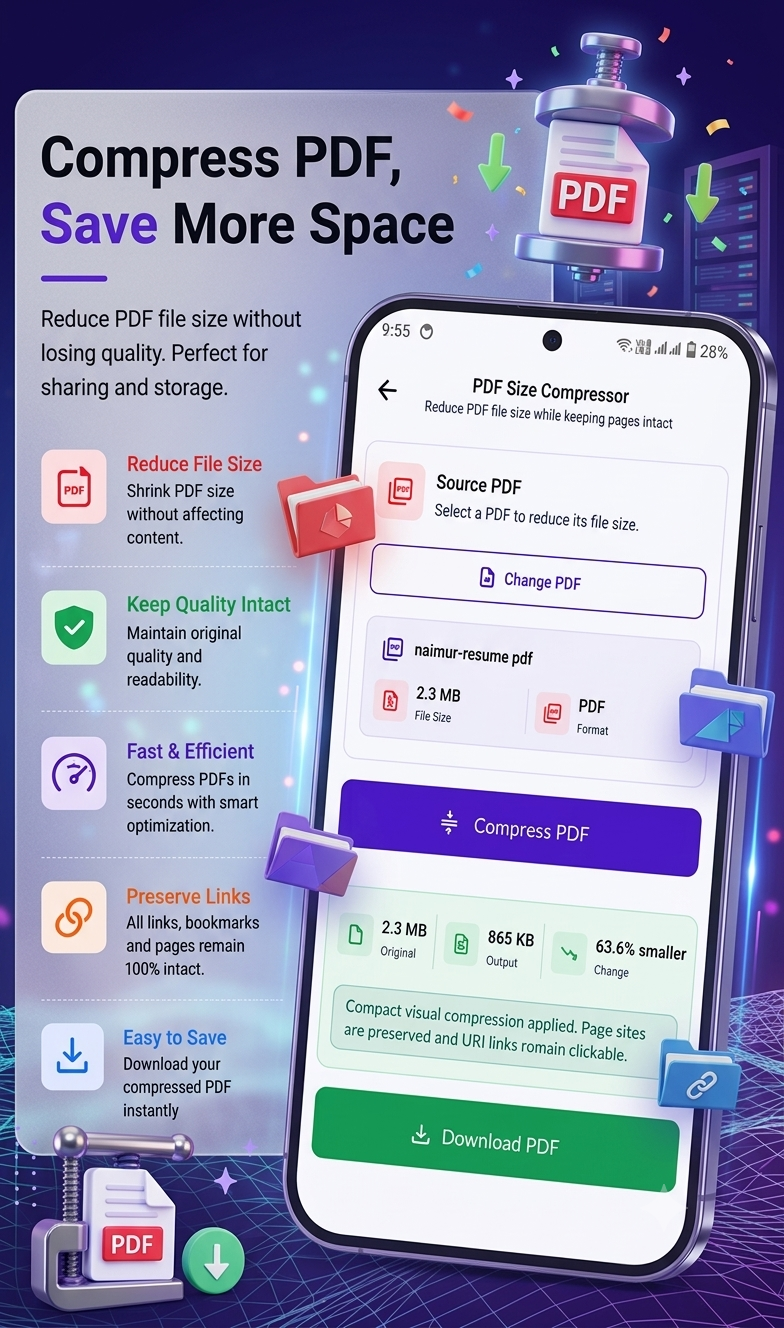
Large PDFs can take up considerable storage space and may be difficult to share. PDF compression can help reduce file size.
Convert PDF to Images
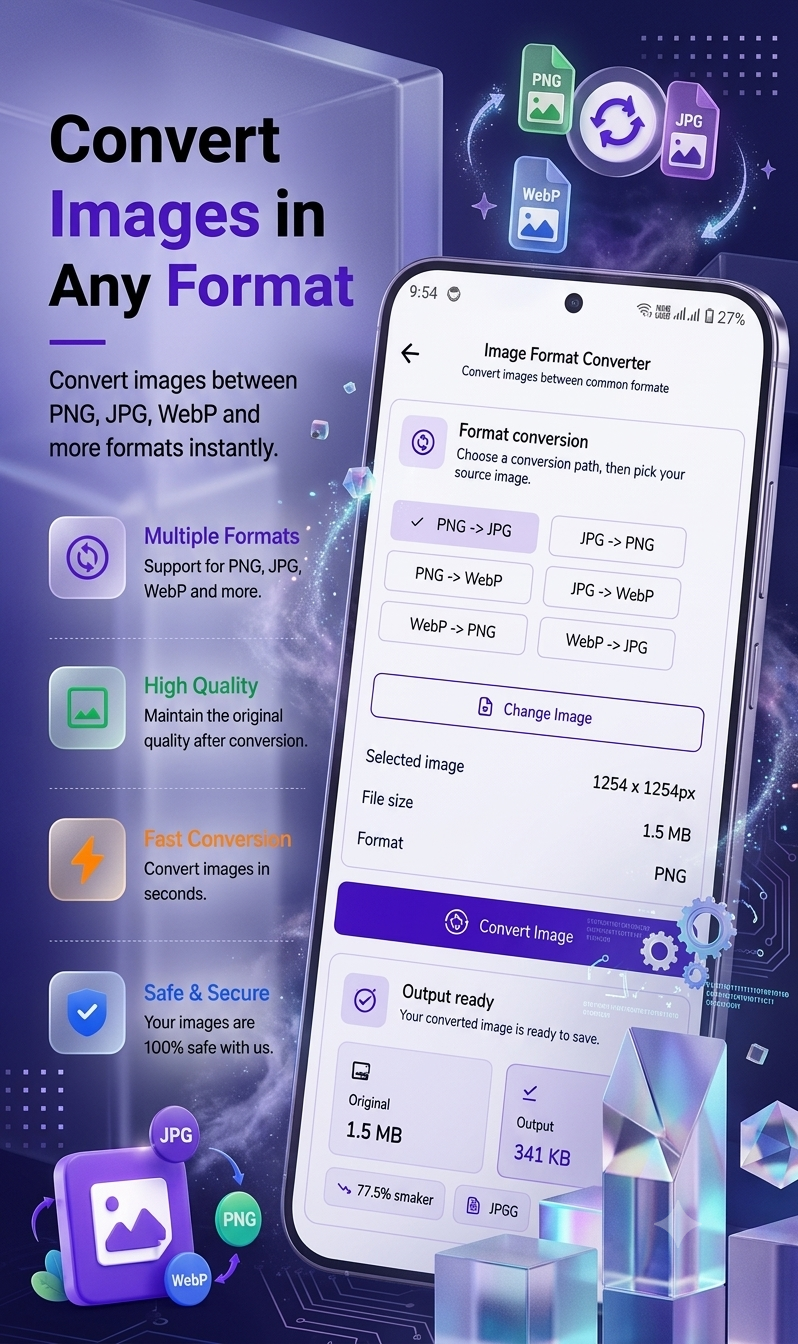
You may want to turn PDF pages into image files for easier viewing or sharing.
Create PDF from Images
Photos, scanned documents, receipts, and notes can be combined into PDF files.
Search PDF Text
Searching text inside a PDF can be much faster than manually going through every page.
SmartFiles currently lists these types of PDF utilities alongside its PDF unlock feature.
⚡ Tips Before Removing PDF Password Protection
Before unlocking a PDF, keep these tips in mind:
- Keep the original PDF: Make a backup before changing its security.
- Use the correct password: Make sure you have the password required by the document.
- Check your permission: Only remove protection from documents you own or are authorized to modify.
- Verify the output: Open the unlocked copy after processing.
- Keep sensitive files secure: Avoid sharing confidential documents unnecessarily.
- Use a new filename: Saving the unlocked version separately can help preserve the original protected file.
🔒 Is It Safe to Remove a PDF Password?
Removing password protection changes the security of the document. If the PDF contains sensitive information, think carefully before creating or sharing an unlocked copy.
For confidential documents, keep the original protected version and use the unlocked version only when necessary.
Best app to unlock and manage PDF files on Android
📱 Remove PDF Password Easily with SmartFiles
If you’re looking for a convenient Android tool for PDF management, SmartFiles PDF & Image Tools brings several useful file utilities together in one application.
Instead of using separate applications for different file tasks, you can use one app for PDF and image-related work. The Google Play listing describes SmartFiles as an offline-focused utility and includes PDF unlocking among its features.
👉 Download SmartFiles PDF & Image Tools on Google Play:
https://play.google.com/store/apps/details?id=com.techsolver.smart_files
❓ Frequently Asked Questions
Can I remove a password from a PDF on Android?
Yes, if you have the required password and permission to modify the PDF, you can use a compatible PDF utility on Android.
Can I remove a PDF password without knowing it?
You should not attempt to bypass a password when you don’t have authorization. For protected documents, obtain the password or ask the document owner for an unlocked copy.
Does removing a PDF password delete the original file?
Normally, a PDF utility can create or save a processed copy, but you should always keep a backup of your original document.
Can I remove printing or editing restrictions?
That depends on the type of PDF security and whether you have the required permissions password. Adobe notes that permissions restrictions can require the owner password to change.
Can SmartFiles work offline?
The current Google Play description says SmartFiles is designed so that most file processing can be performed directly on the device and without an internet connection.
📝 Final Thoughts
Removing password protection from a PDF can make an authorized document easier to access, share, and manage. If you have the necessary password and permission, a dedicated PDF utility can simplify the process directly from your Android phone.
SmartFiles PDF & Image Tools combines PDF unlocking with other useful PDF and image utilities, making it a convenient option for everyday file management.
For security reasons, always keep the original protected document and only create an unlocked copy when you genuinely need one.
Download SmartFiles PDF & Image Tools:
https://play.google.com/store/apps/details?id=com.techsolver.smart_files




Leave a Reply