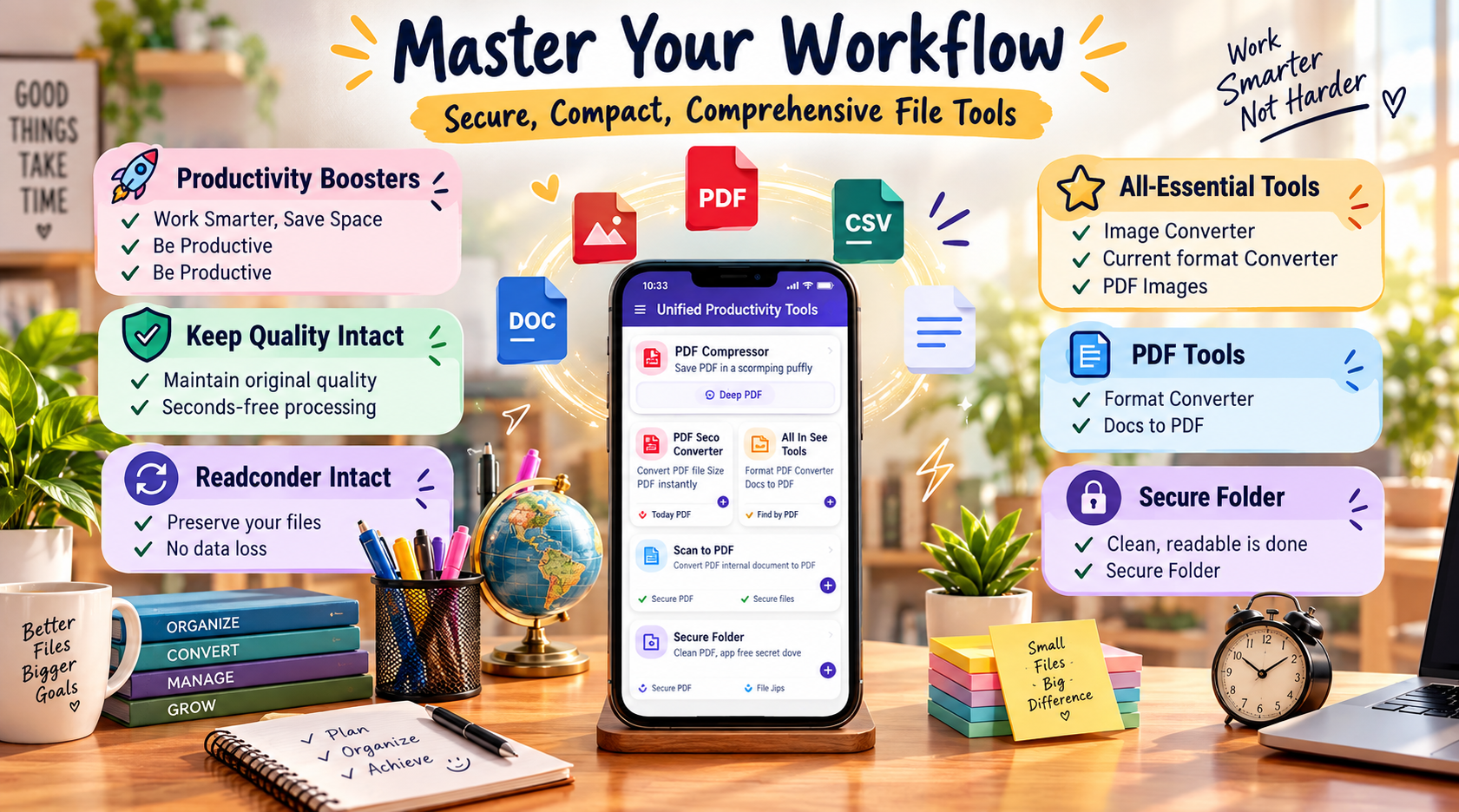
How to Reduce PDF Size for WhatsApp and Email
Sending a large PDF through WhatsApp or email can be frustrating. Large documents take longer to upload, use more mobile data, and may exceed attachment limits. The easiest solution is to compress the PDF and reduce its file size before sharing it.
For personal Gmail accounts, the attachment limit is 25 MB. If the total attachment size is above that limit, Gmail automatically uses a Google Drive link instead of sending the file directly.
On Android, a PDF compressor such as Smart Files can be useful when you want to reduce document size before sharing.
Why Should You Reduce PDF Size?
There are several reasons to make a PDF smaller:
- Faster uploading and downloading
- Easier sharing through messaging apps
- Easier email attachment management
- Less mobile data usage
- Less storage space required
- Faster document uploads to websites
- Easier sharing of scanned documents
- Better performance on slower internet connections
A PDF containing many high-resolution images or scanned pages can become particularly large.
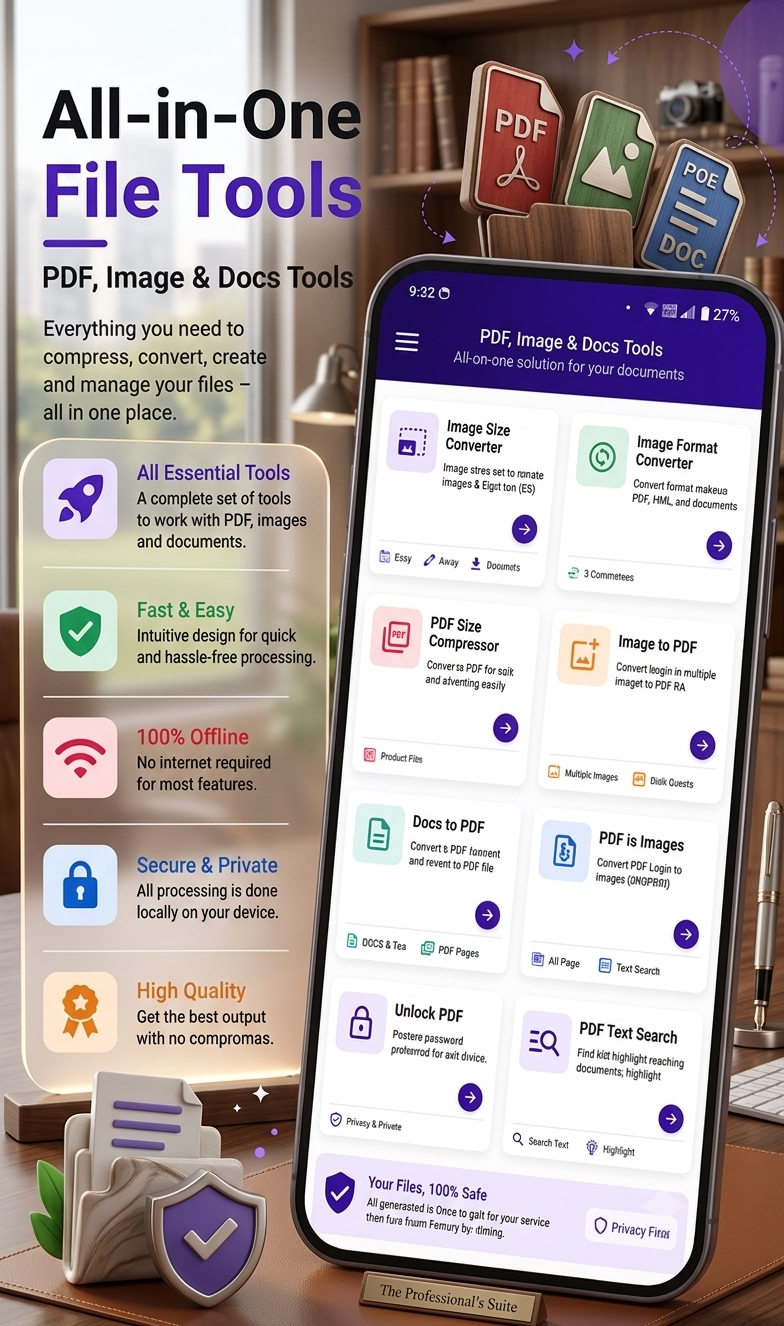
Best app to reduce PDF size for WhatsApp and email
What Makes a PDF File Large?
Before compressing a PDF, it helps to understand what increases its size.
1. High-Resolution Images
PDFs containing photographs or scanned pages can become very large because every image contains a significant amount of data.
2. Scanned Documents
A scanned 20-page document may be considerably larger than a text-based PDF because every page can effectively contain a high-resolution image.
3. Multiple Images
Brochures, assignments, portfolios, invoices and presentations containing many images can quickly increase PDF size.
4. Embedded Fonts and Graphics
Some PDFs contain embedded fonts, illustrations and other resources that contribute to the final file size.
5. Unoptimized Content
A PDF created from several different files may contain unnecessary or duplicated resources, making it larger than necessary.
How to Reduce PDF Size on Android
You can reduce the size of a PDF directly on your Android phone instead of transferring it to a computer.
Step 1: Find Your PDF
Locate the PDF you want to compress in your phone’s storage or Downloads folder.
Best PDF compressor app to make files smaller for WhatsApp
Step 2: Open a PDF Compression Tool
Use a PDF utility app that supports PDF compression.
Step 3: Select the PDF
Choose the document that you want to make smaller.
Step 4: Choose the Compression Level
If the app provides compression options, select an appropriate level.
For documents containing mostly text, stronger compression may be acceptable. For image-heavy documents, moderate compression can help preserve readability.
Step 5: Compress the PDF
Start the compression process and wait for the smaller PDF to be generated.
Step 6: Check the New File Size
Compare the original and compressed PDF sizes.
For example:
Original PDF: 18 MB
Compressed PDF: 7 MB
The exact reduction depends on the PDF’s content.
Step 7: Check the Quality
Open several pages of the compressed PDF. Make sure:
- Text is readable
- Images are still clear enough
- Important details haven’t disappeared
- Tables remain understandable
- Signatures are visible
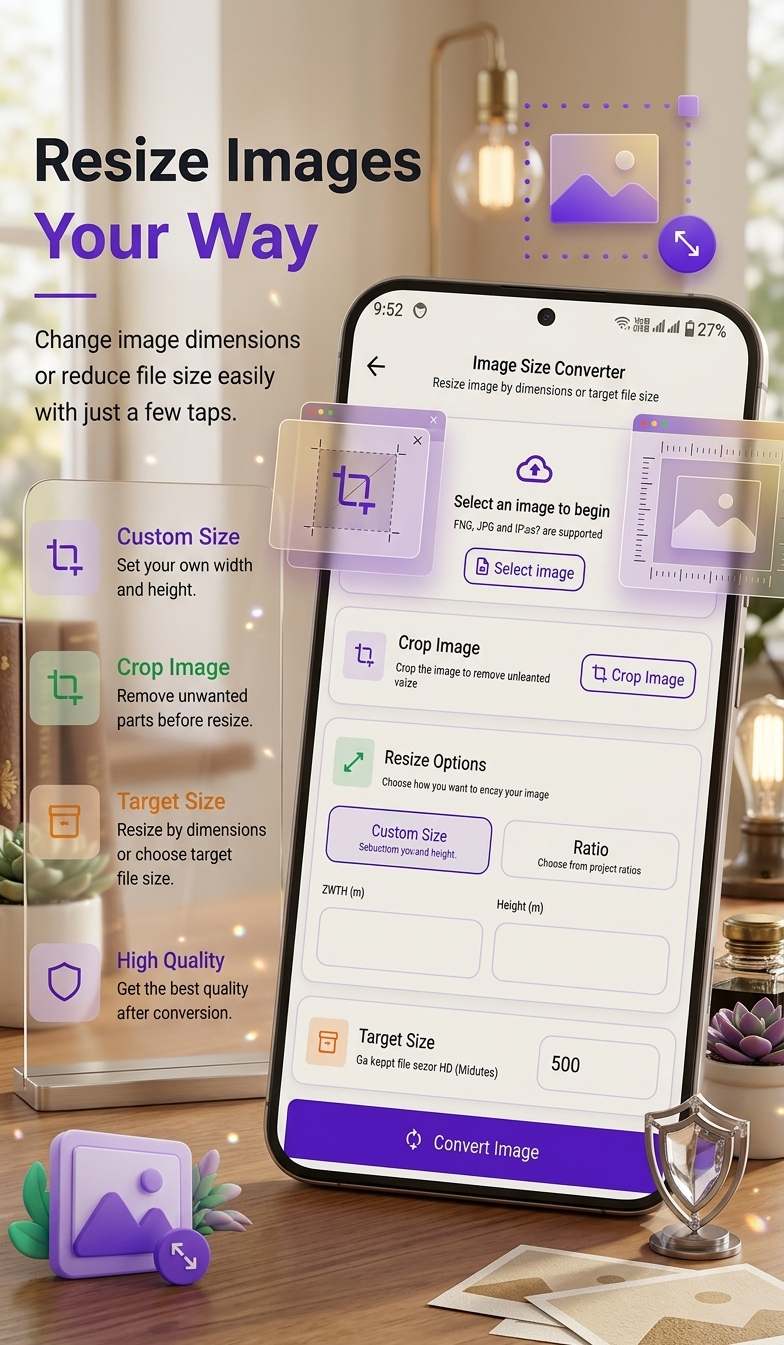
Step 8: Share the Smaller PDF
Once you’re satisfied with the result, share the compressed PDF through WhatsApp, Gmail, Drive or another supported service.
How to Reduce PDF Size for WhatsApp
If you’re preparing a PDF specifically for WhatsApp, compressing the file first can make sharing easier.
A useful workflow is:
PDF → Compress → Check quality → Share as Document
Always use WhatsApp’s Document option when you’re sharing a PDF rather than treating it like a photo.
If a file is too large for the particular sharing route you’re using, reducing its size can also make uploading and downloading more convenient.
Best app to compress PDF files for easy email sharing
Tips for Sending PDFs on WhatsApp
Keep Important Text Clear
Don’t use extremely aggressive compression if the PDF contains small text.
Compress Image-Heavy PDFs
Photo-based PDFs usually benefit more from compression than simple text documents.
Rename the File Clearly
Instead of a name such as document123.pdf, use something descriptive like:
Project_Report_2026.pdf
Check the File Before Sending
Open the compressed version once before sharing it with someone else.
How to Reduce PDF Size for Email
Email is another common reason people need smaller PDFs.
For example, personal Gmail accounts currently allow up to 25 MB of attachments.
If your PDF is larger than the attachment limit, you can either compress it or use cloud storage such as Google Drive. Gmail can automatically convert oversized attachments into Google Drive links.
Best Android app to reduce PDF file size without complicated steps
Simple Email Workflow
- Select the PDF.
- Check its current size.
- Compress the PDF.
- Check the compressed file.
- Open Gmail.
- Create a new email.
- Attach the smaller PDF.
- Add your message.
- Send the email.
How Much Should You Compress a PDF?
There isn’t one perfect compression level for every PDF.
| PDF Type | Suggested Approach |
|---|---|
| Text-only PDF | Moderate compression |
| Scanned documents | Moderate to strong compression |
| Photo-heavy PDF | Moderate compression |
| Certificates | Preserve readability |
| Invoices | Keep text and numbers sharp |
| School assignments | Balance size and quality |
| Presentations | Moderate compression |
| Forms | Prioritize readable text |
The goal isn’t always to create the smallest possible PDF. The goal is to create a PDF that is small enough to share while remaining easy to read.
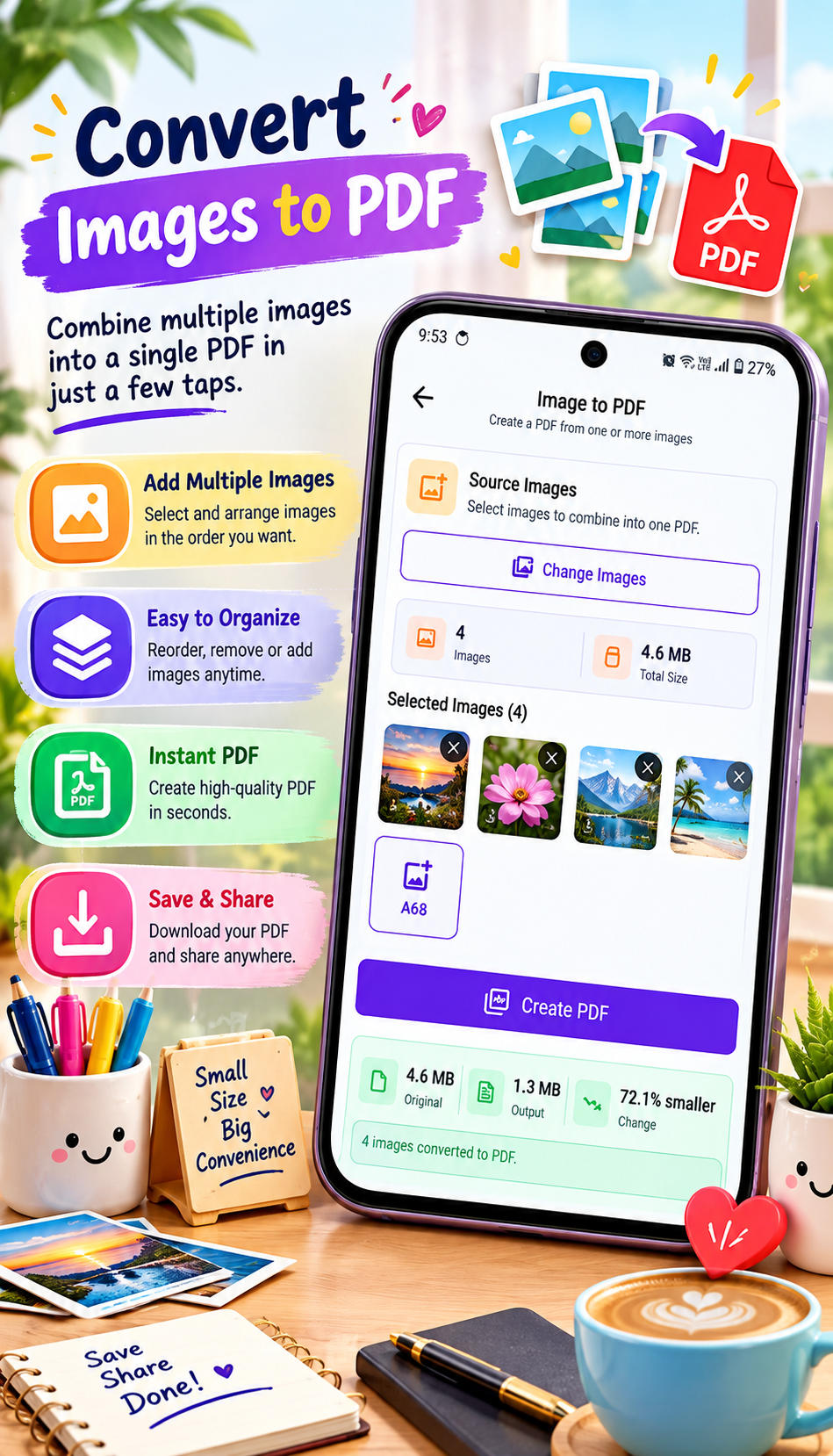
How Smart Files Can Help
If you’re looking for an Android tool for working with PDFs, Smart Files PDF & Image Tools can be included in your Tech Solver recommendations.
You can introduce it naturally in the article as a convenient option for Android users who regularly work with PDF and image files.
Google Play: Smart Files PDF & Image Tools
Benefits of Reducing PDF Size
Faster Sharing
Smaller files generally take less time to upload, especially on slower connections.
Easier Email Attachments
Reducing the file size can help you stay within attachment limits.
Lower Data Usage
Smaller files require less data to transfer.
Easier Storage
Compressed PDFs occupy less space on your phone.
Convenient Document Management
Keeping smaller versions of frequently shared documents can make file management easier.
Best app to compress and manage PDF files on Android
How to Maintain PDF Quality While Compressing
PDF compression doesn’t have to mean poor quality. Follow these tips:
Choose Moderate Compression
Start with moderate compression instead of immediately choosing the strongest setting.
Review Important Pages
Check pages containing small text, tables, photographs or signatures.
Keep an Original Copy
Save the original PDF before compressing it. This gives you a high-quality version whenever you need it.
Don’t Compress Repeatedly
Repeatedly compressing the same PDF can sometimes reduce quality unnecessarily. Keep the original and create a compressed copy for sharing.
Use the Right PDF for the Job
A highly compressed PDF may be perfect for WhatsApp but unsuitable for printing. Keep a high-quality version for printing or official records.
PDF Compression for Students
Students often need to send:
- Assignments
- Project reports
- Notes
- Scanned documents
- Certificates
- Application forms
Large scanned assignments can become difficult to upload. Compressing them before submission can make the upload process easier while keeping the important information readable.
PDF Compression for Work
Professionals may need to share:
- Business reports
- Invoices
- Contracts
- Presentations
- Project documents
- Client files
- Scanned paperwork
A smaller PDF is often easier to attach to an email or send through messaging platforms.
Common Mistakes to Avoid
Compressing Too Much
Extreme compression can make text blurry or images difficult to recognize.
Deleting the Original
Always keep an original copy of important documents.
Ignoring File Quality
Don’t judge a compressed PDF only by its file size. Open it and check the actual content.
Using an Untrusted Online Service for Sensitive Documents
If the PDF contains personal, financial, business or confidential information, think carefully before uploading it to an unknown online compression service.
Forgetting to Check the Final Size
Always check the compressed file before trying to send it.
Frequently Asked Questions
How can I reduce PDF size on Android?
You can use a PDF compression tool on your Android phone. Select the PDF, choose an appropriate compression level and save the smaller version.
How do I make a PDF small enough for email?
Compress the PDF and check its final size before attaching it. Personal Gmail accounts have a 25 MB attachment limit.
How do I reduce PDF size for WhatsApp?
Compress the PDF before sharing it and send the resulting file as a document. Choosing an appropriate compression level can reduce the file size while keeping the document readable.
Does compressing a PDF reduce quality?
It can. The amount of quality loss depends on the compression method and the contents of the PDF. Moderate compression is often a useful balance.
Can I compress a PDF without a computer?
Yes. Android PDF tools can allow you to reduce PDF size directly on your phone.
Should I keep the original PDF?
Yes. For important documents, keep the original high-quality PDF and use a compressed copy for everyday sharing.
Final Thoughts
Reducing PDF size is a simple way to make document sharing easier. Whether you’re sending an assignment on WhatsApp, attaching an invoice to an email, or uploading a scanned document, a smaller PDF can be faster and more convenient to handle.
The best approach is to compress the PDF, check its readability, compare the new file size, and then share it. If you frequently work with PDFs on Android, a PDF utility such as Smart Files PDF & Image Tools can be a useful addition to your toolkit.



Leave a Reply