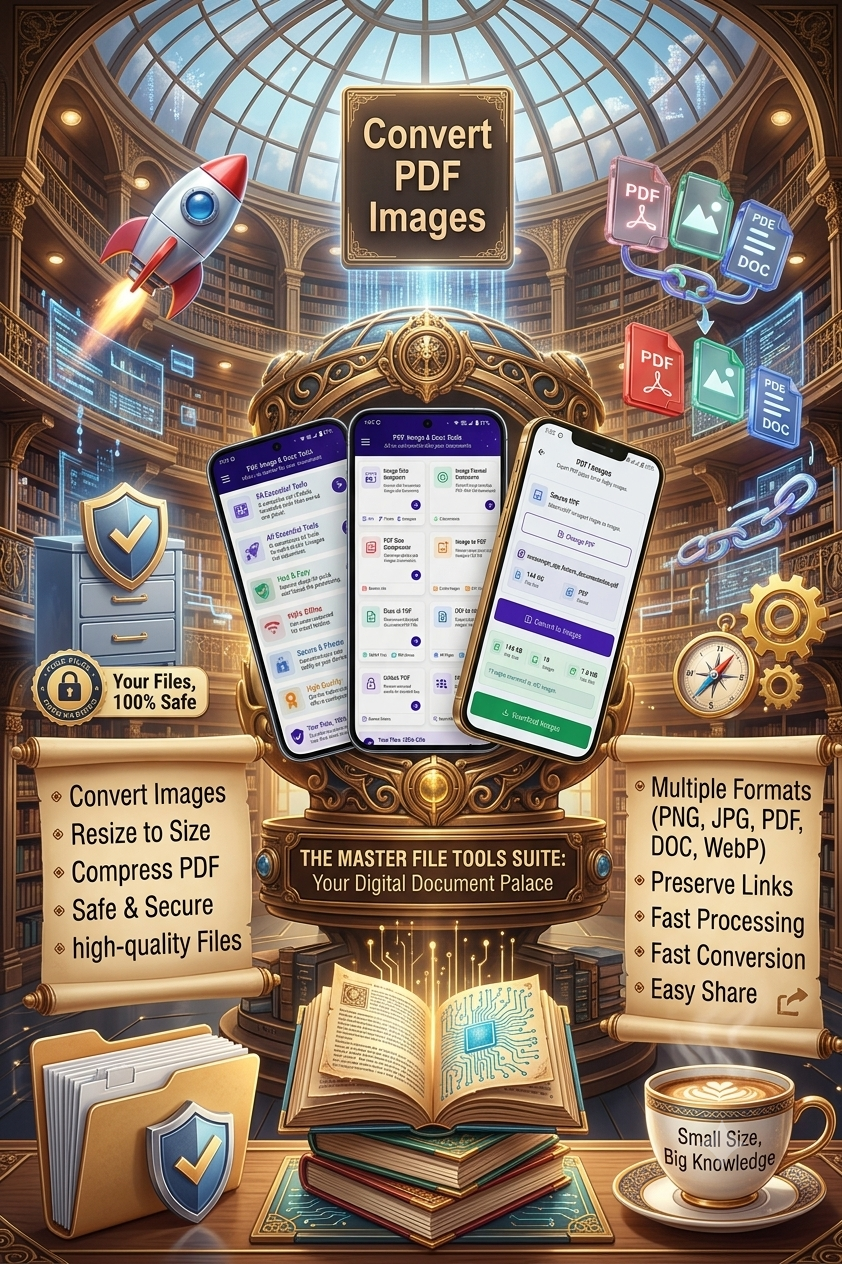
How to Reduce Image Size on Android – Easy Ways to Compress Photos
Large image files can quickly take up storage space and may also be difficult to upload to websites, forms, email, or messaging apps. Fortunately, reducing image size on Android is easy when you use the right image compression or resizing tool.
If you want a simple way to reduce photo file size while keeping the image useful and clear, SmartFiles PDF & Image Tools provides image compression and resizing features in one lightweight app.
📱 What Does “Reduce Image Size” Mean?
Reducing an image size can mean two different things:
1. Reduce File Size
This reduces the amount of storage an image uses.
For example:
Before: 5 MB
After compression: 1.5 MB
The image can still have the same basic dimensions, but the file occupies less storage.
2. Reduce Image Dimensions
This changes the width and height of the image.
For example:
Original: 4000 × 3000 pixels
Resized: 1600 × 1200 pixels
Reducing dimensions can also make the file much smaller.
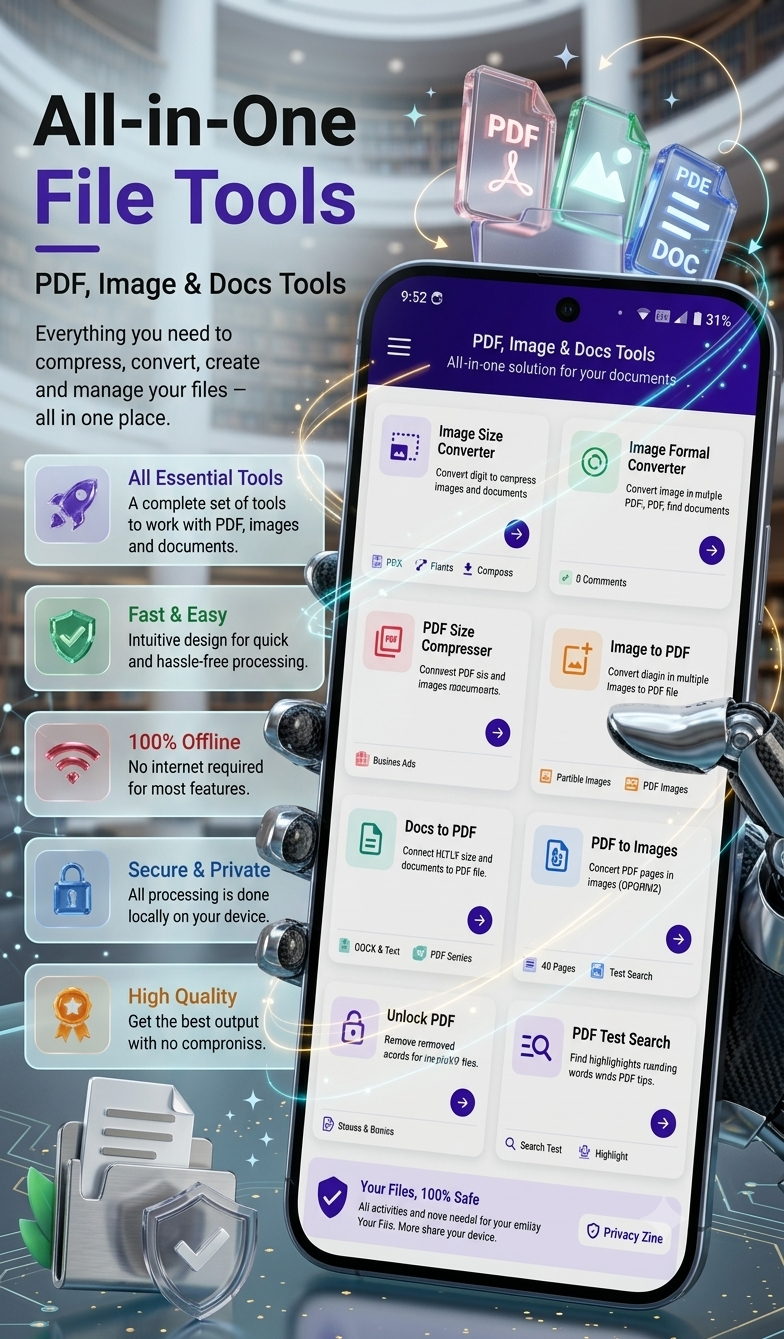
🖼️ Why Should You Reduce Image Size?
There are several reasons to compress or resize images:
- Save phone storage
- Upload photos faster
- Reduce attachment size
- Share images more easily
- Prepare images for websites
- Meet file-size limits on online forms
- Reduce the size of images before creating PDFs
- Make large photos easier to manage
For website owners, bloggers, students, freelancers, and office workers, smaller image files can be especially convenient.
Looking for an easy app to reduce image size on Android? Try SmartFiles PDF & Image Tools.
📲 How to Reduce Image Size on Android
One simple approach is to use an image compression and resizing app such as SmartFiles PDF & Image Tools.
Step 1: Install SmartFiles
Download SmartFiles PDF & Image Tools from Google Play.
App: SmartFiles PDF & Image Tools
Developer: tech solver official
Category: Tools
Download SmartFiles from Google Play
Step 2: Select Your Image
Open the app and choose the image you want to make smaller.
You can use a photo from your phone’s storage or gallery, depending on the available file-selection options.
Step 3: Choose Image Compression or Resize
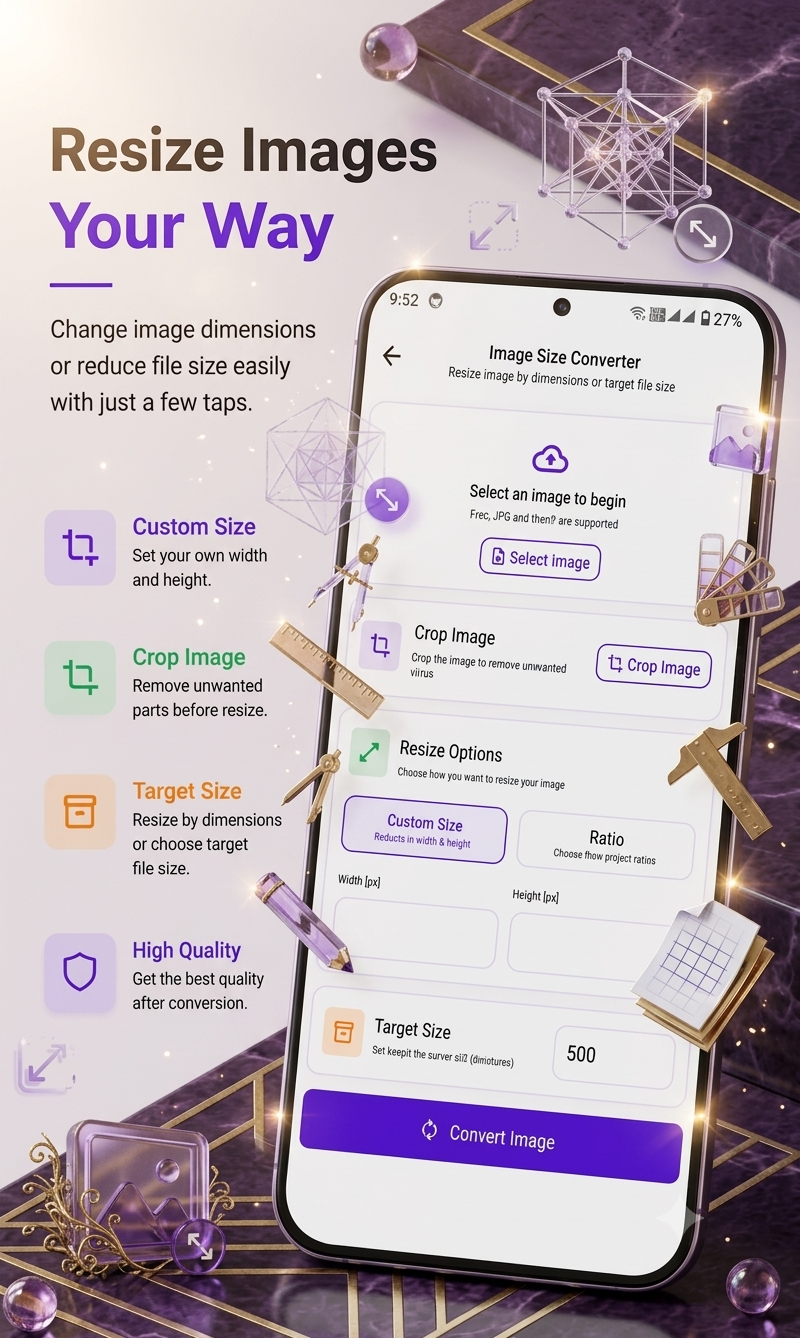
SmartFiles includes an Image Compressor as well as an Image Size Converter and Image Crop & Resize tool.
Choose the option that matches your requirement.
If you mainly want to reduce the file size, use compression.
If the image dimensions are unnecessarily large, resize the image.
Step 4: Adjust the Image
When resizing, you can use a custom width and height.
For example, a very large photograph could be reduced to a more practical resolution for sharing or uploading.
Step 5: Save the Smaller Image
After processing, save the resulting image on your device.
You can then use the smaller image for:
- Websites
- Blogs
- Online forms
- Email attachments
- Social media
- Documents
- Messaging
- PDF creation
🔄 Compressing vs Resizing an Image
Compression and resizing are related but different.
| Feature | Compression | Resizing |
|---|---|---|
| Reduces file size | Yes | Usually |
| Changes dimensions | Not necessarily | Yes |
| Useful for uploads | Yes | Yes |
| Can reduce storage | Yes | Yes |
| Changes width/height | Usually no | Yes |
For the best result, you may sometimes want to resize a very large image and then compress it.
Want to compress photos without complicated steps? Use SmartFiles to reduce image size on Android.
⭐ SmartFiles Image Features
According to its Google Play listing, SmartFiles includes several useful image tools:
Image Compressor
Compress images while maintaining high quality.
Image Size Converter
Resize images using custom width and height.
Image Crop & Resize
Crop unwanted portions of an image and resize it before saving.
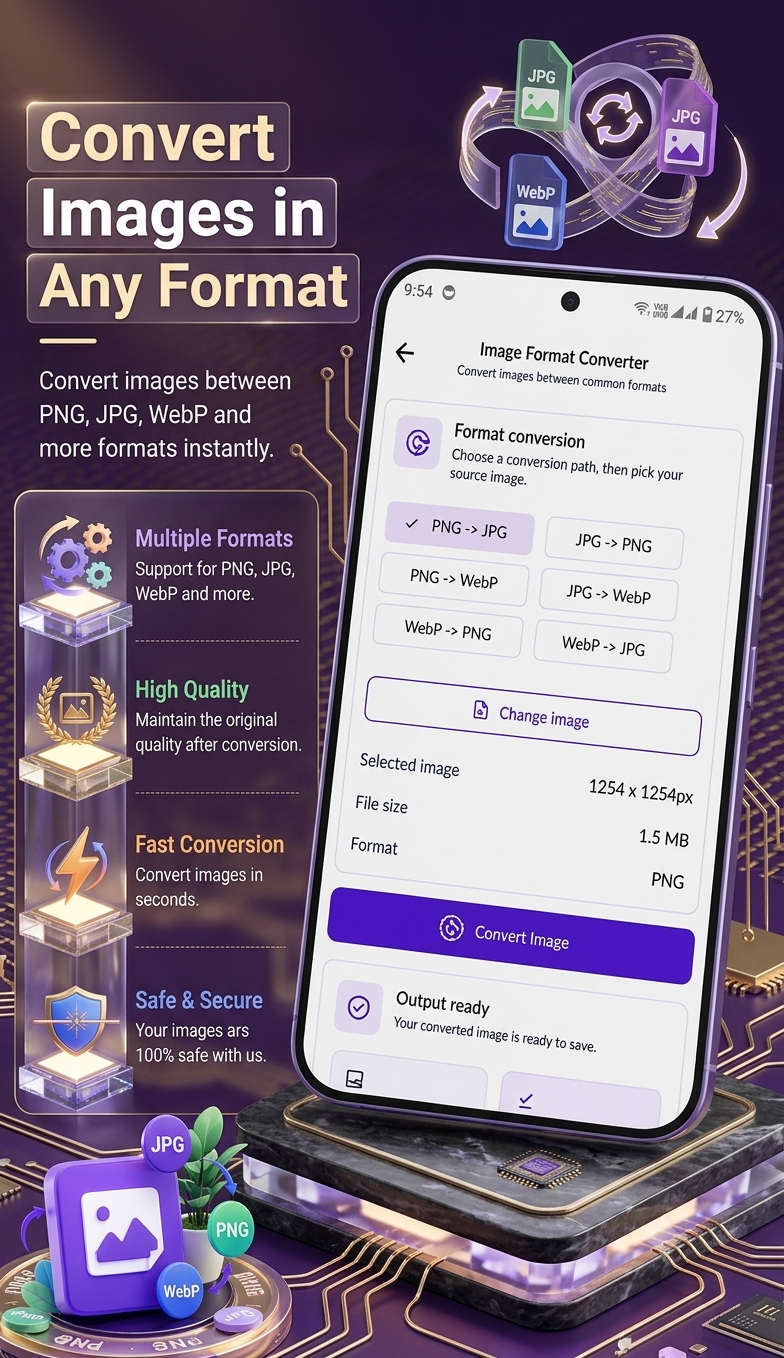
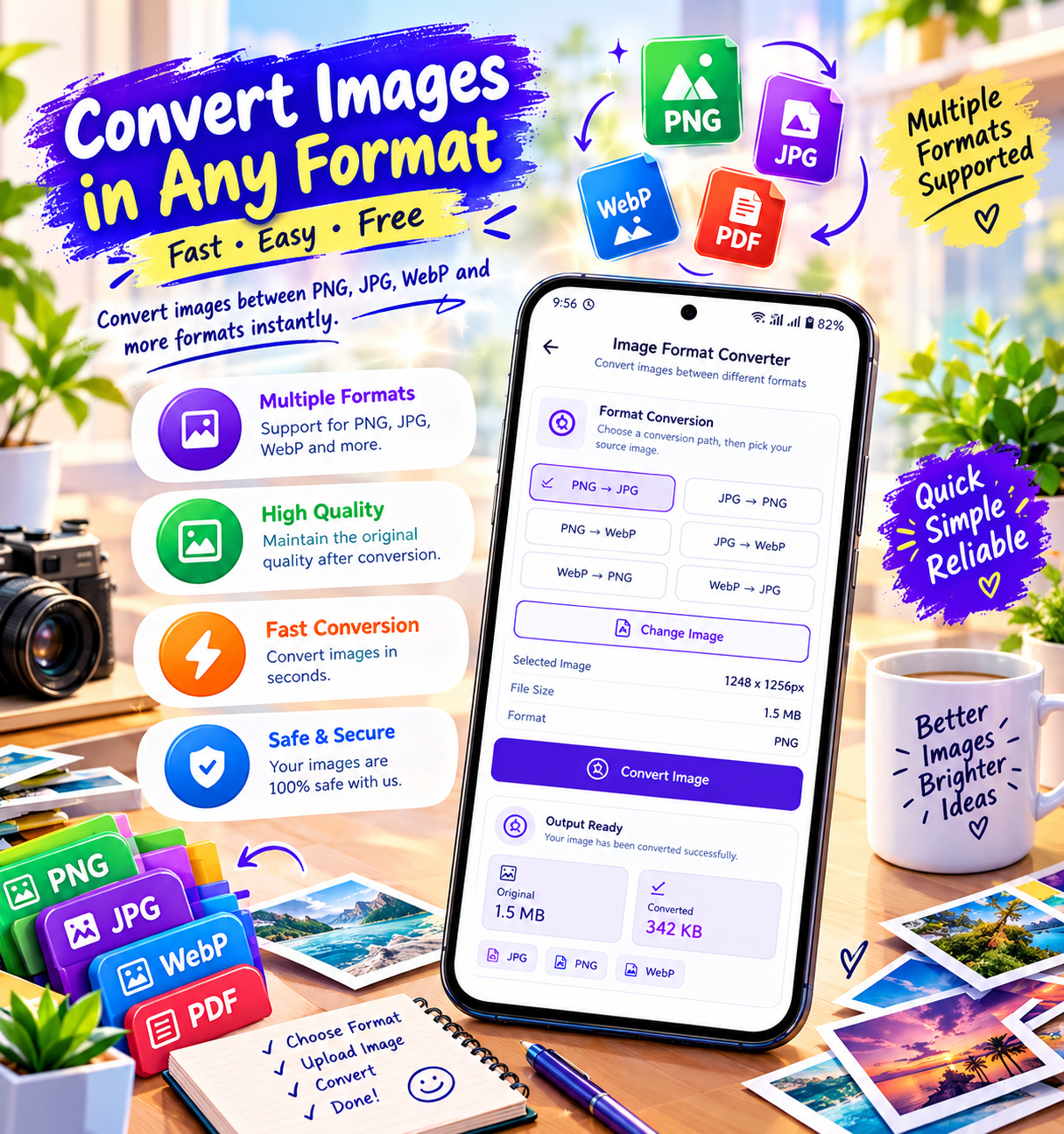
Image Format Converter
Convert between JPG, PNG, and WebP formats.
Image to PDF
Create PDF files from one or multiple images.
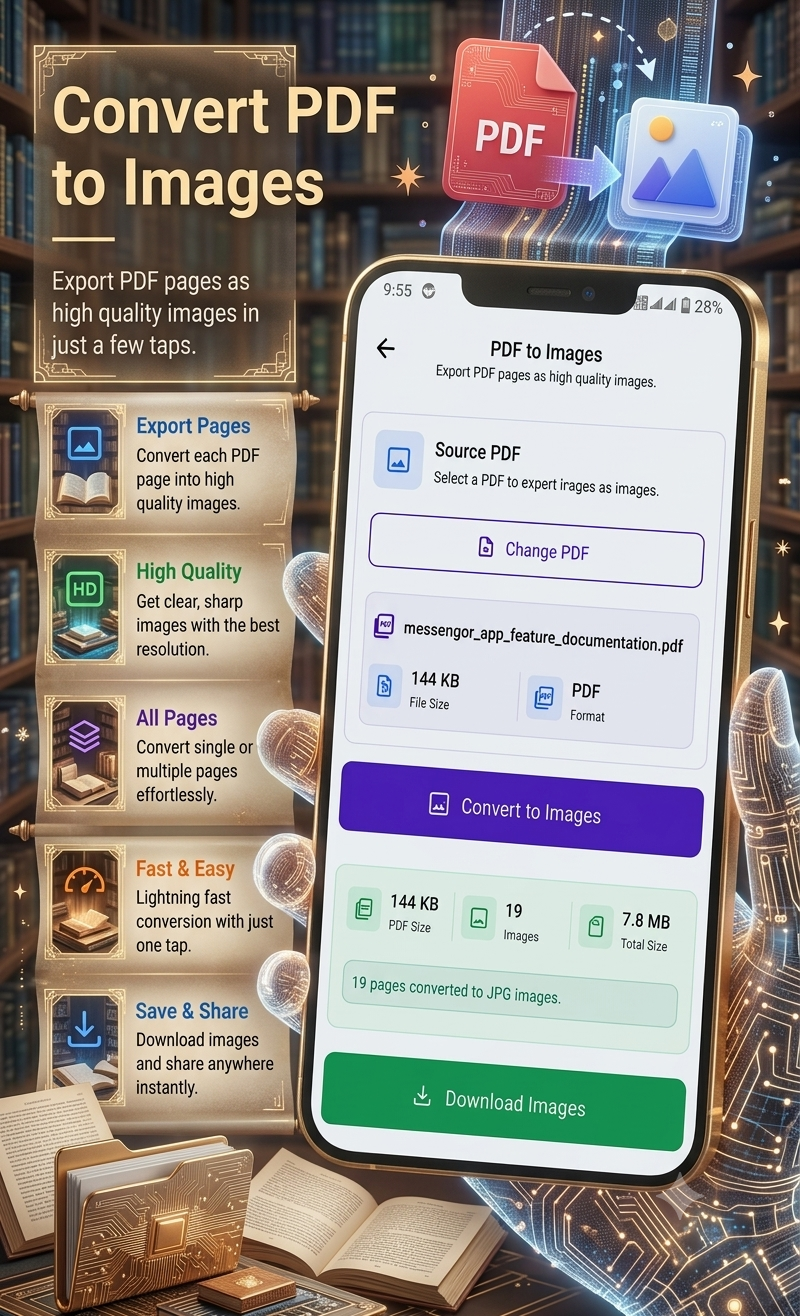
PDF to Image
Convert PDF pages into images.
SmartFiles is a useful app to compress and resize images on Android quickly.
💡 Tips for Reducing Image Size Without Losing Too Much Quality
Choose the Right Dimensions
Don’t keep a photo at an unnecessarily large resolution if you only need it for a website or online form.
Use Compression Carefully
Very aggressive compression can reduce image quality. Try to find a balance between file size and visual quality.
Choose an Appropriate Format
Different image formats can produce different file sizes. SmartFiles supports JPG, PNG, and WebP conversion.
Crop Unnecessary Areas
If a photograph contains large areas that aren’t needed, cropping can reduce the overall image dimensions.
Keep the Original
Before heavily compressing an important photograph, keep a copy of the original high-quality file.
👩💻 Who Can Use an Image Size Reducer?
An image compression tool can be useful for many people.
Students
Reduce images before submitting assignments or documents online.
Bloggers
Resize large photographs before adding them to articles.
Freelancers
Prepare images for clients and online platforms.
Office Workers
Reduce image sizes before attaching files to emails or documents.
Business Users
Make product and business images easier to upload and share.
Everyday Android Users
Save storage space and share large photographs more conveniently.
🔐 Does SmartFiles Work Offline?
The Google Play listing says that SmartFiles performs most file processing directly on the device and that most features work offline. It also describes the app as using on-device file processing and requiring no account.
This can be useful when you want to work with files without depending on an internet connection.
If you need an easy way to reduce photo size, try SmartFiles PDF & Image Tools.
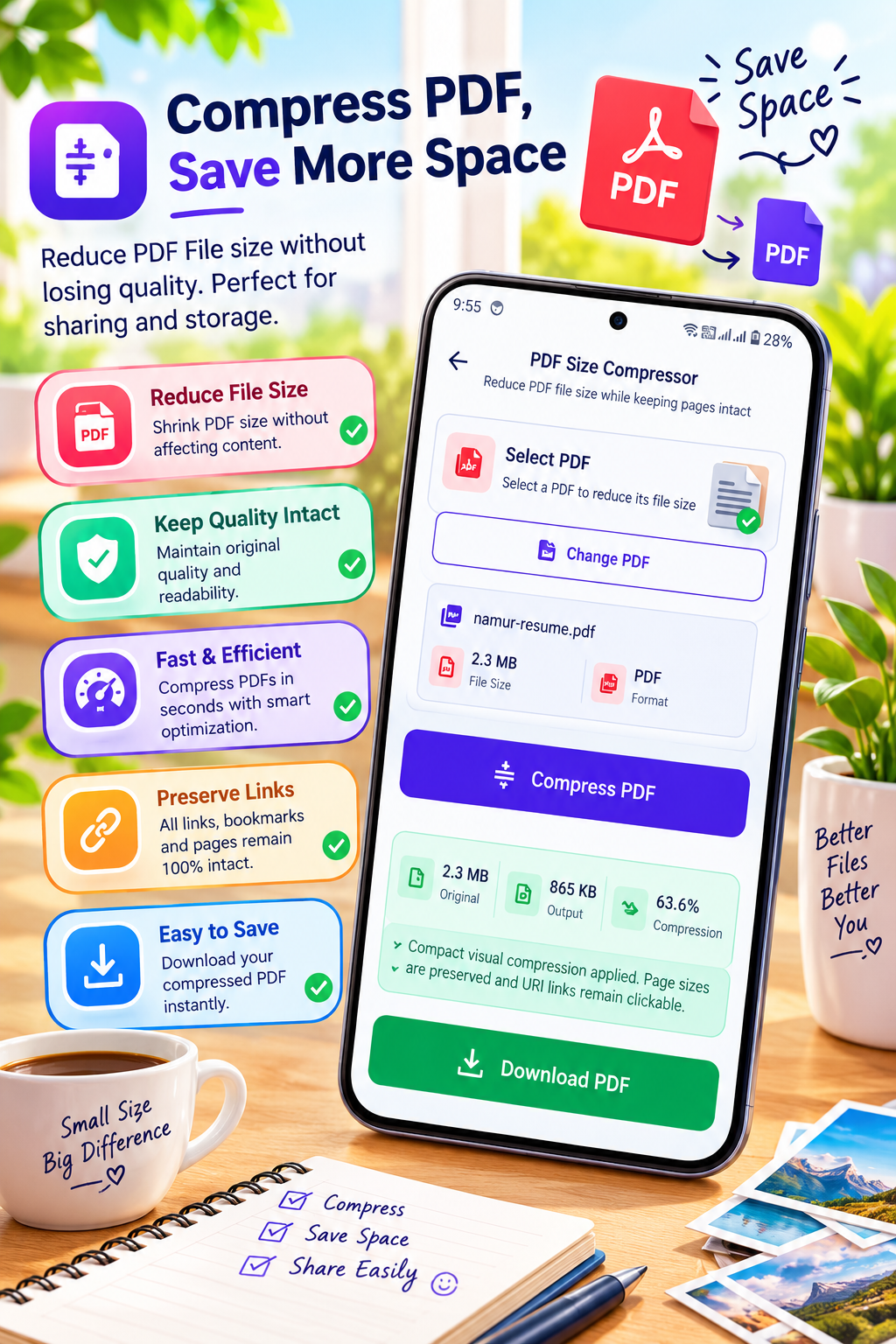
📄 More Than an Image Compressor
SmartFiles isn’t limited to image resizing and compression.
It also includes PDF and document utilities such as:
- PDF compression
- PDF to image conversion
- Image to PDF
- PDF text search
- PDF password unlocking
- DOC/DOCX to PDF
- TXT to PDF
These features make it useful when you regularly work with different types of documents and images.
🚀 Why Use SmartFiles for Image Compression?
SmartFiles brings several file-related tools together in one application.
Some of the features highlighted on Google Play include:
- Image compression
- Custom image resizing
- Image cropping
- JPG/PNG/WebP conversion
- Image-to-PDF conversion
- PDF compression
- Offline processing for most features
- No account required
- Lightweight file utilities
Instead of using separate apps for every small file task, you can use one application for multiple image and document requirements.
📌 Quick Example
Suppose you have a 6 MB camera photo that needs to be uploaded to a website with a smaller file-size limit.
You can:
Select the photo → Compress or resize it → Save the processed image → Upload the smaller file.
If the dimensions are unnecessarily large, resizing first can also make the resulting file easier to handle.
⚠️ Things to Remember
Image compression can affect quality, especially when using strong compression.
For important photographs:
- Keep the original
- Don’t over-compress
- Check the final image before deleting the original
- Choose dimensions appropriate for your purpose
For simple website uploads or document attachments, a moderately compressed image may be sufficient.
🎯 Final Thoughts
Reducing image size on Android doesn’t have to be complicated. Whether you want to save storage, upload a photo to a website, send an attachment, or prepare images for a PDF, compressing or resizing the image can make the process easier.
SmartFiles PDF & Image Tools combines image compression, resizing, cropping, format conversion, PDF creation, and other file utilities in one Android application. According to its Google Play listing, most of its file processing works offline and directly on the device.
If you regularly work with images, PDFs, or documents on your Android phone, SmartFiles can provide several useful file-management tools in one place.



Leave a Reply