📄 How to Merge Multiple PDF Files on Android
Merging multiple PDF files into one document is useful when you have separate notes, assignments, invoices, reports, forms, certificates, or other documents that need to be organized together.
Instead of transferring files to a computer, Android users can use a PDF utility app to combine several PDF files into a single document directly from their phone.
In this guide, we’ll explain how to merge multiple PDF files on Android, how to arrange the files correctly, and some useful tips for creating a clean final PDF.
📌 What Does Merging PDF Files Mean?
Merging PDF files means combining two or more separate PDF documents into one single PDF file.
For example:
- PDF 1 – Cover Page
- PDF 2 – Introduction
- PDF 3 – Main Document
- PDF 4 – Additional Information
- PDF 5 – Conclusion
After merging, these can become one organized document:
Final PDF → Cover + Introduction + Main Document + Additional Information + Conclusion
This can make documents easier to store, send, print, and share.
📱 Why Merge PDFs on Android?
There are many situations where merging PDFs directly on your phone can be helpful.
🎓 For Students
Students may have separate PDFs containing:
- Class notes
- Assignments
- Question papers
- Study materials
- Project documents
Combining them into one PDF can make everything easier to manage.
💼 For Office Work
Professionals can combine:
- Reports
- Invoices
- Business documents
- Presentations
- Forms
- Supporting documents
into a single file before sharing it with colleagues or clients.
📑 For Applications
If an application requires several supporting documents, you can combine them into one PDF when the receiving organization requests a single file.
🧾 For Personal Documents
You may also want to combine:
- Bills
- Receipts
- Certificates
- Scanned documents
- ID-related paperwork
into one organized PDF.
🔧 How to Merge Multiple PDF Files on Android
The general process is simple.
Step 1: Install a PDF Utility App
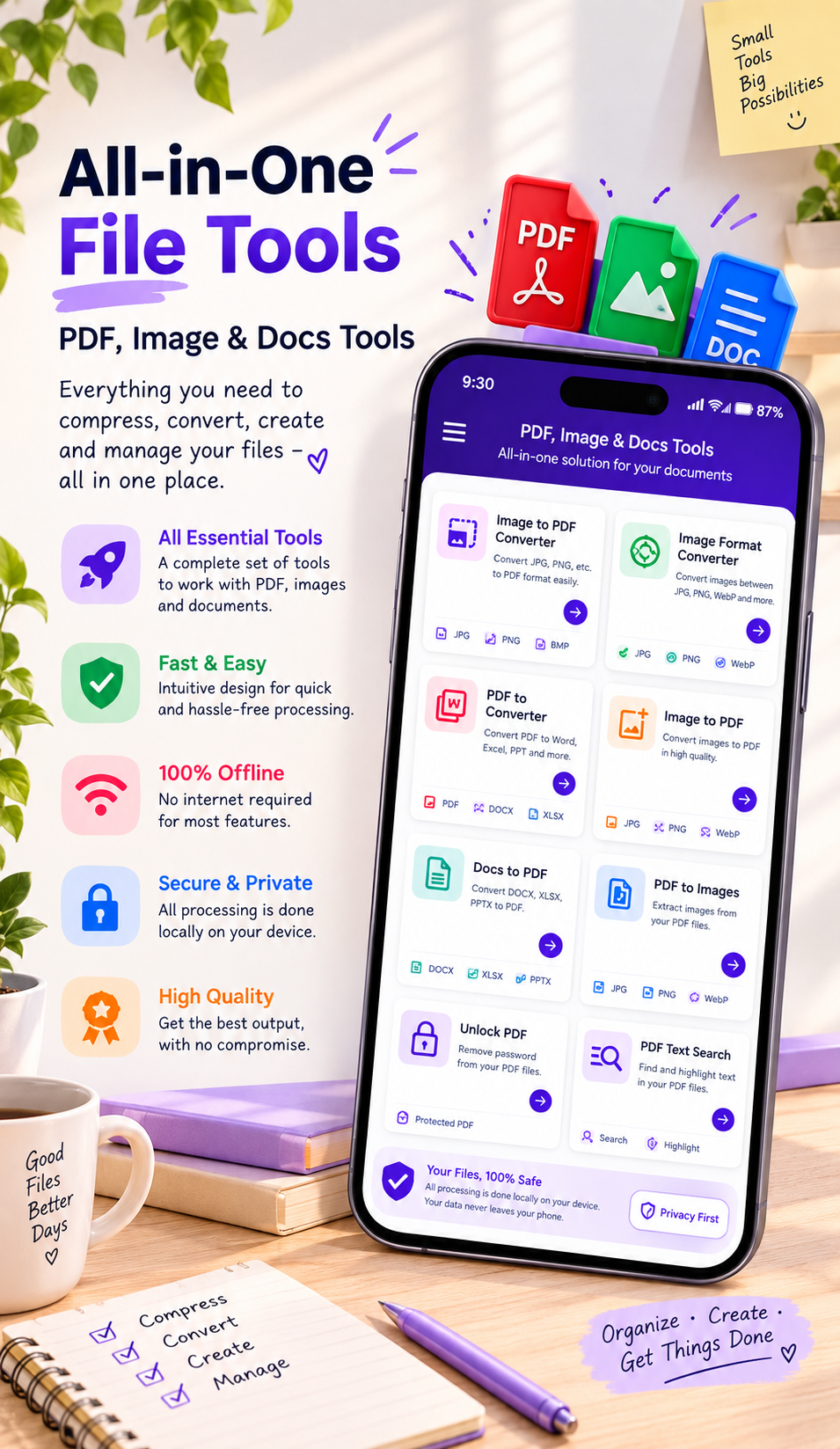
First, install a suitable PDF management app on your Android phone.
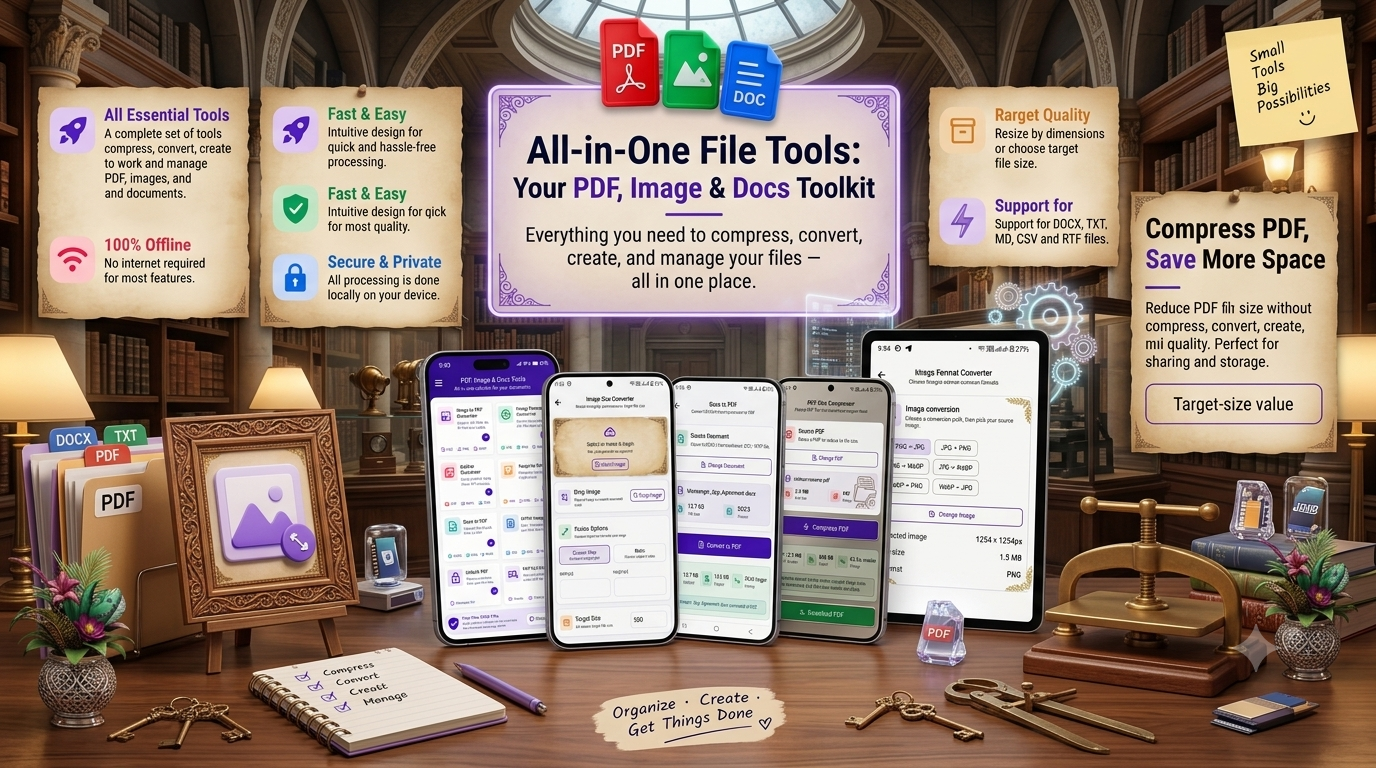
For the Tech Solver listing, you can direct readers to the SmartFiles PDF & Image Tools app:
Download SmartFiles PDF & Image Tools on Google Play
Step 2: Open the PDF Tool
Open the app after installation and look for the PDF management or merge option.
Depending on the app version, the feature may be labelled something like:
Merge PDF / Combine PDF / PDF Merge
Step 3: Select Your PDF Files
Choose the PDF documents that you want to combine.
For example:
Notes.pdfAssignment.pdfProject.pdf
Select all the files you need.
Step 4: Arrange the PDF Order
The order of your files is important.
For example:
Cover → Notes → Assignment → References
If the app provides a reorder option, move the files into the correct sequence before creating the final document.
Step 5: Merge the Files
After checking the order, tap the merge/combine button.
The app will process the selected PDF files and create a new combined document.
Step 6: Save the New PDF
Give your merged PDF a useful name.
For example:
College_Project_Final.pdf
or
Office_Report_September_2026.pdf
Saving files with meaningful names makes them easier to find later.
Want an easy way to 📄 combine multiple PDF files on Android? Check out SmartFiles PDF & Image Tools.
Step 7: Open and Check the Final PDF
Don’t immediately share the document.
Open the newly created PDF and check:
- Page order
- Missing pages
- Text visibility
- Images
- Formatting
- Page orientation
If everything looks correct, your merged PDF is ready to share.
📂 Example: Merge 5 PDFs Into One
Suppose you have these five files:
Cover.pdfIntroduction.pdfChapter-1.pdfChapter-2.pdfReferences.pdf
Select all five files and arrange them in this order:
Cover → Introduction → Chapter 1 → Chapter 2 → References
After merging, you’ll have:
Complete_Project.pdf
This is much easier to share than sending five separate attachments.
⭐ Benefits of Merging PDFs on Android
1. Saves Time
You don’t need to transfer documents to a computer just to combine them.
2. Keeps Documents Organized
Multiple related files can be stored as one document.
3. Easier Sharing
Instead of sending several PDF attachments, you can send one combined PDF when appropriate.
4. Useful for Students
Study materials, assignments, and project documents can be combined into one file.
5. Useful for Professionals
Reports and supporting documents can be organized into a single PDF.
6. Convenient for Mobile Users
You can manage documents while travelling or away from your computer.
📄 Things to Check Before Merging PDFs
Before combining your files, check the following.
✔ Check File Names
Use meaningful names such as:
Chapter-1.pdfChapter-2.pdfReferences.pdf
This makes it easier to arrange them correctly.
✔ Check the Page Orientation
Some PDFs may contain portrait pages while others are landscape.
Check the final document after merging.
✔ Check the File Order
Make sure the pages appear in the sequence you want.
✔ Check the Final File Size
If you combine several large PDFs, the resulting document can also become large.
A PDF compression tool can be useful afterward if you need a smaller file for sharing.
✔ Keep a Backup
If the original PDFs are important, keep copies before making major changes.
🔐 Is It Safe to Merge PDFs on a Phone?
It depends on the tool you use and how it processes files.
For sensitive documents, pay attention to the app’s privacy information and whether files are processed locally or uploaded to an external service.
For example, Adobe’s current mobile documentation says its Combine Files workflow uses Adobe cloud storage and requires an active internet connection.
Therefore, if you are working with confidential documents, it’s worth checking the app’s current privacy policy and data-safety information before processing them.
📱 When Should You Merge PDFs?
Merging PDFs is particularly useful when:
- You have multiple chapters of a project
- You have several class notes
- You need to submit multiple documents as one file
- You want to combine invoices
- You want to organize receipts
- You have multiple scanned documents
- You want to create a single report
- You need to share several related PDFs together
💡 Tips for Creating a Better Merged PDF
Tip 1: Rename Files Before Selecting Them
Clear file names make the correct order easier to identify.
Tip 2: Put the Most Important Document First
If there is a specific reading order, place the main document or cover page first.
Tip 3: Review the Final PDF
Always open the merged document before sending it.
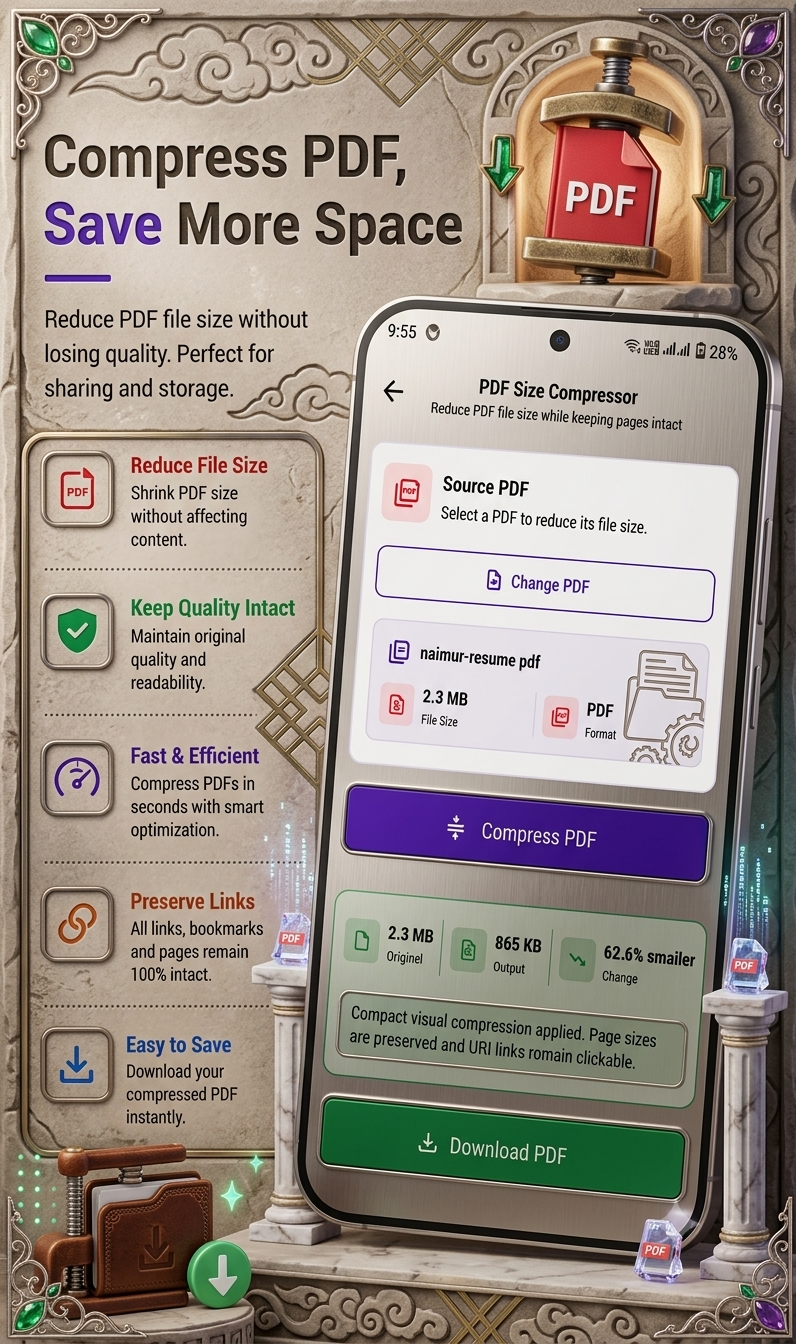
Tip 4: Compress Large PDFs
If the resulting file is too large, consider compressing it before uploading or sharing.
Tip 5: Keep the Original Documents
Don’t delete the original PDFs until you’ve confirmed that the merged version is correct.
🆚 Merging PDFs vs Sending Multiple PDFs
| Feature | Multiple PDFs | One Merged PDF |
|---|---|---|
| Number of files | Several | One |
| Organization | Can be harder | Easier |
| Sharing | Multiple attachments | Single attachment |
| Reading order | Separate files | Continuous document |
| Storage management | More files | Fewer files |
| Project submission | Depends on requirements | Convenient when one file is requested |
Always follow the recipient’s instructions—for example, some websites specifically require separate uploads rather than one combined document.
🎯 Who Can Benefit From a PDF Merger?
Students
Combine assignments, notes, projects, and study materials.
Teachers
Organize worksheets, notes, and teaching resources.
Office Workers
Combine reports, invoices, forms, and supporting documents.
Freelancers
Create organized client documents and reports.
Small Businesses
Combine invoices, receipts, and business paperwork.
Everyday Android Users
Keep important documents together without needing a computer.
📥 Download the PDF Tool
If you’re looking for an Android app to help manage PDF and image-related tasks, you can check out the SmartFiles PDF & Image Tools listing here:
SmartFiles PDF & Image Tools – Google Play
📝 Final Thoughts
Merging multiple PDF files on Android is a convenient way to organize documents without depending on a desktop computer. Whether you’re combining study notes, project chapters, office reports, invoices, or scanned paperwork, creating one organized PDF can make the documents easier to manage and share.
Before sending your final file, always check the page order, formatting, file size, and privacy considerations. With the right PDF utility, the entire process can be completed directly from your Android phone.



Leave a Reply