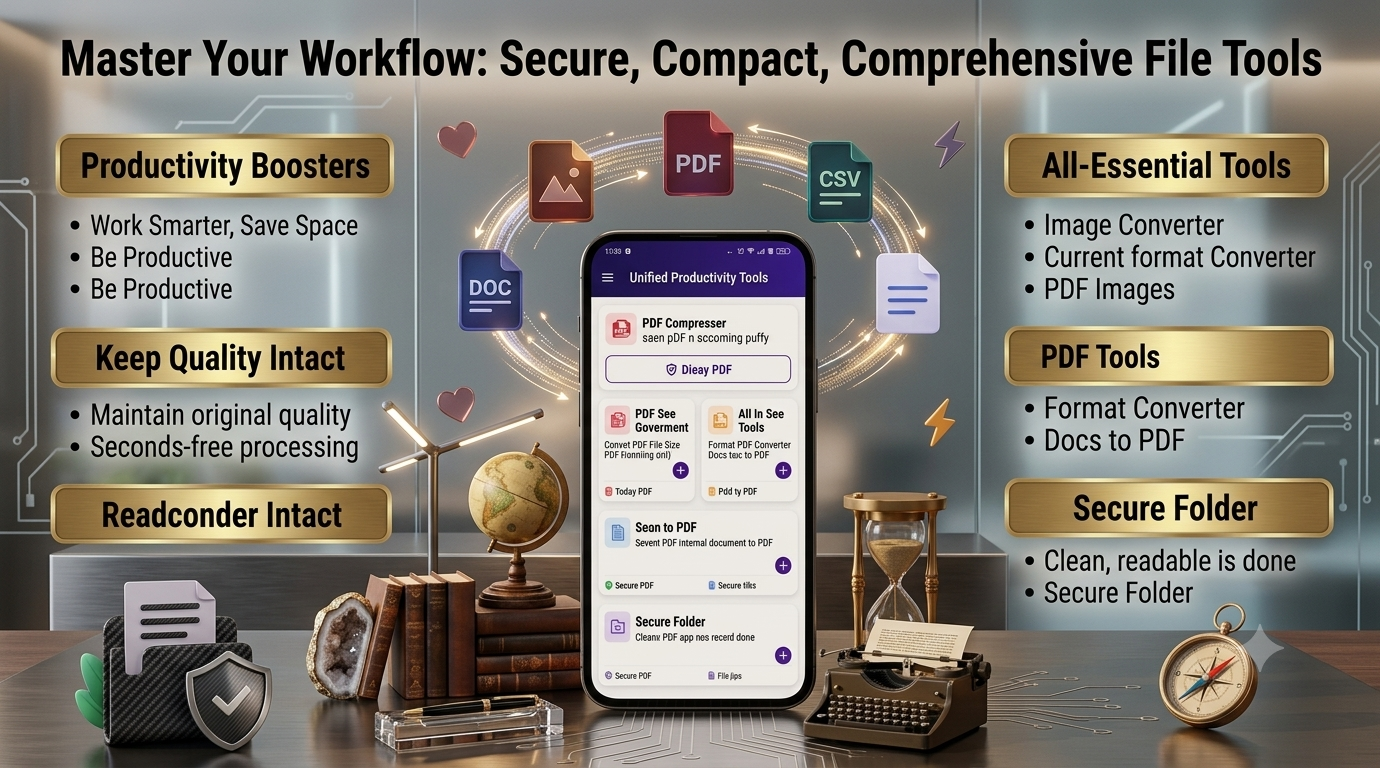
📄 Best PDF Tools for Android in 2026
Managing PDF documents on a smartphone has become much easier. Whether you need to read a document, reduce PDF size, merge multiple files, convert images into PDF, or organize important documents, having a reliable PDF tool can save time.
In 2026, Android users can choose from many PDF apps offering different combinations of reading, editing, scanning, converting, merging, splitting, and compression features. For example, current Google Play listings show apps offering combinations such as PDF editing, scanning, merging, splitting, conversion and compression.
📱 What Are PDF Tools?
PDF tools are applications that help you perform different tasks with PDF documents directly from your Android phone.
Depending on the app, you may be able to:
- 📖 Read PDF documents
- ✏️ Edit or annotate PDFs
- 🗜️ Compress large PDF files
- 🔗 Merge multiple PDF files
- ✂️ Split PDF documents
- 🖼️ Convert images to PDF
- 📷 Scan documents into PDF
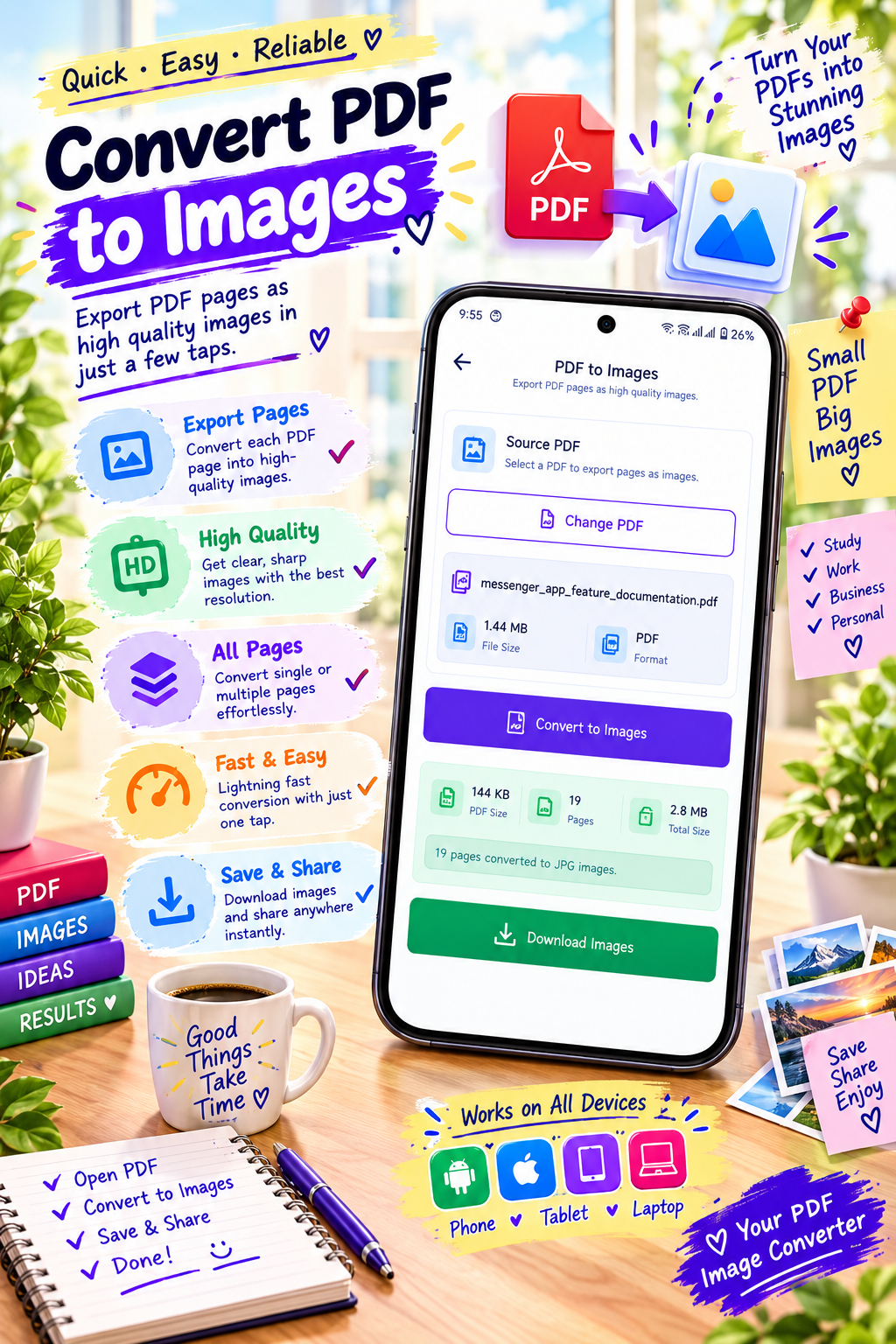
- 🔄 Convert PDF pages into images
- 🔐 Protect important PDF files
- ✍️ Add signatures or notes
- 📂 Organize PDF documents
Google’s Files by Google app also lets Android users open and manage PDFs, including sharing and organizing them.
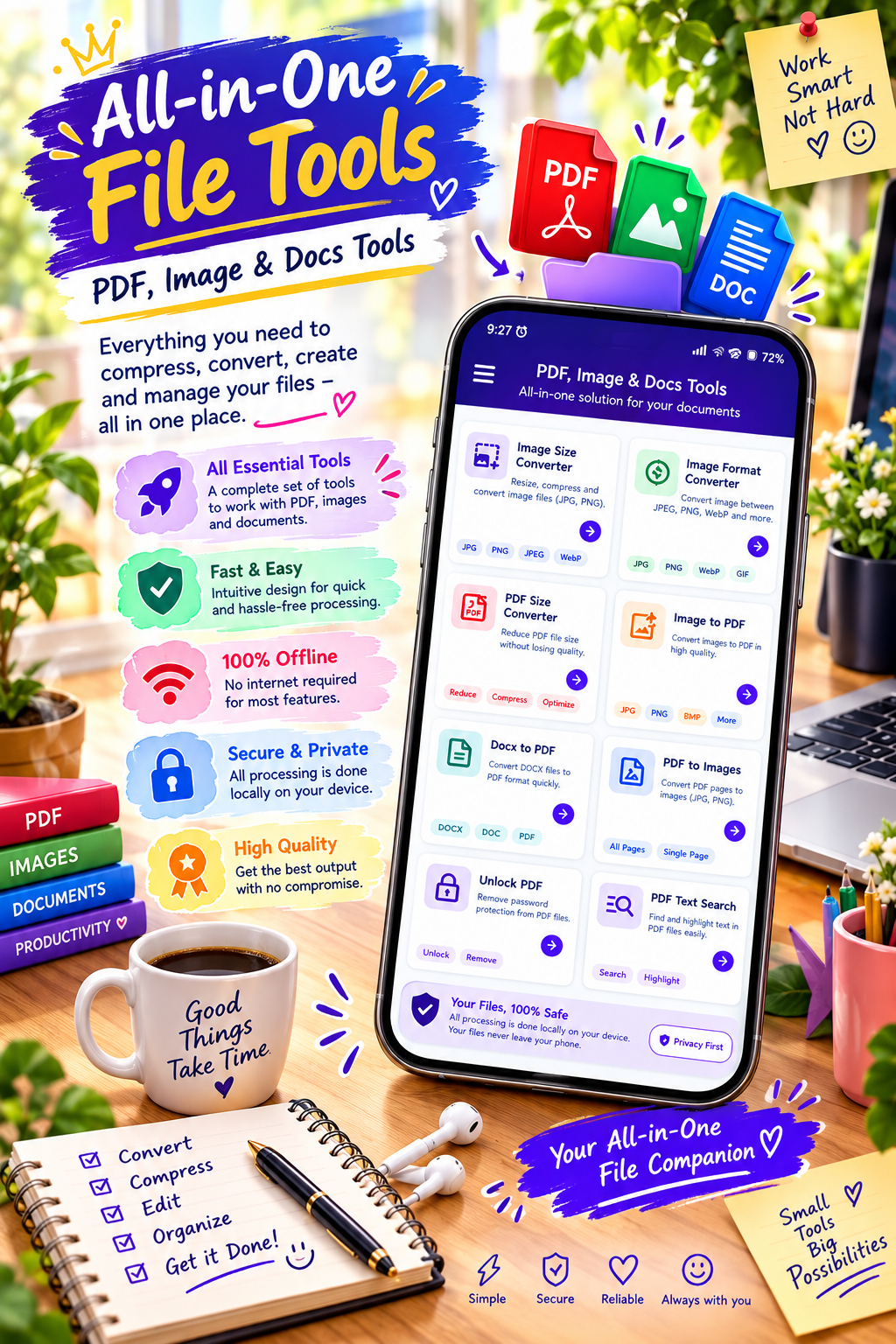
⭐ Why Do You Need PDF Tools on Android?
Many people receive PDF files through email, messaging apps, websites, school platforms, and workplaces.
Instead of transferring every document to a computer, a PDF tool allows you to handle many everyday tasks directly from your phone.
1. Easy PDF Reading
A PDF reader lets you open documents quickly and navigate through pages using your phone.
This can be useful for:
- E-books
- Study materials
- Office documents
- Bills
- Receipts
- Application forms
- Reports
2. Reduce PDF File Size
Large PDF files can be difficult to upload or share.
A PDF compression tool can reduce the file size while attempting to maintain readable document quality.
This is particularly useful when submitting documents through websites with file-size limits.
Best app to use PDF tools on Android in 2026
3. Merge Multiple PDFs
Sometimes information is divided into several PDF files.
A merge function can combine them into one document, making it easier to store, share, and organize.
For example:
Chapter 1 PDF + Chapter 2 PDF + Chapter 3 PDF → One PDF
4. Convert Images to PDF
If you have several photos of documents, you can convert them into a PDF.
This can be useful for:
- Notes
- Receipts
- Assignments
- Forms
- Certificates
- Bills
- Scanned documents
5. Organize Documents
A good PDF app can make it easier to locate important files and manage documents from one place.
🔥 Important PDF Tools to Look for in 2026
When choosing a PDF app for Android, consider the features you actually need.
📖 PDF Reader
A PDF reader should make it easy to:
- Open PDF files
- Zoom in and out
- Move between pages
- Search documents
- Share files
Some current Android PDF apps also provide bookmarks, annotations, and document management features.
✏️ PDF Editor
PDF editing features can include:
- Adding text
- Highlighting
- Underlining
- Drawing
- Adding notes
- Adding signatures
Not every PDF app provides the same editing capabilities, so check the individual app’s feature list before installing.
🔗 Merge PDF
If you frequently work with multiple PDF documents, a merge function can be very useful.
For example:
Invoice 1 + Invoice 2 + Invoice 3 → One PDF
✂️ Split PDF
Splitting lets you extract selected pages or divide a large document into smaller files.
This can be helpful when you only need a few pages from a long PDF.
Best PDF tools app for Android phones
🗜️ Compress PDF
PDF compression is useful when a document is too large to send or upload.
Some Android PDF apps offer different compression levels so users can balance file size and quality.
📷 Scan to PDF
Some PDF applications can use the phone’s camera to scan physical documents and create PDFs.
This can be useful for:
- Receipts
- Notes
- Assignments
- Forms
- Office paperwork
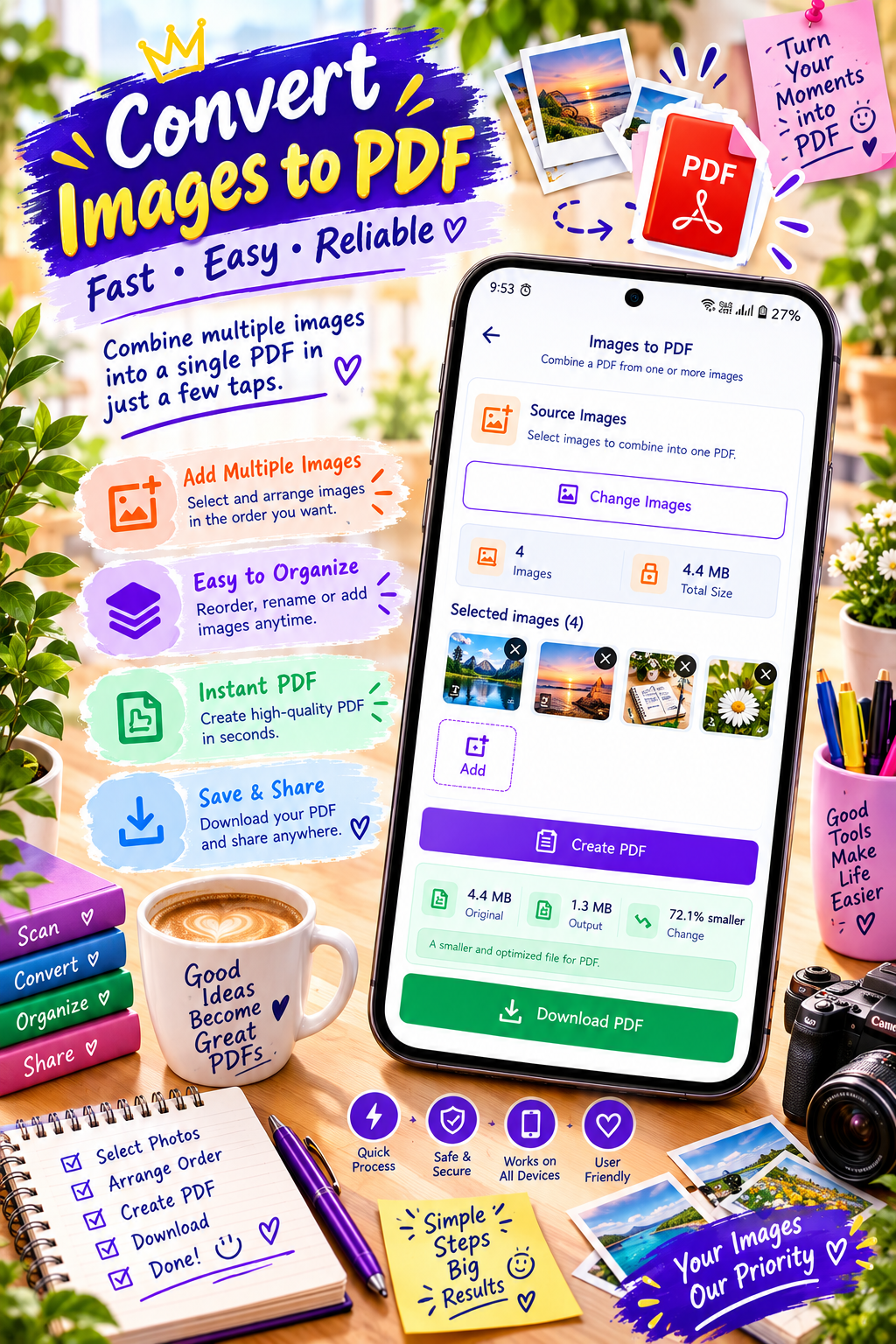
🖼️ Image to PDF
This feature converts one or multiple images into a PDF.
You may also find options to rearrange images before creating the final document.
📱 SmartFiles PDF & Image Tools
If your goal is to provide readers with a convenient Android app for everyday PDF and image tasks, SmartFiles PDF & Image Tools can be featured naturally in this article.
👉 SmartFiles PDF & Image Tools:
Download SmartFiles PDF & Image Tools on Google Play
You can place this link in the middle of your article where you discuss PDF management, compression, conversion, or image-related document tasks.
💡 How to Choose the Right PDF Tool for Android
Before installing a PDF application, consider these points:
1. Check the Features
Think about what you actually need.
If you only read PDFs, a simple reader may be enough.
If you regularly merge, compress, convert, or edit documents, look for a more comprehensive toolkit.
2. Look at Ease of Use
A complicated interface can make simple PDF tasks frustrating.
Choose an app with clearly labeled tools and straightforward navigation.
3. Consider File Privacy
PDF documents can contain personal or sensitive information.
Before using an app, check its Google Play Data safety information and the developer’s privacy policy.
4. Check Offline Functionality
Some PDF tools can perform certain operations directly on the device, while others may require an internet connection.
If you frequently work without mobile data or Wi-Fi, offline functionality can be useful.
Best app for managing PDF files on Android
5. Check Android Compatibility
Make sure the application supports your Android version and works properly on your phone or tablet.
📊 PDF Tools vs Traditional Computer Software
| Feature | Android PDF Tools | Desktop PDF Software |
|---|---|---|
| Read PDFs | ✅ | ✅ |
| Compress PDFs | ✅ Many apps | ✅ |
| Merge PDFs | ✅ | ✅ |
| Split PDFs | ✅ | ✅ |
| Image to PDF | ✅ | ✅ |
| Scan documents | ✅ | Usually requires scanner/camera |
| Use while traveling | ✅ | ❌ |
| Large-document workflows | Depends on app | Usually stronger |
| Easy sharing | ✅ | ✅ |
For everyday tasks, Android PDF tools can be convenient because the documents and tools are available directly on your phone.
🎓 Best PDF Tools for Students
Students frequently work with PDFs for:
- Notes
- E-books
- Assignments
- Question papers
- Study materials
- Project documents
Useful features include PDF reading, highlighting, merging, compression, image-to-PDF conversion, and document organization.
💼 Best PDF Tools for Office Work
For office users, useful PDF features can include:
- Document scanning
- PDF compression
- PDF merging
- Page extraction
- Annotation
- Digital signatures
- File sharing
- Document conversion
Apps with multiple functions can reduce the need to switch between different applications.
Best app to compress and convert PDF files on Android
📤 Why PDF Compression Is Useful
Imagine you have a 20 MB PDF that needs to be uploaded to a website with a smaller file-size limit.
Compressing the document may make it easier to upload or send.
However, compression can affect image quality, so always check the resulting PDF before deleting the original.
🔐 PDF Security
If you’re working with confidential documents, look for security-related features such as:
- Password protection
- Encryption
- Permission controls
- Secure file storage
Remember that simply using a PDF app does not automatically make every document secure. Check the app’s privacy and security information before processing sensitive files.
📲 Simple PDF Workflow on Android
A typical workflow can look like this:
Open PDF → Edit/Convert → Compress → Save → Share
For scanned documents:
Take Photo → Crop/Adjust → Create PDF → Save → Share
For multiple documents:
Select PDFs → Arrange Pages → Merge → Save
This makes Android PDF tools useful for everyday document management.
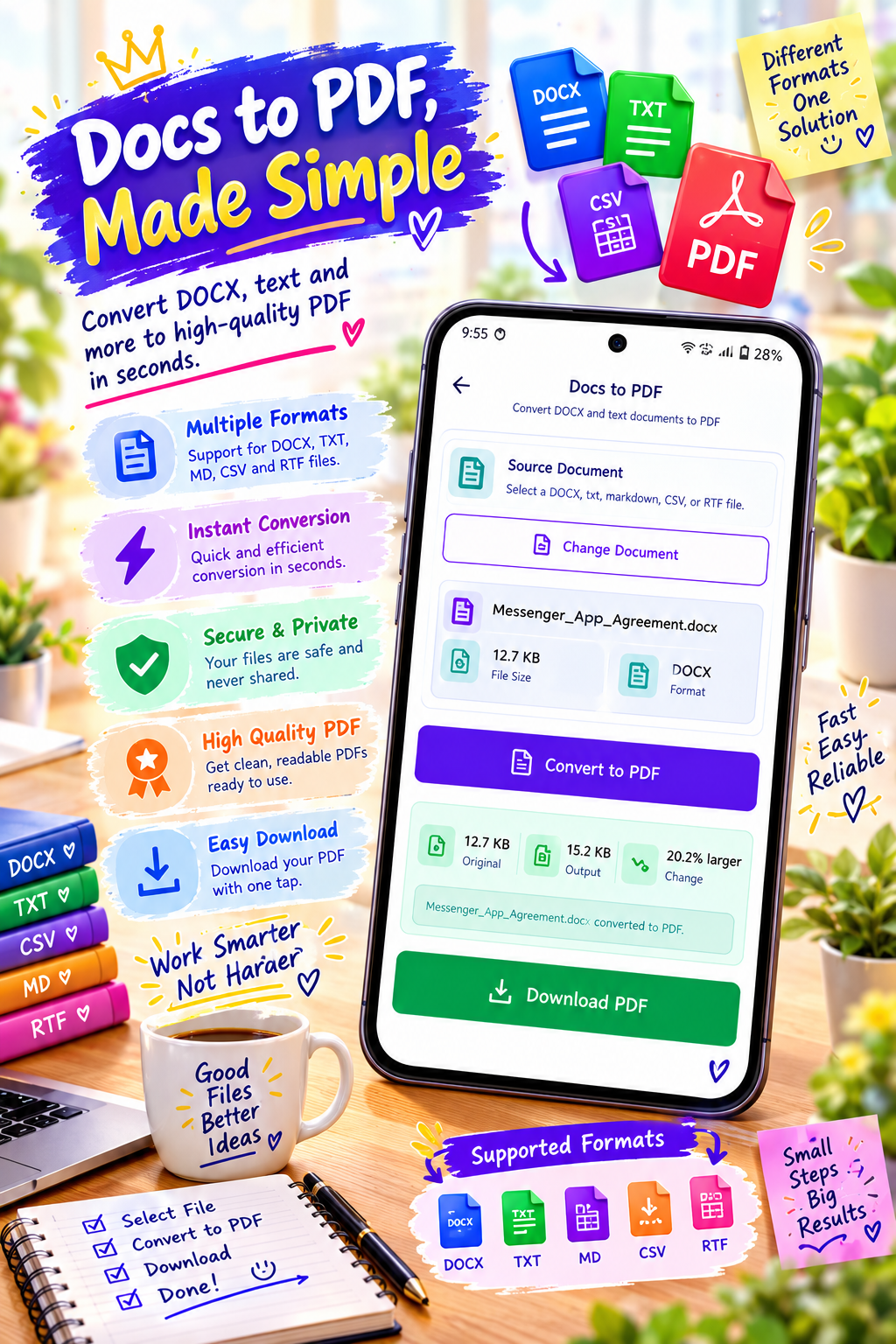
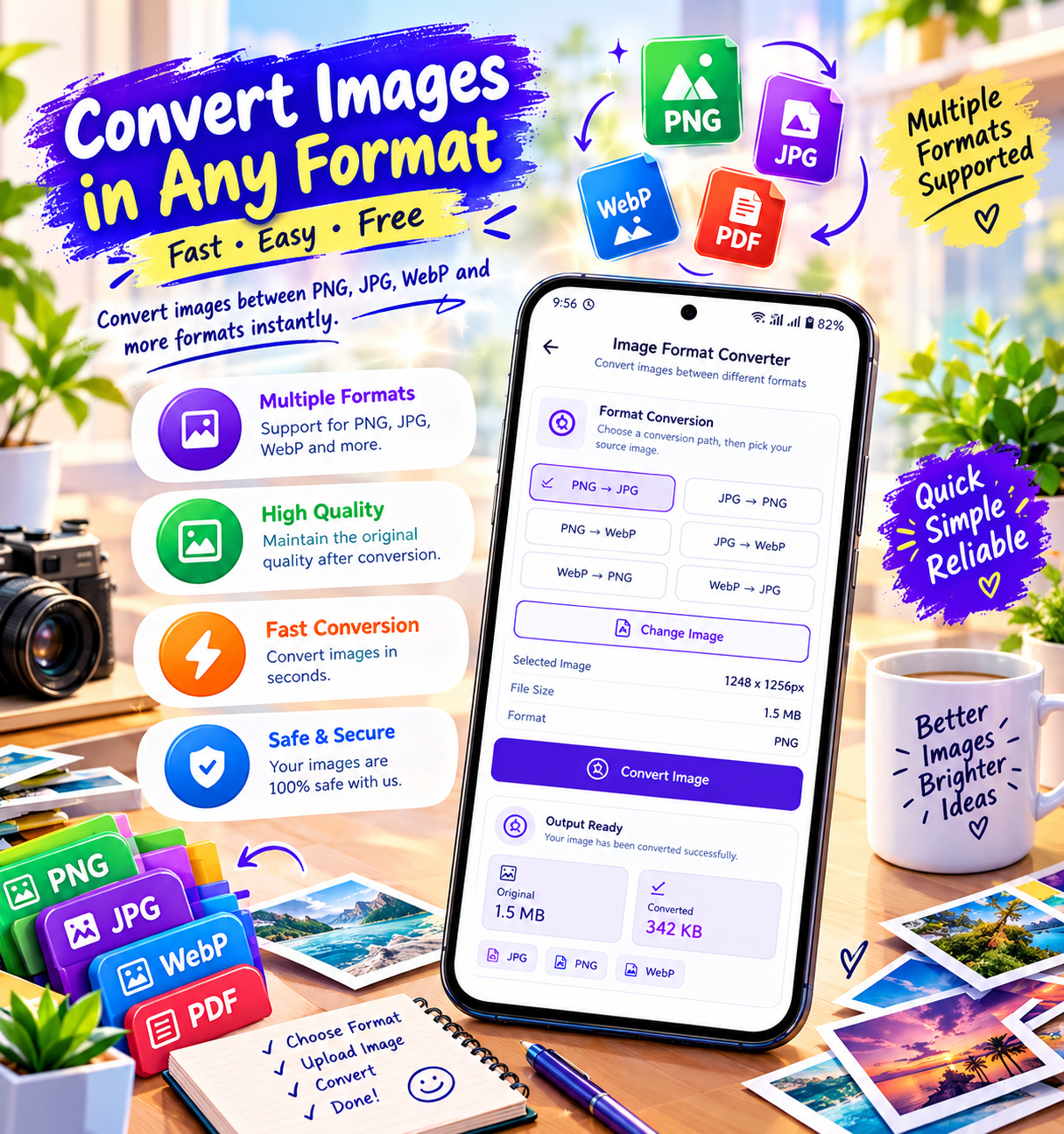
Best PDF and document tools app for Android
✅ Benefits of Using PDF Tools on Android
- 📱 Work directly from your smartphone
- ⚡ Quickly complete simple PDF tasks
- 📂 Keep documents organized
- 🗜️ Reduce large file sizes
- 🔗 Combine multiple PDFs
- 🖼️ Convert images into PDFs
- 📷 Scan physical documents
- ✂️ Extract required pages
- 📤 Share documents quickly
⚠️ Things to Keep in Mind
No single PDF app will necessarily have every feature you need.
Before choosing an app, check:
- Available features
- Supported file formats
- Privacy information
- Permissions
- Offline support
- Ads or in-app purchases
- Android compatibility
- Maximum file size or processing limits
Different apps offer different combinations of features, so the best choice depends on your particular PDF workflow. Current Google Play listings demonstrate that feature sets vary considerably between apps.
🏆 Final Thoughts
PDF tools have become an important part of everyday Android productivity. Whether you’re a student managing study materials, a professional handling office documents, or simply someone who needs to compress, merge, convert, or organize files, the right PDF app can make these tasks much easier.
For a Tech Solver article, SmartFiles PDF & Image Tools can be introduced as a convenient option for readers looking for PDF and image-related tools on Android. Readers should choose an app based on the features, privacy information, compatibility, and workflow that matter most to them.



Leave a Reply