How to Convert Images to PDF Without a Computer
Converting images into PDF files is a common task for students, office workers, freelancers, teachers, and everyday smartphone users. Whether you have scanned notes, receipts, documents, certificates, photos, or multiple pictures, you may need to combine them into a single PDF.
The good news is that you don’t need a computer to convert images to PDF. An Android smartphone and the right PDF tool are enough.
With an app such as SmartFiles PDF & Image Tools, you can create a PDF from one or multiple images directly on your Android phone. The app is designed as an all-in-one offline file utility and includes image-to-PDF functionality.
Why Convert Images to PDF on Your Phone?
There are many situations where converting pictures into PDFs is useful.
For example:
- Sending documents by email
- Submitting assignments
- Sharing scanned notes
- Creating a digital copy of receipts
- Combining multiple photos into one document
- Sending documents through WhatsApp
- Keeping certificates organized
- Creating a PDF portfolio
- Sharing forms and paperwork
Instead of transferring your images to a laptop or desktop computer, you can complete the entire process directly from your phone.
Can You Convert Images to PDF Without a Computer?
Yes.
An Android phone can handle the entire image-to-PDF process. You simply need your images and an app that supports image-to-PDF conversion.
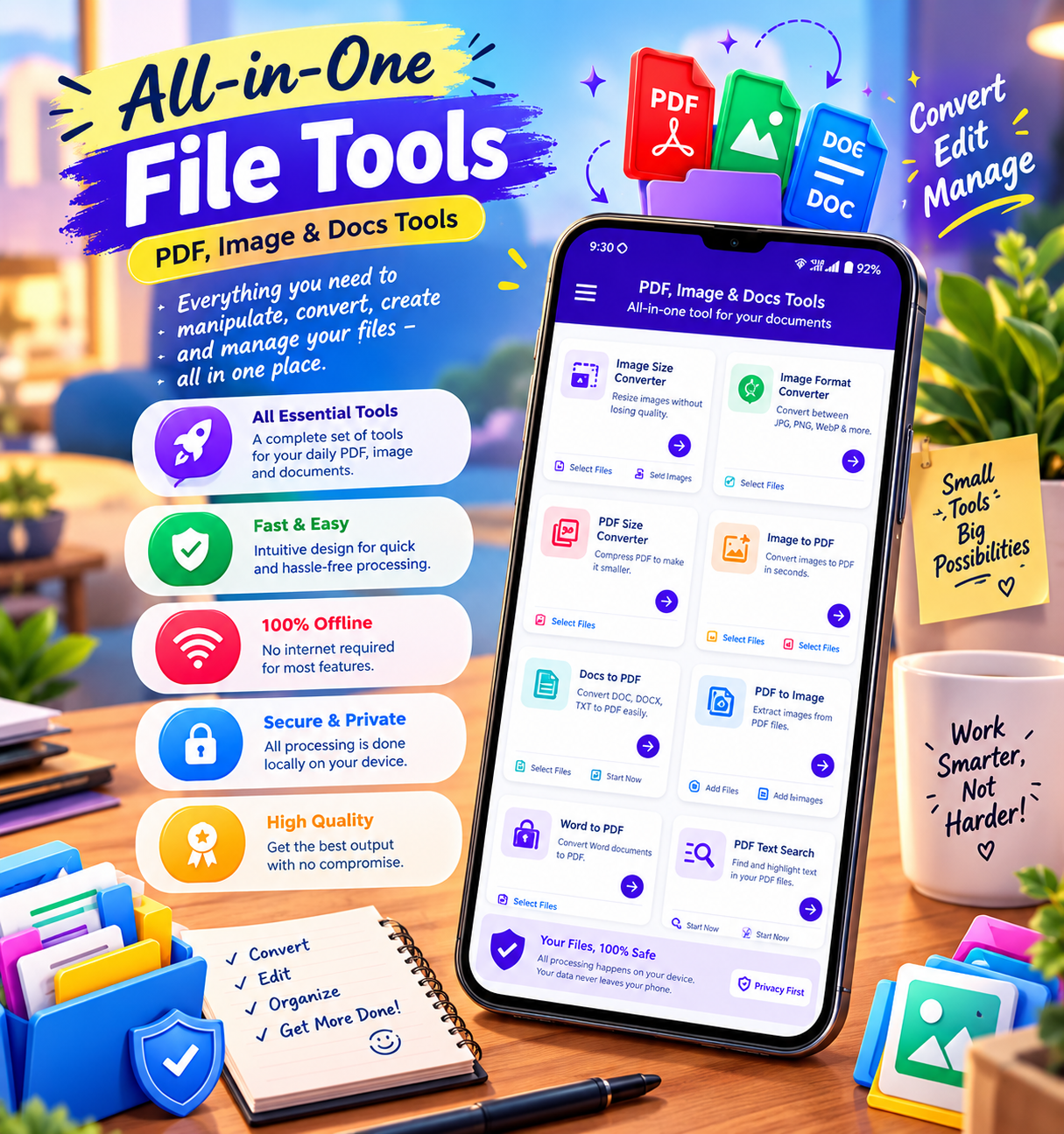
SmartFiles includes an Image to PDF feature that allows users to create PDF files from one or multiple images. The app also provides image processing features such as compression, resizing, cropping, and format conversion.
How to Convert Images to PDF on Android
Follow these simple steps.
Step 1: Install an Image-to-PDF App
Install a suitable PDF and image utility app on your Android phone.
For example, you can use SmartFiles PDF & Image Tools.
Download SmartFiles PDF & Image Tools on Google Play
Step 2: Open the App
Launch SmartFiles on your Android device.
The app provides several tools for working with images, PDFs, and documents.
Step 3: Select Image to PDF
Look for the Image to PDF option.
This feature is designed to create a PDF document from your selected images.
Step 4: Select Your Images
Choose one or more images from your phone’s gallery or file storage.
You can use:
- Photos
- Screenshots
- Scanned documents
- JPG images
- PNG images
- Other supported image files
If you have several pages, selecting multiple images allows you to combine them into one PDF.
Step 5: Arrange Your Images
If you’re creating a multi-page PDF, check the order of your selected images.
For example:
Page 1 → Page 2 → Page 3 → Page 4
Correct ordering is especially important when converting scanned notes, assignments, forms, or business documents.
Step 6: Create the PDF
After selecting and arranging your images, use the app’s PDF creation option.
Your images will be converted into a PDF document that you can save and use on your phone.
Step 7: Save or Share the PDF
Once the PDF has been created, save it to your device.
You can then share it through services such as:
- Google Drive
- Messaging apps
- Bluetooth
- Other Android sharing options
How to Convert Multiple Images into One PDF
One of the biggest advantages of using an image-to-PDF tool is the ability to combine multiple pictures into a single document.
For example, imagine you have five photos of handwritten notes:
Image 1 → Image 2 → Image 3 → Image 4 → Image 5
Instead of sending five separate pictures, you can convert them into one PDF.
This is useful for:
- School assignments
- College notes
- Office documents
- Receipts
- Invoices
- Certificates
- Project documents
- Forms
SmartFiles specifically supports creating PDF files from one or multiple images.
How to Make a PDF from Photos
You can also use photos taken directly with your smartphone.
For example:
- Take pictures of your documents.
- Open an image-to-PDF tool.
- Select the photos.
- Arrange them in the correct order.
- Create the PDF.
- Save the finished document.
- Share it wherever necessary.
This can turn your smartphone into a convenient document-conversion tool.
How to Convert JPG to PDF Without a Computer
If your images are saved as JPG files, you don’t need to transfer them to a PC.
Select the JPG images on your Android phone and use an image-to-PDF feature.
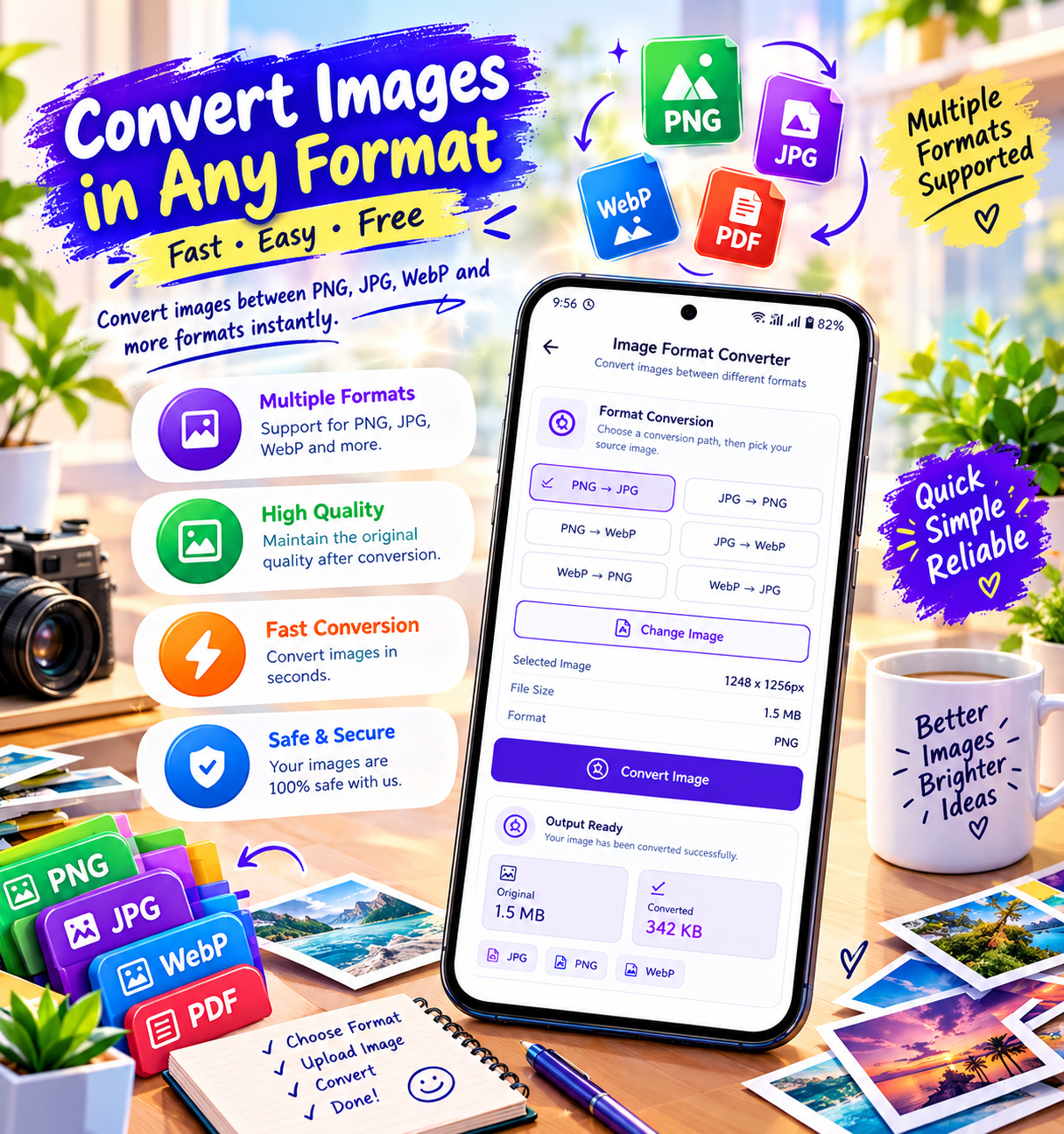
SmartFiles also supports image format conversion between JPG, PNG, and WebP, in addition to image-to-PDF conversion.
How to Convert PNG to PDF on Android
PNG images can also be converted into PDF files from your smartphone.
This can be useful when you have:
- Screenshots
- Graphics
- Digital documents
- Transparent-background images
- Scanned materials
Select the PNG files and create a PDF using an appropriate image-to-PDF tool.
How to Reduce Image Size Before Creating a PDF
Sometimes your photos are very large, which can result in a large PDF file.
In that situation, compressing the images before creating the PDF can be helpful.
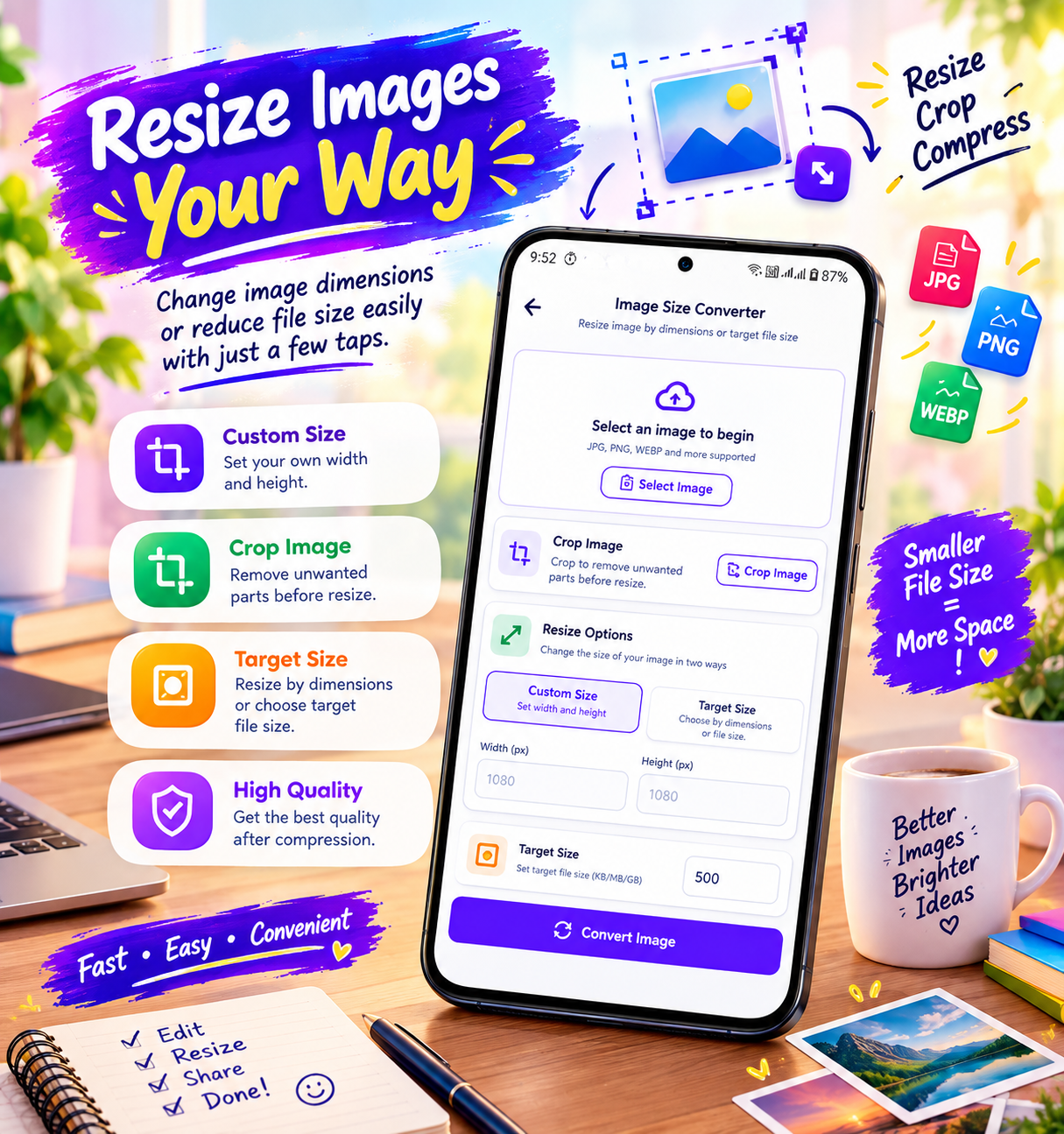
SmartFiles includes an image compression feature designed to reduce image file size while maintaining image quality.
A simple workflow is:
Select Image → Compress Image → Convert to PDF → Save PDF
This can be particularly useful when you need to send the document through email or messaging apps.
Benefits of Converting Images to PDF on Android
1. No Computer Required
You can complete the entire process directly from your smartphone.
2. Saves Time
There is no need to transfer images to a computer first.
3. Easy Document Sharing
A single PDF can be easier to share than many separate image files.
4. Better Organization
Multiple images can be combined into one organized document.
5. Useful for Students
Students can turn photos of notes, assignments, or study materials into PDFs.
6. Useful for Office Work
Employees can create PDFs from receipts, forms, reports, and other documents while working remotely.
7. Convenient for Everyday Tasks
You can create a PDF whenever you need one, directly from your phone.
Best Uses for Image-to-PDF Conversion
Here are some practical examples.
| Use Case | Why PDF Is Useful |
|---|---|
| 📚 Study Notes | Combine multiple pages |
| 📝 Assignments | Submit images as one document |
| 🧾 Receipts | Keep several receipts together |
| 📄 Forms | Share completed documents |
| 🪪 Certificates | Organize important documents |
| 💼 Office Documents | Create shareable files |
| 📸 Photos | Combine multiple pictures |
| 📋 Reports | Keep pages in one file |
Tips for Creating a Better Image-Based PDF
Use Clear Images
Make sure your photos are sharp and readable before converting them.
Take Photos in Good Lighting
Good lighting can make text easier to read.
Keep Documents Straight
Try to photograph documents from directly above instead of at an angle.
Check the Page Order
Always review the order when combining multiple images.
Compress Large Images
If the resulting PDF is too large, compress the images before conversion.
Choose the Right Image Format
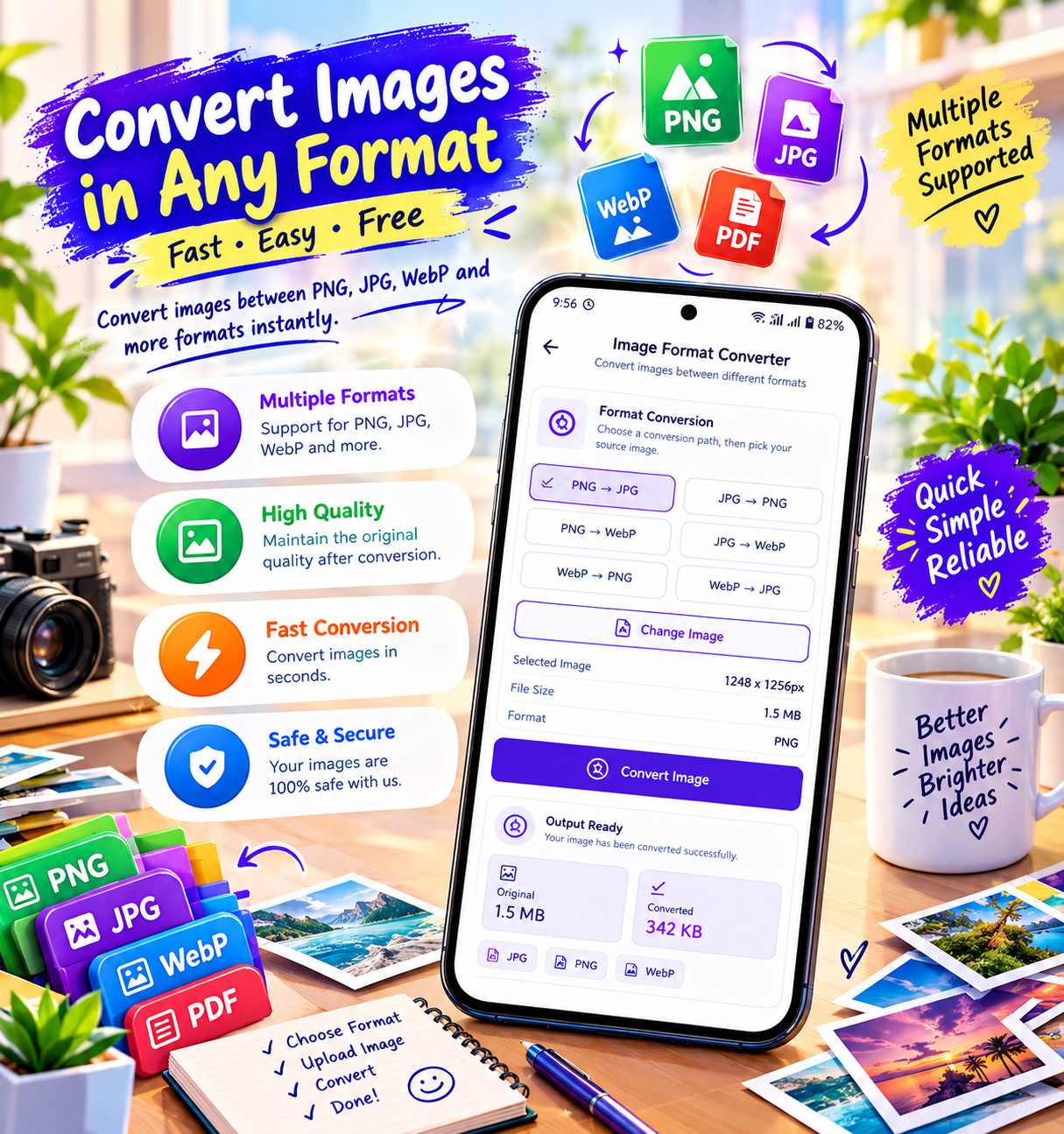
JPG and PNG are commonly used image formats. SmartFiles supports JPG, PNG, and WebP conversion as part of its image tools.
SmartFiles PDF & Image Tools
If you regularly work with images and PDFs on Android, SmartFiles PDF & Image Tools brings several useful file utilities together in one application.
Its listed features include:
- Image to PDF
- PDF to Image
- Image compression
- Image resizing
- Image cropping
- JPG/PNG/WebP conversion
- PDF compression
- PDF password unlocking
- PDF text search
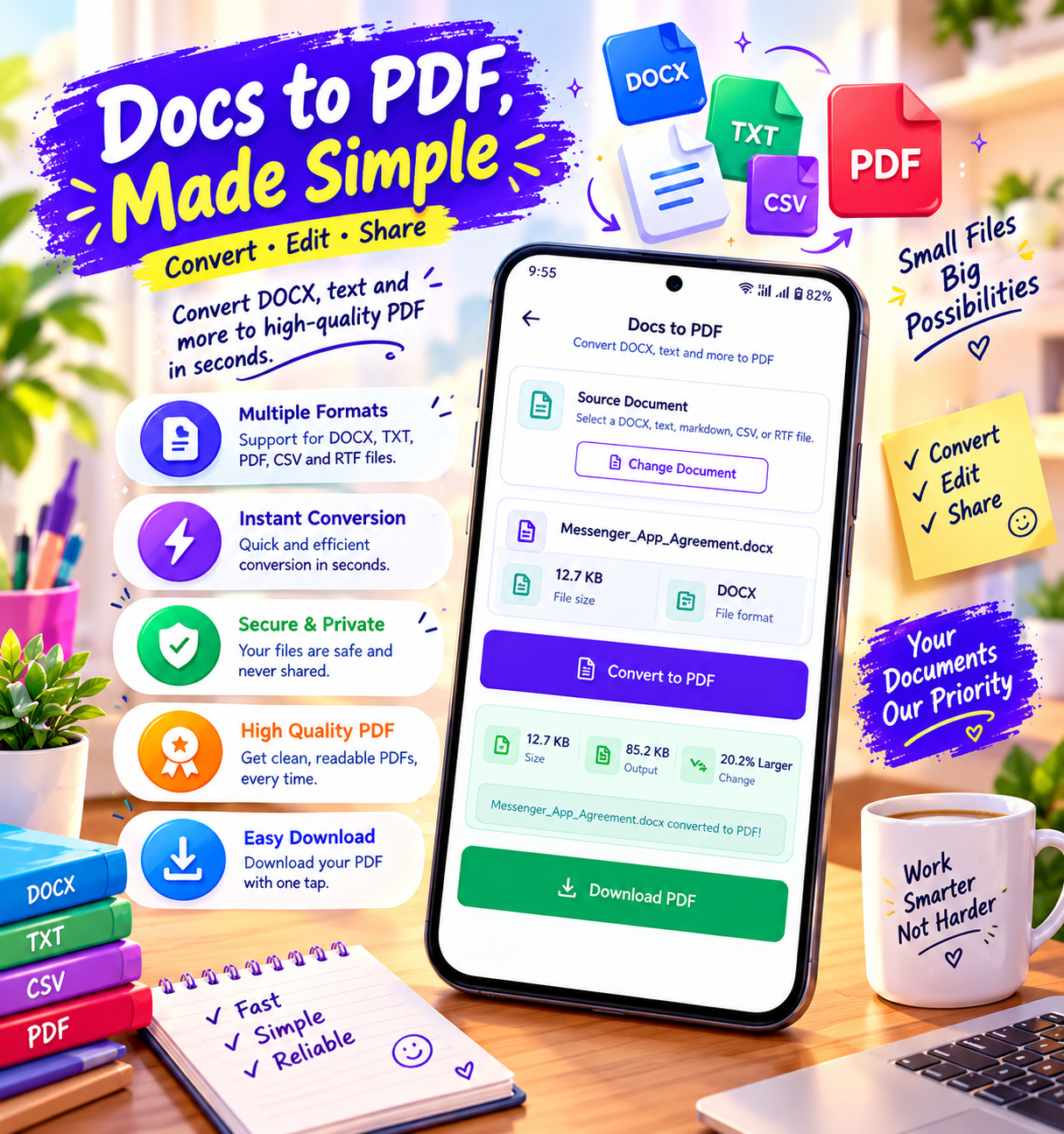
- DOC/DOCX to PDF
- TXT to PDF
- Offline file processing
The Google Play listing says most features work offline and that files are processed locally on the device. It also states that no account is required.
Get SmartFiles PDF & Image Tools
Final Thoughts
You don’t need a computer to convert images into PDF files. With an Android smartphone and a suitable PDF utility, you can create professional-looking PDFs from photos, screenshots, scanned documents, notes, receipts, and other images.
SmartFiles PDF & Image Tools makes this process convenient by providing an Image to PDF feature alongside image compression, resizing, cropping, format conversion, and other PDF utilities.
If you frequently need to turn images into PDFs, having an image and PDF utility on your Android phone can save time and make everyday document tasks much easier.



Leave a Reply