How to Merge Multiple Images into One PDF
If you have several JPG, PNG, or other image files on your Android phone, sending them one by one can be inconvenient. A better solution is to combine them into a single PDF file.
Merging multiple images into one PDF is useful for school assignments, scanned documents, receipts, invoices, forms, notes, screenshots, and work-related documents. Each image can become a separate page in the final PDF, making the file easier to organize, share, print, or upload.
On Android, the exact steps can vary depending on the phone and app you use. Dedicated image-to-PDF tools generally make it easier to select multiple images, arrange their order, and create one PDF.
Why Merge Multiple Images into One PDF?
There are several reasons to combine images into a single PDF:
- Easier sharing: Send one PDF instead of many separate images.
- Better organization: Keep related images together in one document.
- Fixed order: Arrange pages in the correct sequence.
- Easy printing: A PDF is convenient for printing multiple pages.
- Useful for applications: Many websites and online forms accept PDF documents.
- Better document management: Keep receipts, notes, assignments, or forms together.
- Professional presentation: One organized PDF looks cleaner than multiple image attachments.
For example, if you photographed five pages of an assignment, you can turn those five photos into one five-page PDF.
How to Merge Multiple Images into One PDF on Android
The process is simple when using an image-to-PDF tool such as SmartFiles PDF & Image Tools.
Step 1: Open SmartFiles
Install and open SmartFiles PDF & Image Tools on your Android phone.
Step 2: Select the Image-to-PDF Option
Look for the option that allows you to create a PDF from images.
Best app to merge multiple images into one PDF on Android
This feature is designed for situations where you have multiple pictures and want to combine them into one document.
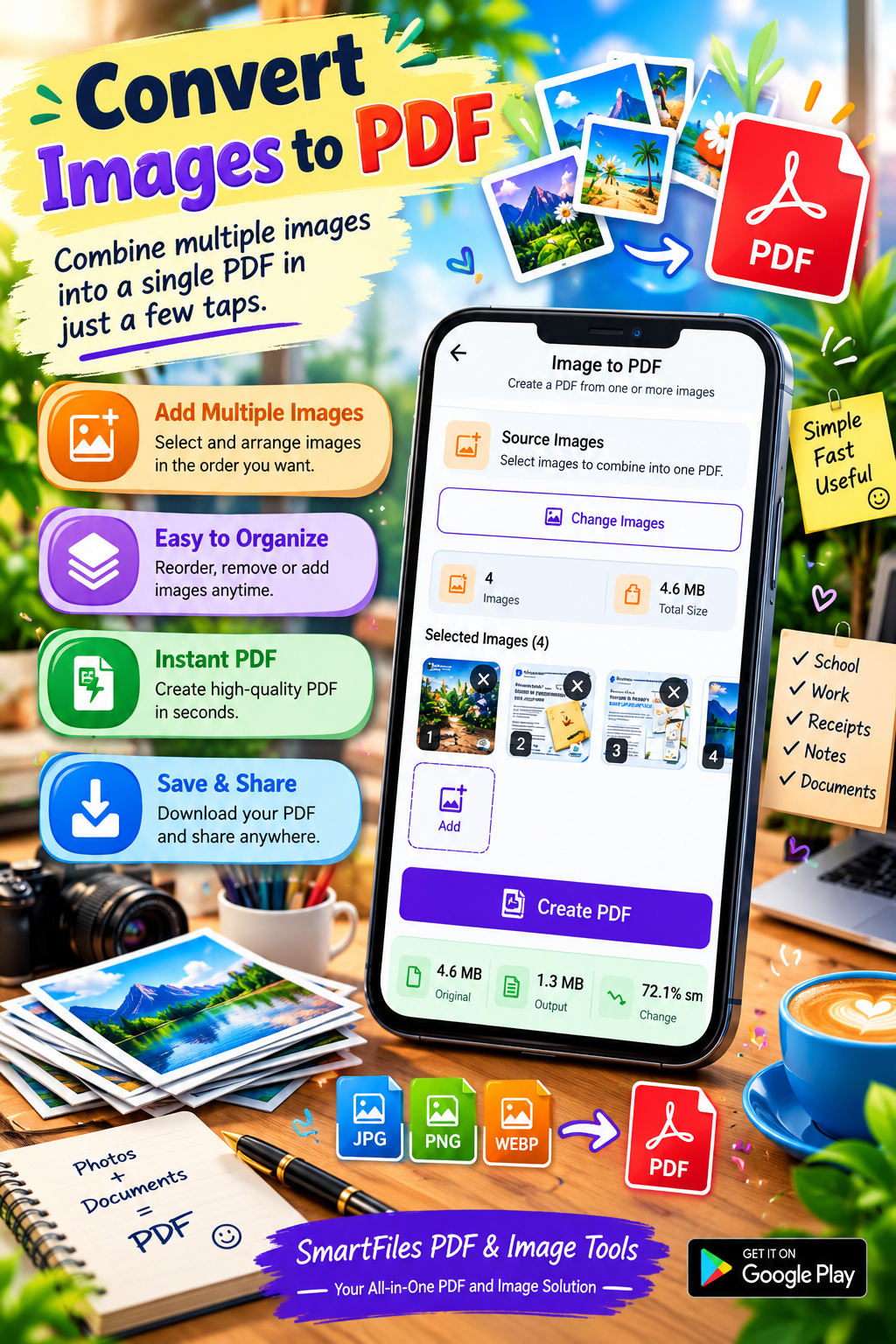
Step 3: Choose Multiple Images
Select the photos you want to include in your PDF from your phone’s gallery or storage.
You can choose several images at once instead of converting each picture separately.
For example:
- Page 1 photo
- Page 2 photo
- Page 3 photo
- Page 4 photo
- Page 5 photo
These can become five pages inside one PDF.
Step 4: Arrange the Images
Before creating the PDF, check the order of your selected images.
This is particularly important for scanned documents and assignments. If the pages are selected in the wrong order, the final PDF may also appear incorrectly arranged. Image-to-PDF workflows commonly provide ordering or sorting controls for this reason.
Arrange the images like:
Page 1 → Page 2 → Page 3 → Page 4 → Page 5
Step 5: Check the Images
Preview your selected images before creating the PDF.
Look for:
- Blurry photos
- Incorrectly rotated images
- Duplicate images
- Unwanted screenshots
- Missing pages
- Images selected in the wrong order
Removing mistakes at this stage can save time later.
Step 6: Create the PDF
Once everything looks correct, choose the option to Create PDF, Convert to PDF, or a similar command.
The selected images will be placed into a single PDF document.
Each image can appear as an individual page, giving you a multi-page PDF instead of several separate image files.
Step 7: Save the PDF
Give your document a useful name.
For example:
School_Assignment.pdfOffice_Documents.pdfReceipts_October.pdfProject_Images.pdfScanned_Notes.pdf
A descriptive filename makes the document easier to find later.
Step 8: Share Your PDF
After creating the PDF, you can share it through services such as email, messaging apps, cloud storage, or other supported sharing options.
Android PDF workflows commonly allow the resulting document to be shared after creation.
Best app to combine multiple photos into a single PDF
How Many Images Can You Put Into One PDF?
The number of images you can combine depends on the application, your device’s available storage and memory, and the size and resolution of the images.
A small collection of normal photos is usually easier to process than hundreds of high-resolution images.
If you are creating a very large PDF, consider reducing unnecessarily large images first. This can help keep the final document easier to store and share.
Tips for Creating a Better Image PDF
1. Put Images in the Correct Order
Always check the sequence before exporting. This is especially important for:
- Assignments
- Contracts
- Forms
- Receipts
- Notes
- Scanned documents
2. Use Clear Images
Blurry photographs can produce a difficult-to-read PDF. Try to use images with sufficient resolution.
3. Rotate Images Correctly
If one photograph is sideways or upside down, rotate it before creating the final PDF.
4. Remove Unnecessary Photos
Don’t include duplicate or unrelated pictures. Fewer unnecessary pages can make the final document easier to manage.
5. Consider File Size
High-resolution images can produce large PDFs. If the final document is too large to upload or send, use a PDF compression tool after creating it.
6. Give the File a Meaningful Name
Instead of PDF12345.pdf, use something descriptive such as College_Assignment.pdf.
Common Uses for Merging Images into PDF
📚 School and College Assignments
Students can photograph individual assignment pages and combine them into one PDF before submitting their work.
🧾 Receipts
Multiple receipt photographs can be stored together in one PDF for record keeping.
📄 Forms and Documents
If a document has several photographed pages, combining them into a PDF makes it easier to submit.
Best app to create a PDF from multiple images on Android
💼 Office Work
Employees can combine scanned documents, invoices, reports, or other images into one organized file.
📝 Notes
Handwritten notes photographed with a smartphone can be organized into a multi-page PDF.
🪪 Personal Records
Important document images can be grouped into a single PDF for convenient storage. For sensitive documents, choose tools and workflows with appropriate privacy protections.
Images vs PDF: Which Is Better?
| Feature | Separate Images | One PDF |
|---|---|---|
| Sharing | Multiple files | One file |
| Organization | Can be difficult | Easier |
| Page order | Less convenient | Easy to maintain |
| Printing | Individual images | Convenient document |
| Assignments | Less organized | Ideal for multiple pages |
| Document storage | Many files | One file |
| Professional appearance | Basic | More organized |
What If the PDF Is Too Large?
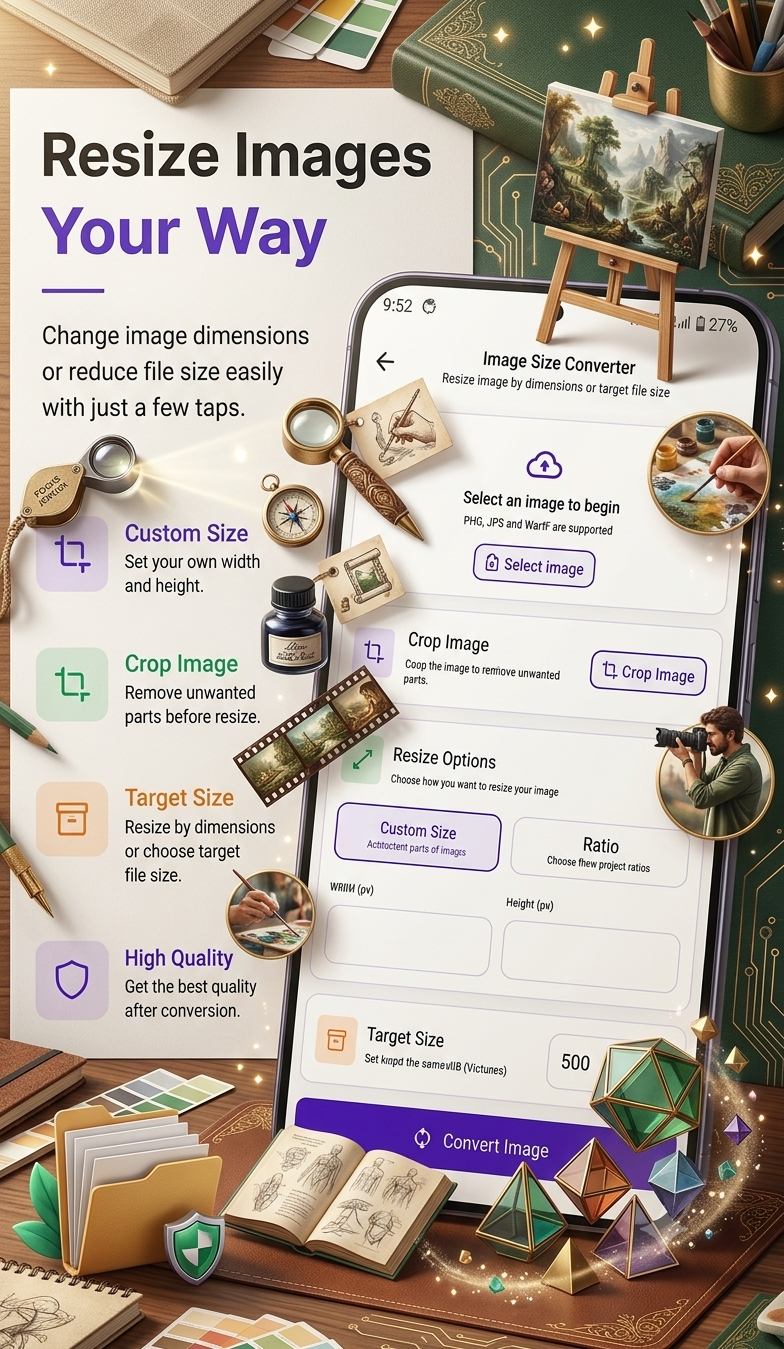
If your merged PDF is too large, you can reduce its size using a PDF compression feature.
This is useful when you need to send the document through email, messaging apps, or upload it to a website with a file-size limit.
A good workflow is:
Select images → Arrange pages → Create PDF → Check size → Compress if necessary → Share
Why Use SmartFiles PDF & Image Tools?
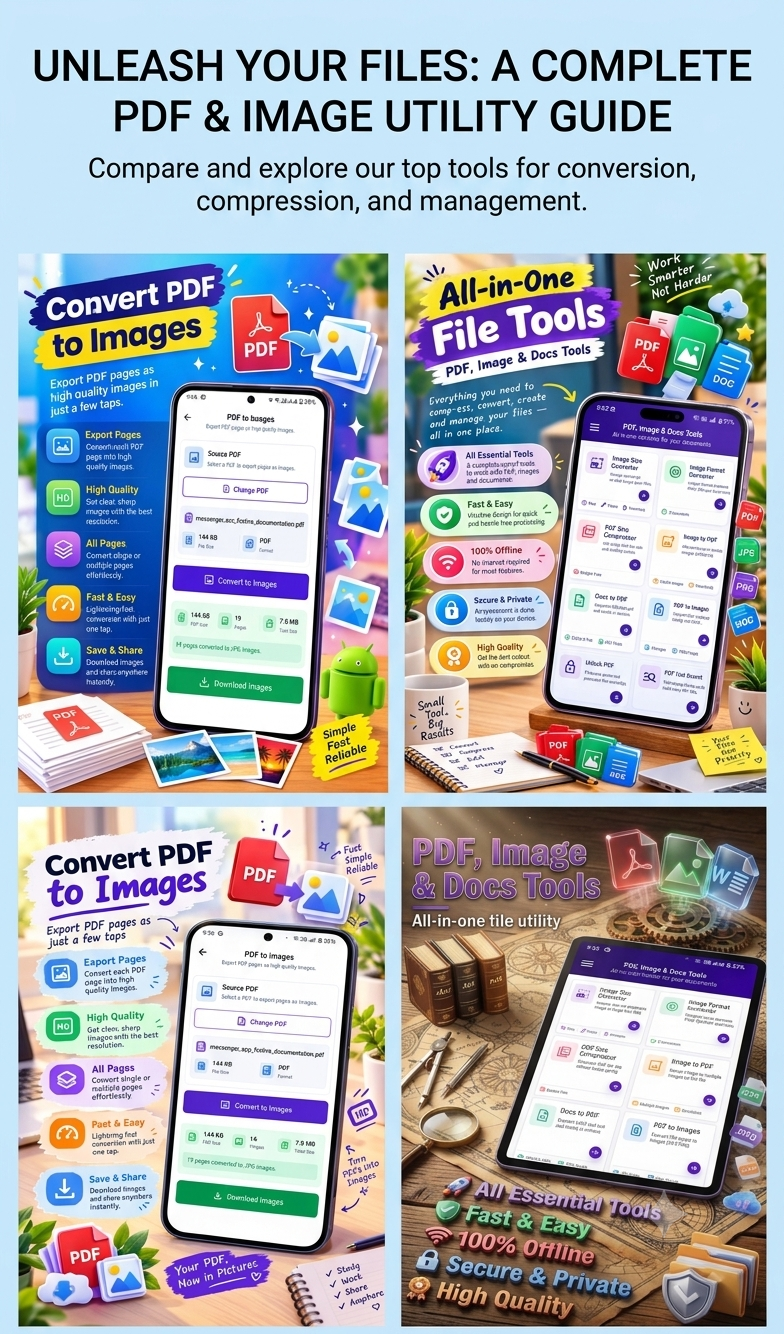
SmartFiles PDF & Image Tools is useful when you want to handle common PDF and image tasks directly from your Android device.
Instead of keeping multiple separate image files, you can use an image-to-PDF workflow to create a single organized document.
Best app to convert multiple images into one PDF on Android
It can be particularly useful for people who regularly work with:
- JPG images
- PNG images
- PDF documents
- Scanned pages
- Screenshots
- Receipts
- Assignments
- Office documents
App: SmartFiles PDF & Image Tools
Platform: Android
Use case: PDF and image management
Download the app:
https://play.google.com/store/apps/details?id=com.techsolver.smart_files
Frequently Asked Questions
Can I merge JPG images into one PDF on Android?
Yes. Multiple JPG images can be converted into a single multi-page PDF using an image-to-PDF tool.
Can I combine PNG images into one PDF?
Yes. PNG images can also be used in image-to-PDF workflows, depending on the tool.
Can I change the order of images before creating the PDF?
Many image-to-PDF tools allow you to arrange or reorder the selected images before exporting.
Does every image become a separate PDF page?
In a typical image-to-PDF workflow, each selected image becomes a page in the resulting PDF.
Can I merge photos of documents into one PDF?
Yes. This is one of the most useful applications of image-to-PDF conversion. You can photograph several pages and organize them into one PDF.
Best PDF app to merge JPG and PNG images into one PDF
What should I do if my PDF is too large?
Try reducing the image resolution before conversion or compressing the completed PDF if your PDF tool supports compression.
Final Thoughts
Merging multiple images into one PDF is a simple way to organize photos, scanned documents, assignments, receipts, notes, and other important files. Instead of sharing several individual images, you can create one structured document that is easier to store, print, upload, and share.
With an Android image-to-PDF tool such as SmartFiles PDF & Image Tools, you can make the process much more convenient. Select your images, arrange them in the correct order, create the PDF, check the result, and share the finished document.
For anyone who frequently works with images and PDFs on Android, having a dedicated PDF and image utility can save time and make everyday file management easier.


Leave a Reply