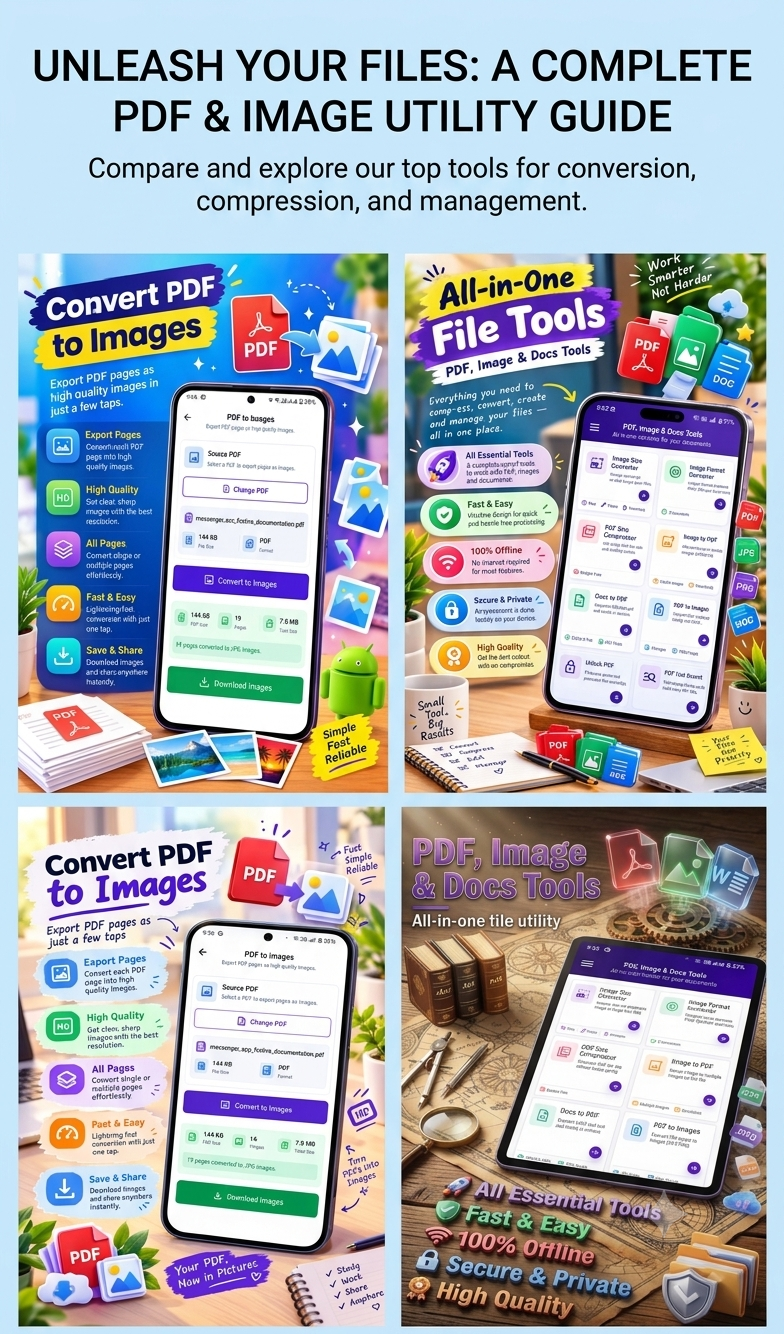
How to Convert JPG to PDF on Android
Converting a JPG image into a PDF is a useful task when you need to submit documents, share photos professionally, create digital records, or combine images into a single file. Android phones offer several ways to convert JPG images to PDF, including built-in printing features and dedicated PDF tools.
If you regularly work with images and PDF files, SmartFiles PDF & Image Tools provides an easy way to create PDFs from one or multiple images directly on your Android device.
Why Convert JPG to PDF on Android?
JPG is commonly used for photographs and images, while PDF is often preferred for documents because it keeps the content in a document-style format.
Converting JPG to PDF can be useful for:
- Submitting documents online
- Sharing ID or application documents
- Creating digital copies of receipts
- Sending multiple images as a document
- Saving scanned notes
- Creating school or office documents
- Organizing important images
- Uploading documents to websites
- Sharing images through email or messaging apps
A PDF can also make it easier to keep several related images together in one file.
Method 1: Convert JPG to PDF Using Android’s Print Option
Many Android phones provide a Print option that can save an image as a PDF without requiring a physical printer.
The exact menu can vary depending on your Android version and phone manufacturer, but the general process is similar. Android’s print workflow can use Save as PDF as the destination.
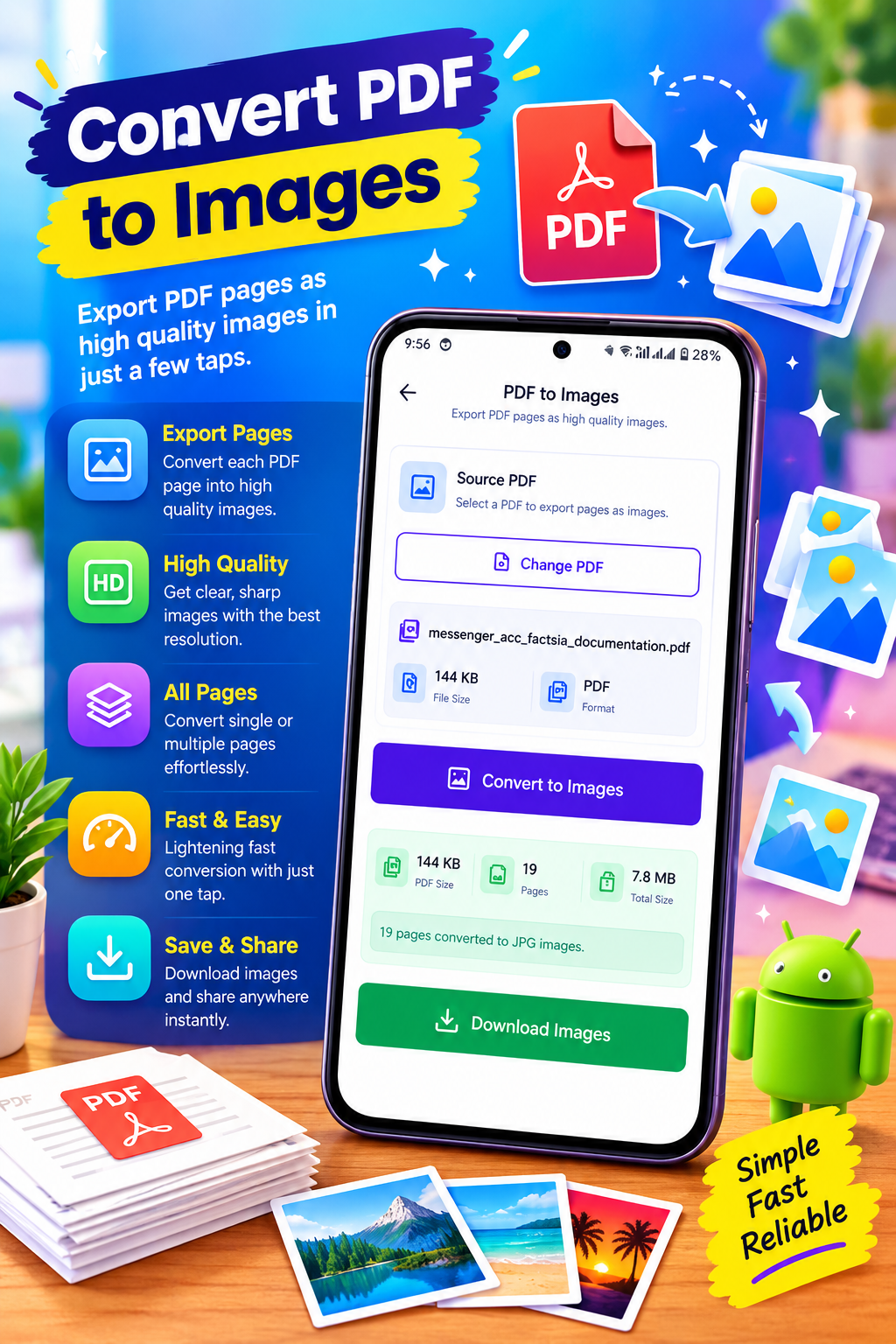
Best app to convert JPG to PDF on Android
Steps to Convert JPG to PDF
- Open the Gallery or Google Photos app.
- Find the JPG image you want to convert.
- Open the image.
- Tap the Share or three-dot menu.
- Look for Print.
- Select Save as PDF in the printer or destination options.
- Choose the paper size and orientation if available.
- Tap the PDF or Save button.
- Select a folder where you want to save the PDF.
- Open the saved PDF to check the result.
This method is convenient when you only need to convert a single image.
Method 2: Convert JPG to PDF Using SmartFiles
If you frequently convert images into PDFs, a dedicated file utility can make the process easier.
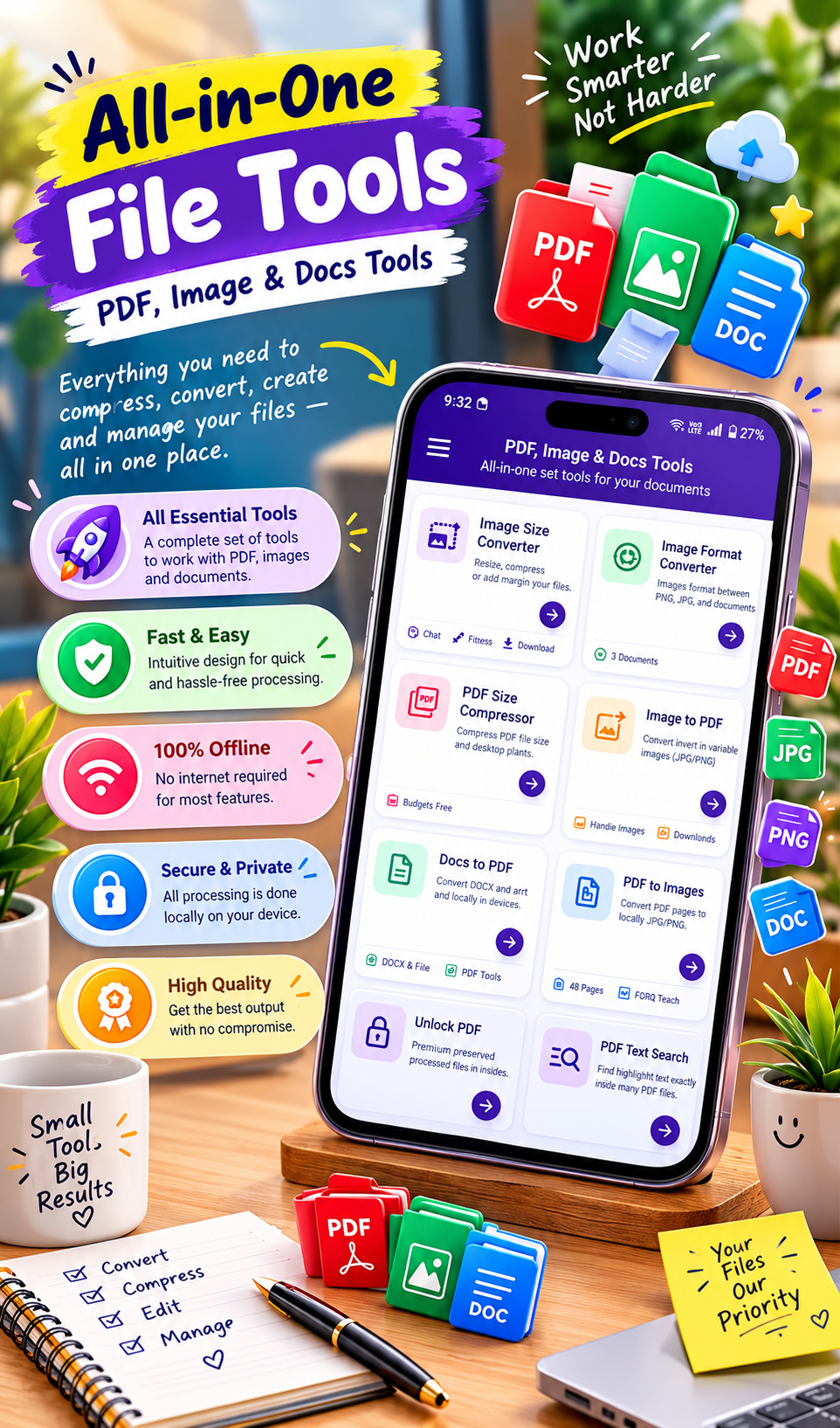
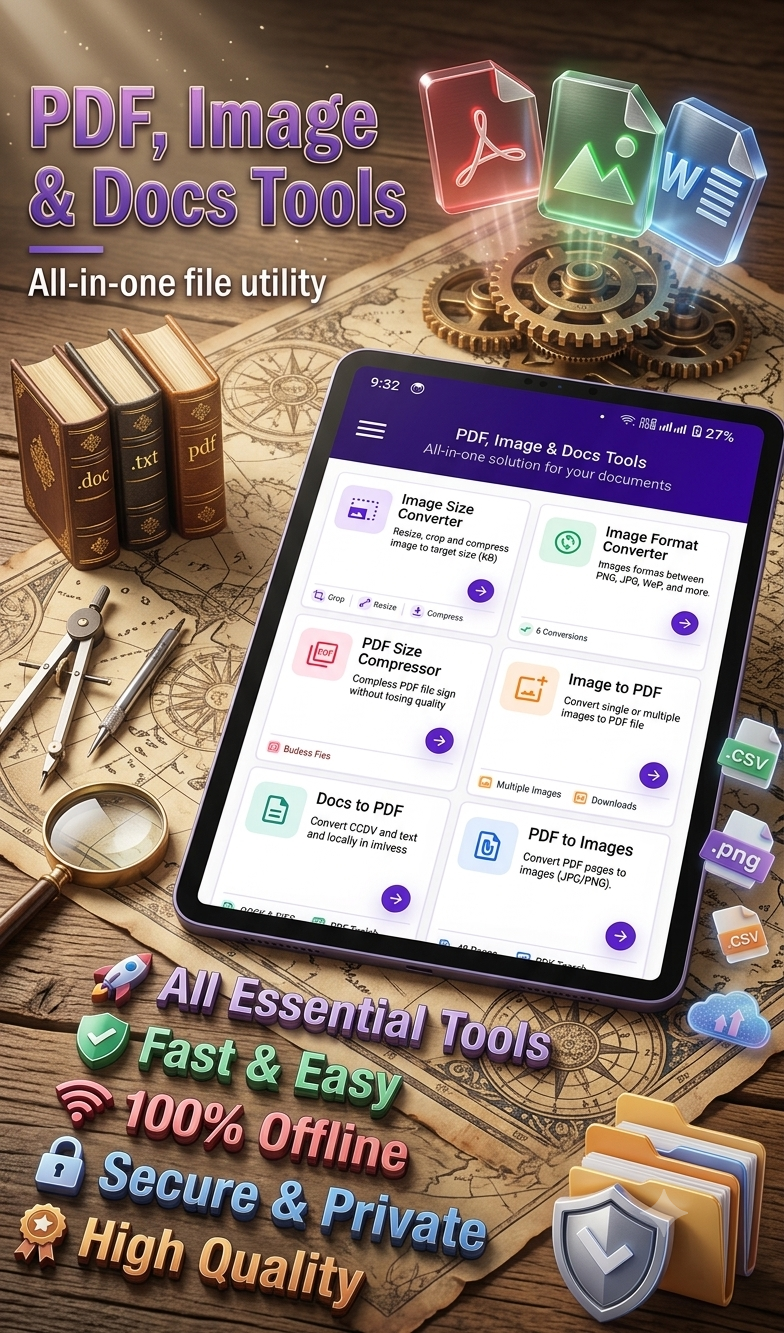
SmartFiles PDF & Image Tools includes an Image to PDF feature and supports creating PDF files from one or multiple images. The app also includes image compression, resizing, cropping, format conversion, PDF compression, PDF-to-image conversion, and document-to-PDF tools.
Steps to Convert JPG to PDF With SmartFiles
- Install and open SmartFiles PDF & Image Tools on your Android phone.
- Open the Image to PDF feature.
- Select the JPG image or images you want to use.
- Arrange the images if you are creating a multi-page PDF.
- Check the images before conversion.
- Start the PDF conversion.
- Save the finished PDF on your device.
- Open the PDF and check that all pages appear correctly.
SmartFiles is designed to perform most of its file processing directly on the device and lists offline processing as one of its features.
Convert Multiple JPG Images Into One PDF
Sometimes you don’t want to create separate PDFs for every image. For example, you may have five pages of a document photographed with your phone.
Instead of creating five separate files, you can combine the images into a single PDF.
Best app to convert images to PDF on Android
The basic process is:
- Open an image-to-PDF tool.
- Select all the required JPG images.
- Put the images in the correct order.
- Start the conversion.
- Save the resulting PDF.
- Check each page before sharing.
SmartFiles specifically lists the ability to create PDFs from one or multiple images.
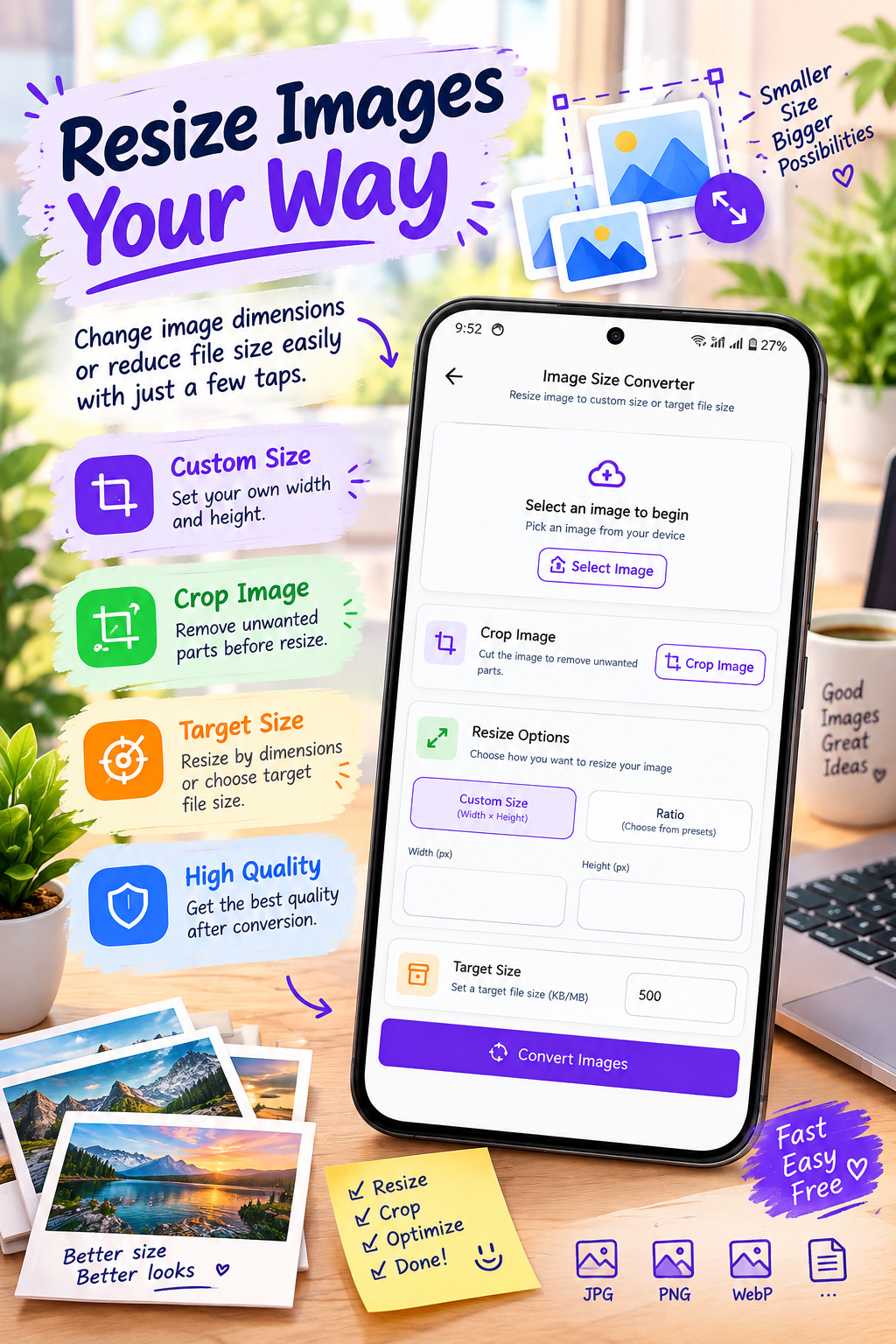
How to Get Better Results When Converting JPG to PDF
1. Use Clear Images
Start with a sharp, properly focused JPG. If the original image is blurry, converting it to PDF will not improve its clarity.
2. Choose the Correct Orientation
Use portrait orientation for documents such as forms and certificates. Landscape can work better for wide photographs or charts.
3. Crop Unwanted Areas
If your photo contains unnecessary background or empty space, crop the image before creating the PDF.
4. Check the Image Order
When creating a PDF from multiple JPG files, make sure the pages are arranged correctly before saving.
5. Watch the File Size
High-resolution phone photographs can create large PDFs. If the resulting PDF is too large for email or an upload limit, compress the PDF or resize/compress the original images. SmartFiles includes both image compression and PDF compression tools.
6. Give the PDF a Useful Name
Instead of keeping a generic filename, use something descriptive such as:
College-Documents.pdf
Receipts-October.pdf
Project-Images.pdf
This makes your files easier to find later.
JPG vs PDF: What’s the Difference?
| JPG | |
|---|---|
| Mainly used for photographs and images | Commonly used for documents |
| Easy to share as an image | Convenient for document sharing |
| Usually represents a single image | Can contain multiple pages |
| Image quality depends on compression | Can preserve a document-style layout |
| Good for photos | Useful for forms, records and collections of images |
The right format depends on what you need to do with the file.
Best JPG to PDF converter app for Android
When Should You Convert JPG to PDF?
You may want to convert JPG to PDF when:
- A website specifically asks for a PDF
- You need to submit photographed documents
- You want several images in one file
- You want to organize scanned pages
- You need to send a collection of images
- You want a document-style file for printing
- You want to keep related images together
Best PDF app for converting JPG images to PDF
Can You Convert JPG to PDF Without a Computer?
Yes. You can complete the process directly from an Android phone.
Depending on your device, you may be able to use the built-in Print → Save as PDF option. Alternatively, dedicated apps can provide additional controls for image selection and PDF creation.
Can You Convert More Than One JPG Into a PDF?
Yes. Some Android PDF tools support selecting multiple images and turning them into a single PDF. SmartFiles lists support for creating PDFs from one or multiple images.
This can be particularly useful for:
- Multi-page assignments
- Receipts
- Notes
- Forms
- ID/document pages
- Project materials
What If the PDF Is Too Large?
Large JPG images can result in a large PDF. This is especially common with high-resolution smartphone camera photos.
You can reduce the size by:
- Compressing the original images.
- Resizing very large images.
- Removing unnecessary images.
- Compressing the completed PDF.
SmartFiles includes both image compression and PDF compression features, which can help manage file sizes.
Best app to turn photos into PDF on Android
Is an Internet Connection Required?
The method you use determines whether you need internet access. Android’s built-in Save as PDF workflow can work locally, while some online conversion services require uploading the image.
SmartFiles describes most of its file processing as offline and on-device, allowing users to work without an internet connection for supported features.
Final Thoughts
Converting JPG to PDF on Android is a simple way to turn photos and image files into more convenient document-style files. For a single image, your phone’s built-in Print → Save as PDF option may be enough. For users who regularly work with multiple images and PDF files, a dedicated tool can provide more functionality.
SmartFiles PDF & Image Tools combines image-to-PDF conversion with other useful features such as image compression, resizing, cropping, format conversion, PDF compression, PDF-to-image conversion, and document-to-PDF conversion.
If you frequently need to convert JPG images into PDFs directly on Android, SmartFiles can be a convenient tool to keep on your phone.



Leave a Reply