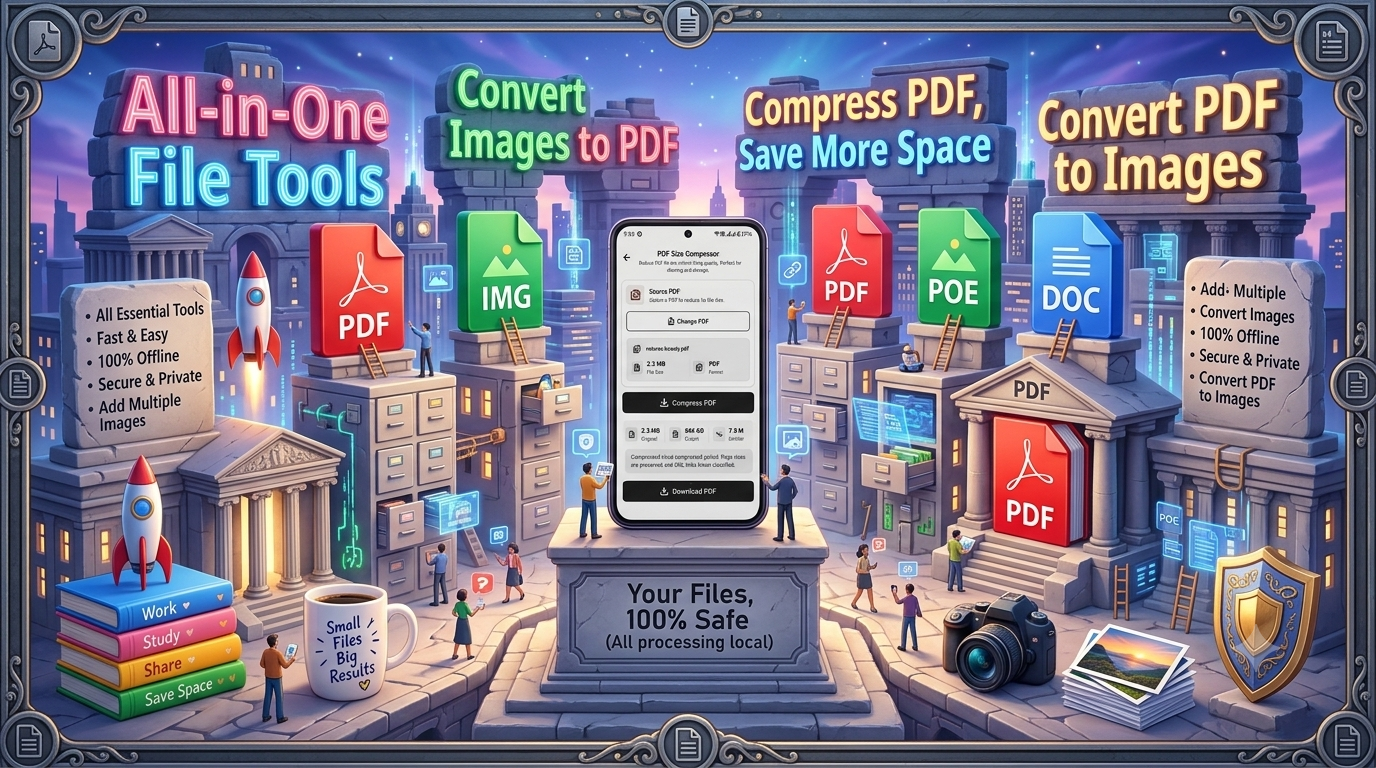
JPG vs PNG vs PDF: What Is the Difference? A Complete Guide for Beginners
Introduction
Have you ever wondered why some images are saved as JPG, others as PNG, and documents are usually shared as PDF? Although these three file formats are commonly used on smartphones, computers, and the internet, each one serves a different purpose.
JPG, PNG, and PDF are among the most popular file formats for storing, sharing, and managing digital content. However, choosing the wrong format can sometimes lead to blurry images, large file sizes, or difficulty sharing documents.
For example, JPG is commonly used for photographs, PNG is useful for transparent images and graphics, while PDF is designed to preserve document layouts across different devices.
In this guide, we will explain JPG vs PNG vs PDF, their differences, advantages, disadvantages, and when you should use each format.
Whether you are a student, office worker, designer, or regular smartphone user, understanding these formats can help you manage your files more efficiently.
What Is JPG?
JPG, also known as JPEG, stands for Joint Photographic Experts Group. It is one of the most widely used image formats for digital photographs and online pictures.
JPG uses lossy compression, which reduces file size by removing some image information. This makes JPG images easier to upload, download, and share.
Key Features of JPG
-
Smaller file size compared with many uncompressed image formats.
-
Ideal for photographs and colorful images.
-
Supported by almost all smartphones and computers.
-
Suitable for websites and social media.
-
Does not support transparent backgrounds.
-
Repeated editing and saving may reduce image quality.
When Should You Use JPG?
Use JPG when you want to:
-
Share photos through WhatsApp or email.
-
Upload pictures to websites.
-
Save smartphone camera photographs.
-
Reduce image file size.
-
Store everyday pictures without using too much storage.
Example: If you take a photo of a landscape or family gathering, JPG is generally a practical format.
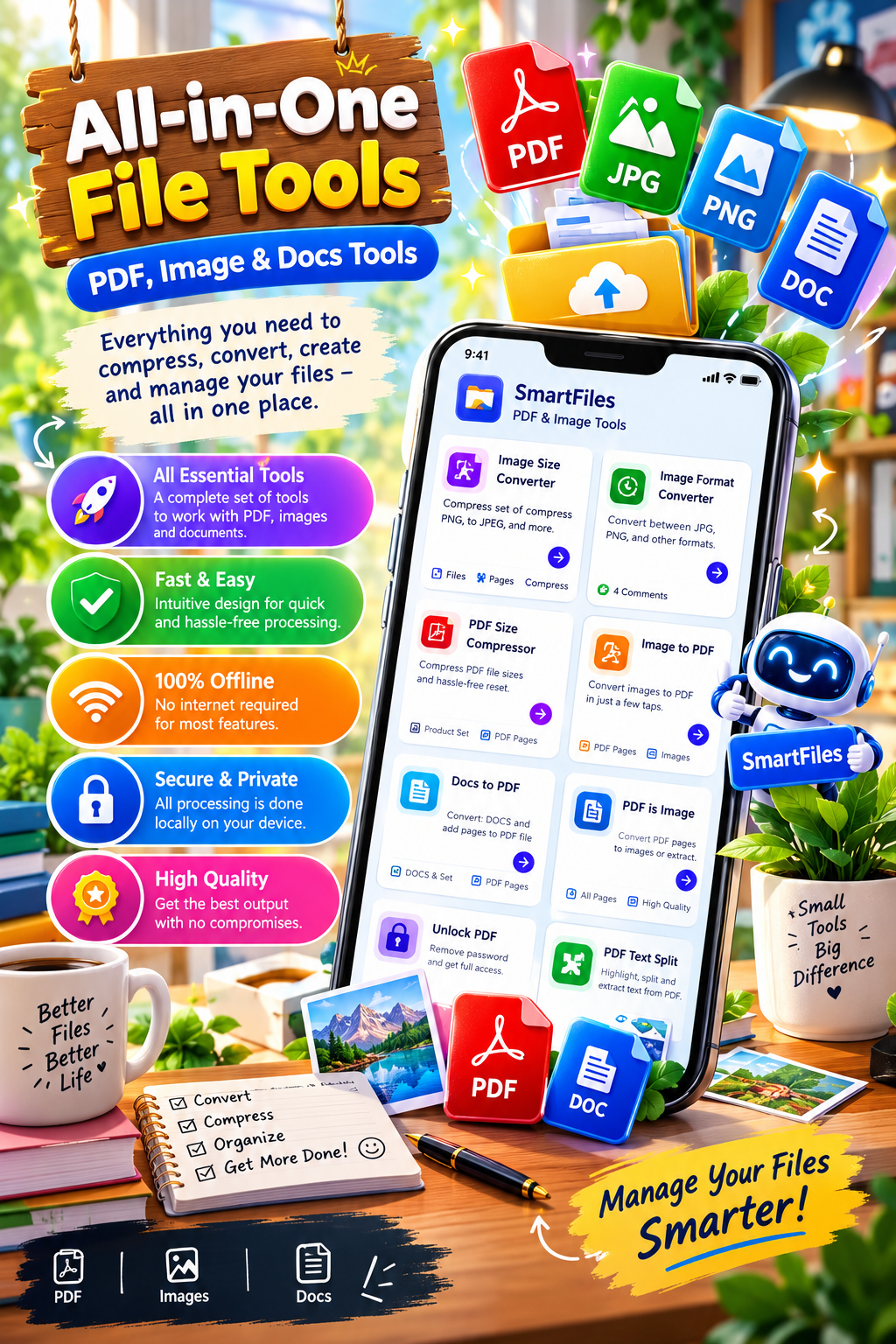
Best App to Convert JPG, PNG, and PDF Files on Android
What Is PNG?
PNG stands for Portable Network Graphics. It is a popular image format known for lossless compression and support for transparency.
Unlike JPG, PNG preserves image data during compression. This makes it especially useful for logos, icons, illustrations, screenshots, and graphics containing text.
Key Features of PNG
-
Uses lossless compression.
-
Supports transparent backgrounds.
-
Maintains sharp edges and text.
-
Suitable for logos and digital illustrations.
-
Usually produces larger files than JPG for photographs.
-
Widely supported across devices and applications.
When Should You Use PNG?
Use PNG when you want to:
-
Create logos with transparent backgrounds.
-
Save screenshots with readable text.
-
Preserve graphics and illustrations.
-
Design website icons.
-
Edit images without introducing lossy compression artifacts.
Example: If you create a logo that needs to appear over different background colors, PNG with transparency is a suitable choice.
What Is PDF?
PDF stands for Portable Document Format. It was developed to make documents look consistent across different devices, operating systems, and software.
Unlike JPG and PNG, which are primarily image formats, PDF is a document format that can contain text, images, links, forms, and multiple pages.
PDF files are commonly used for educational documents, office reports, invoices, digital books, application forms, and business paperwork.
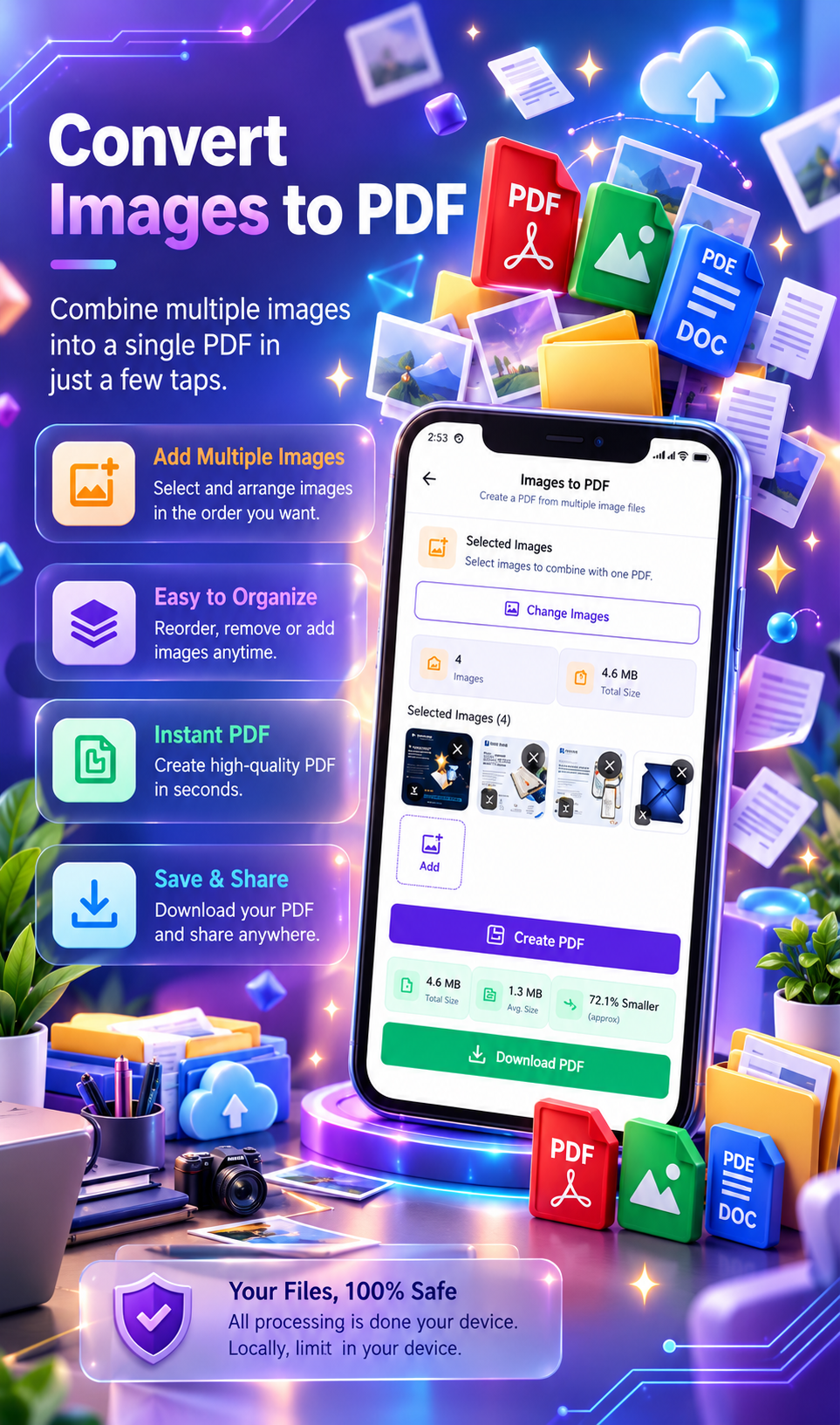
Best App for JPG vs PNG vs PDF File Conversion and Management
Key Features of PDF
-
Preserves document layout and formatting.
-
Supports multiple pages in one file.
-
Can contain searchable text and images.
-
Useful for sharing and printing documents.
-
Supports password protection and permissions in compatible tools.
-
Can combine text, photographs, and graphics.
When Should You Use PDF?
Use PDF when you want to:
-
Share documents professionally.
-
Submit assignments or applications.
-
Combine multiple pages into one file.
-
Send invoices and reports.
-
Preserve formatting during printing.
-
Store scanned documents.
Example: If you need to send a 10-page school assignment or office report, PDF is generally more convenient than sending 10 separate image files.
The biggest difference between JPG, PNG, and PDF is their purpose. JPG and PNG are image formats, whereas PDF is primarily designed for documents.
|
Feature |
JPG |
PNG |
|
|---|---|---|---|
|
Full form |
Joint Photographic Experts Group |
Portable Network Graphics |
Portable Document Format |
|
Main purpose |
Photographs |
Graphics and images |
Documents |
|
Compression |
Lossy |
Lossless |
Depends on content and settings |
|
Image quality |
May lose detail |
Preserves image data |
Depends on embedded content |
|
Transparency |
No |
Yes |
Supports transparent content |
|
Multiple pages |
No |
No |
Yes |
|
File size |
Usually smaller for photos |
Often larger for photos |
Varies |
|
Best use |
Photos |
Logos and screenshots |
Documents and reports |
|
Printing |
Good for photos |
Good for graphics |
Excellent for formatted documents |
The JPG and PNG characteristics are consistent with Adobe’s image-format comparison.
JPG vs PNG: Which Is Better?
JPG and PNG are both image formats, but their compression methods make them suitable for different situations.
JPG Advantages
-
Smaller file sizes for photographs.
-
Easy to share online.
-
Suitable for everyday camera pictures.
-
Helps save storage space.
PNG Advantages
-
Preserves image information.
-
Supports transparent backgrounds.
-
Better for sharp text and graphics.
-
Useful for logos and screenshots.
Which Should You Choose?
Choose JPG for photographs when file size matters. Choose PNG for logos, screenshots, illustrations, and images that require transparency.
PNG vs PDF: What Is the Difference?
PNG is an image format, while PDF is a document format.
For example, if you scan a certificate and save it as PNG, you have an image of that certificate. If you save it as PDF, you can include the certificate in a document that may contain additional pages.
|
PNG |
|
|---|---|
|
Mainly stores images |
Stores documents and mixed content |
|
Usually one image per file |
Can contain multiple pages |
|
Useful for graphics |
Useful for paperwork |
|
Supports transparency |
Can contain images and text |
|
Ideal for screenshots |
Ideal for document sharing |
Example: Use PNG for a scanned signature or logo. Use PDF for a complete application form or collection of certificates.
JPG vs PDF: What Should You Use?
JPG is commonly used for photographs, while PDF is preferred for documents that need consistent formatting.
Choose JPG when:
-
You want to share a photograph.
-
You need a simple image file.
-
You want to upload a picture to a website.
Choose PDF when:
-
You need to submit official documents.
-
You want to combine several pages.
-
You need a printable report.
-
You want to preserve document formatting.
For example, a passport-size photograph can be JPG, while a collection of application documents can be combined into a PDF.
Which Format Has the Smallest File Size?
File size depends on image dimensions, compression settings, content, and the way a document is created.
Generally:
-
JPG is often smaller for photographs.
-
PNG can be larger when storing detailed photographs.
-
PDF size varies according to its text, images, embedded fonts, and compression settings.
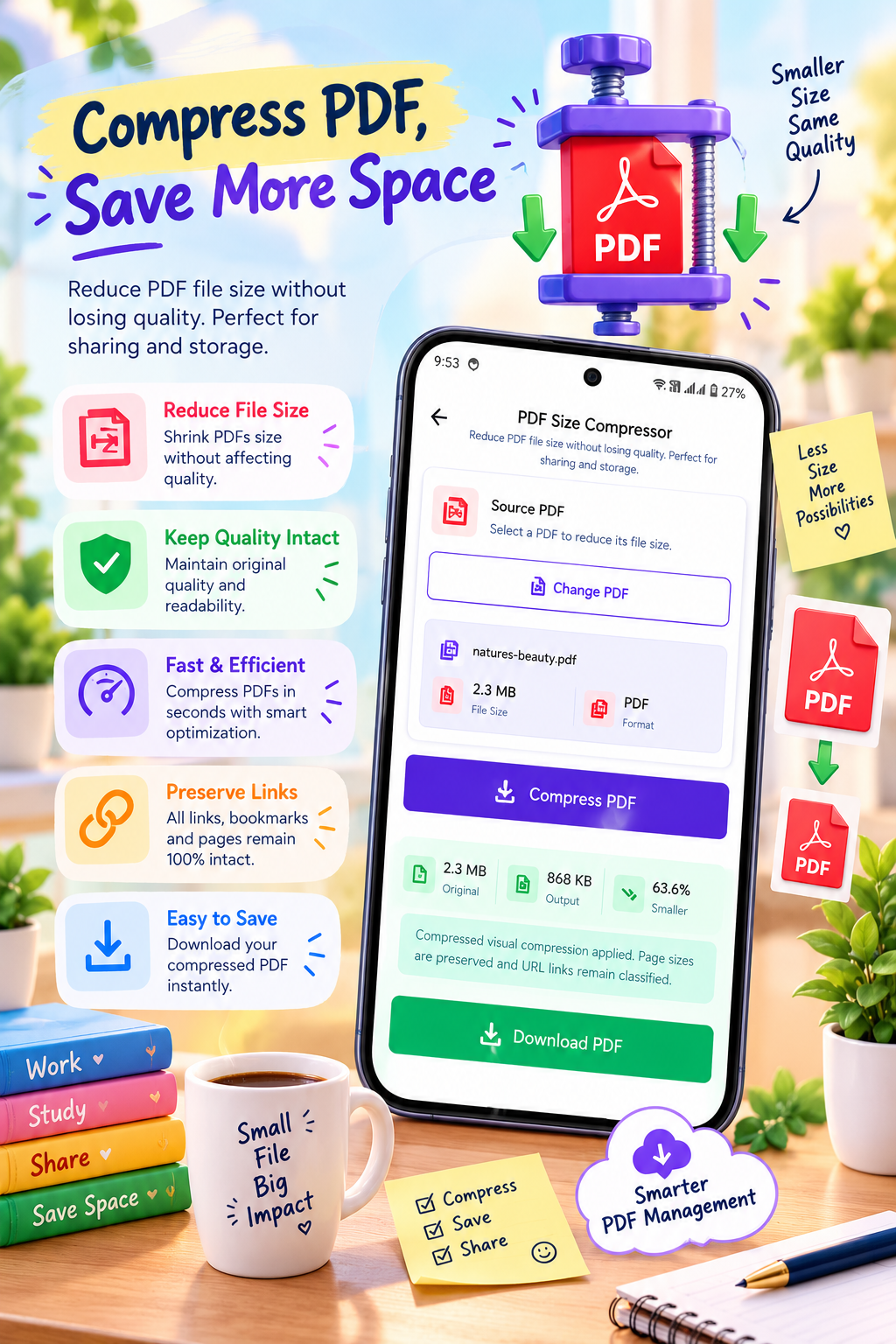
If you want to send a large document through email or messaging apps, compressing the PDF may help reduce its size.
Best App to Convert Images to PDF and Manage Documents Online
How to Convert JPG, PNG, and PDF on Android
Sometimes you may receive a JPG image but need a PDF document, or you may want to extract an image from a PDF.
You can manage these file conversions using an Android file utility.
Steps to Convert an Image into PDF
-
Open an image-to-PDF converter on your Android phone.
-
Select the JPG or PNG image.
-
Arrange the images in your preferred order.
-
Adjust the page size or orientation if available.
-
Tap the Convert or Create PDF option.
-
Save the resulting PDF file.
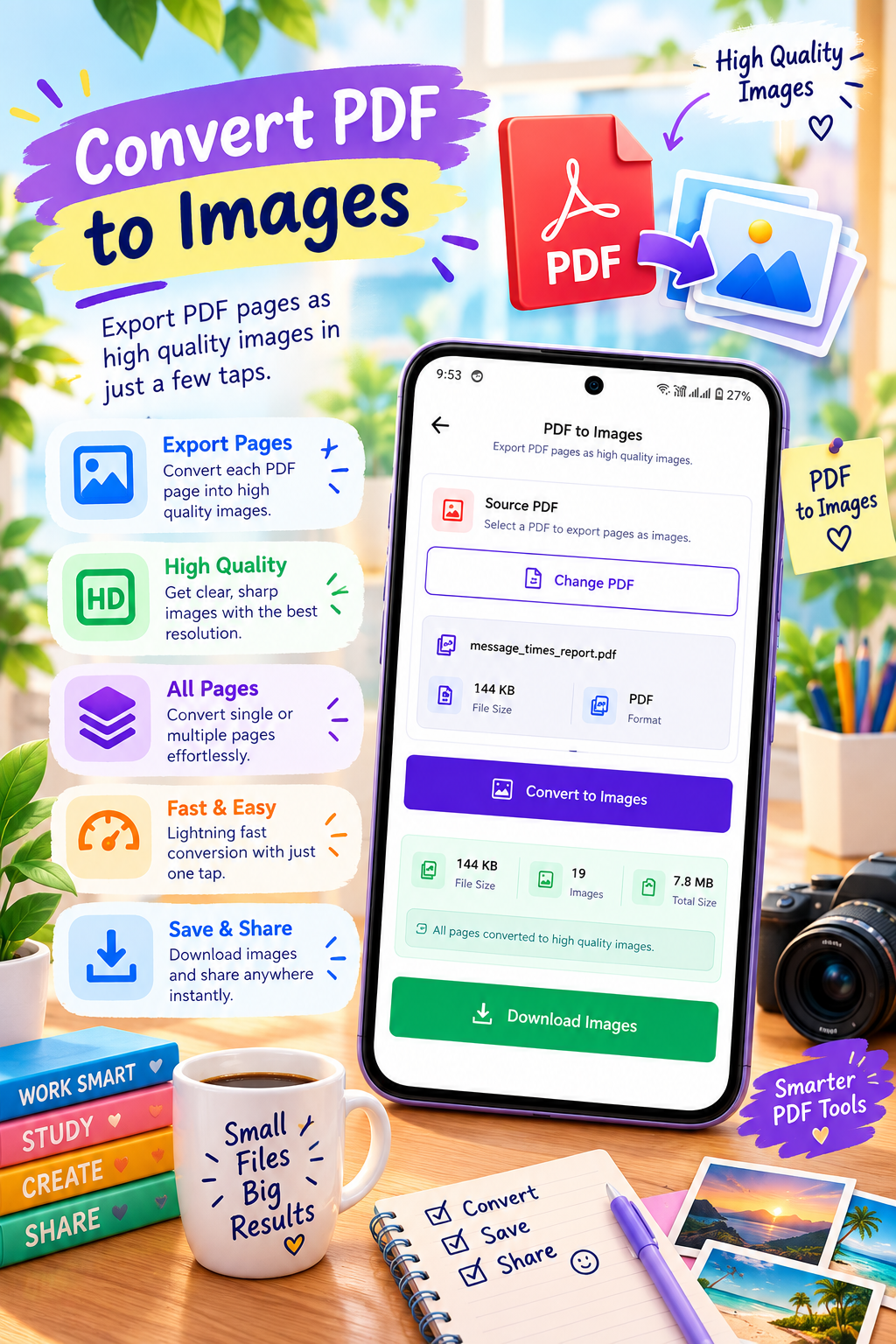
Steps to Convert PDF Pages into Images
-
Open your PDF utility app.
-
Select the PDF document.
-
Choose the PDF-to-image conversion option.
-
Select JPG or PNG as the output format.
-
Choose the required pages.
-
Save the converted images.
Keep in mind that converting a PDF page into an image may remove searchable text and other document features.
Manage JPG, PNG, and PDF Files with SmartFiles
Managing different file formats becomes easier when you have useful file tools available on your smartphone.
If you regularly work with photographs, scanned documents, or PDFs, you can explore SmartFiles PDF & Image Tools, designed for PDF and image-related tasks.
With SmartFiles, you can explore convenient file-management tools for everyday document workflows.
Common Mistakes to Avoid When Choosing File Formats
Using JPG for Transparent Logos
JPG does not support transparency. If you need a logo without a background, PNG is a suitable option.
Best PDF and Image Tools App for Android – Convert, Manage, and Organize Files
Using PNG for Every Photograph
PNG can create unnecessarily large photo files. JPG may be more practical for everyday photographs.
Sending Multiple JPG Images Instead of One PDF
When sharing multiple pages of a document, combining them into a PDF can make the files easier to organize and print.
Assuming PDF Always Means High Quality
PDF can contain compressed images. Converting a low-resolution photograph into PDF does not automatically improve its quality.
Ignoring File Size Limits
Some websites and online forms have upload restrictions. Check the required format and maximum file size before uploading.
Frequently Asked Questions (FAQs)
1. Is JPG better than PNG?
JPG is often better for photographs and smaller file sizes, while PNG is more suitable for transparent graphics, logos, and screenshots.
2. Is PNG higher quality than JPG?
PNG uses lossless compression, so it preserves the original image data. JPG uses lossy compression, which may discard visual information to reduce file size.
3. Is PDF an image format?
No. PDF is a document format that can contain text, images, graphics, and multiple pages.
4. Can I convert JPG to PDF?
Yes. You can use an image-to-PDF converter to place one or more JPG images into a PDF document.
5. Can I convert PNG to JPG?
Yes. PNG images can be converted to JPG, but transparent areas will need to be replaced with a background color, and lossy compression may affect quality.
6. Which format is best for printing?
PDF is useful for documents and formatted pages. JPG works well for photographs, while PNG is useful for graphics and text-heavy images.
7. Which format is best for WhatsApp?
JPG is convenient for sharing ordinary photos. PDF is useful for documents, while PNG is suitable for graphics that need sharp details.
8. Can I reduce PDF file size on Android?
Yes. A PDF compression tool can reduce the file size, although the resulting quality depends on the compression settings and document contents.
Final Thoughts
Understanding JPG vs PNG vs PDF makes it easier to choose the right format for your daily digital tasks.
JPG is useful for photographs and smaller image files. PNG is suitable for logos, transparent graphics, and screenshots where preserving image details matters. PDF is ideal for documents, reports, forms, and multi-page files.
There is no single format that is perfect for every situation. The right choice depends on whether you prioritize image quality, file size, transparency, or document organization.
If you frequently work with different image and document formats on your Android phone, having a convenient PDF and image utility can make your workflow simpler.
Explore more useful Android tips, file-management guides, and digital tools on Tech Solver.



Leave a Reply