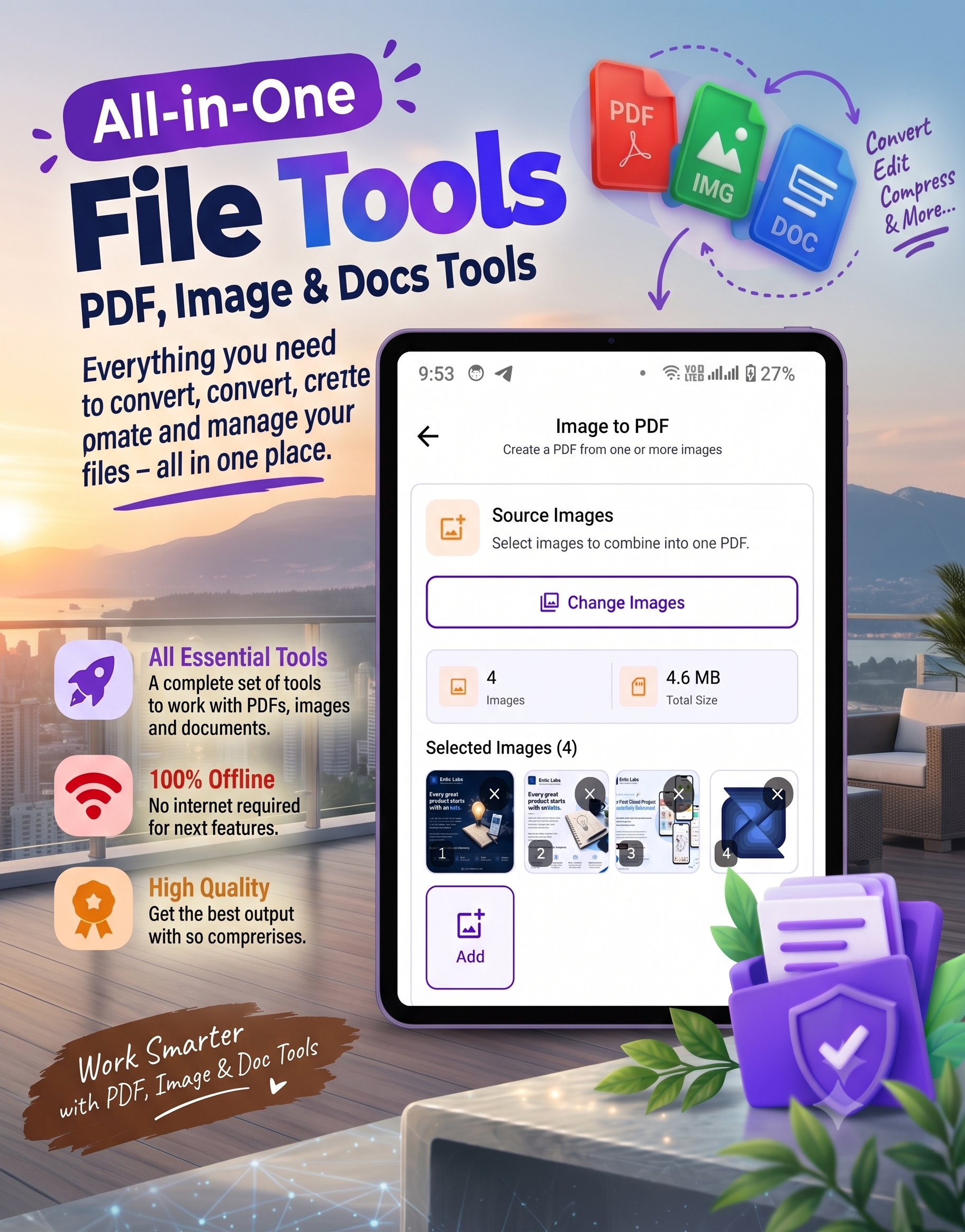
📄 How to Convert Images to PDF on an Android Phone
Converting photos and images into PDF files is useful when you need to share documents, receipts, notes, forms, certificates, assignments, or multiple pictures as a single file. Instead of sending several separate images, you can combine them into one convenient PDF directly from your Android phone.
With SmartFiles PDF & Image Tools, you can create a PDF from one or multiple images and perform several other PDF and image-related tasks from your phone. The app is designed as an all-in-one file utility for PDFs, images, and documents.
📱 What Is SmartFiles PDF & Image Tools?
SmartFiles PDF & Image Tools is an Android utility app developed by tech solver official. It combines image and PDF tools in one application.
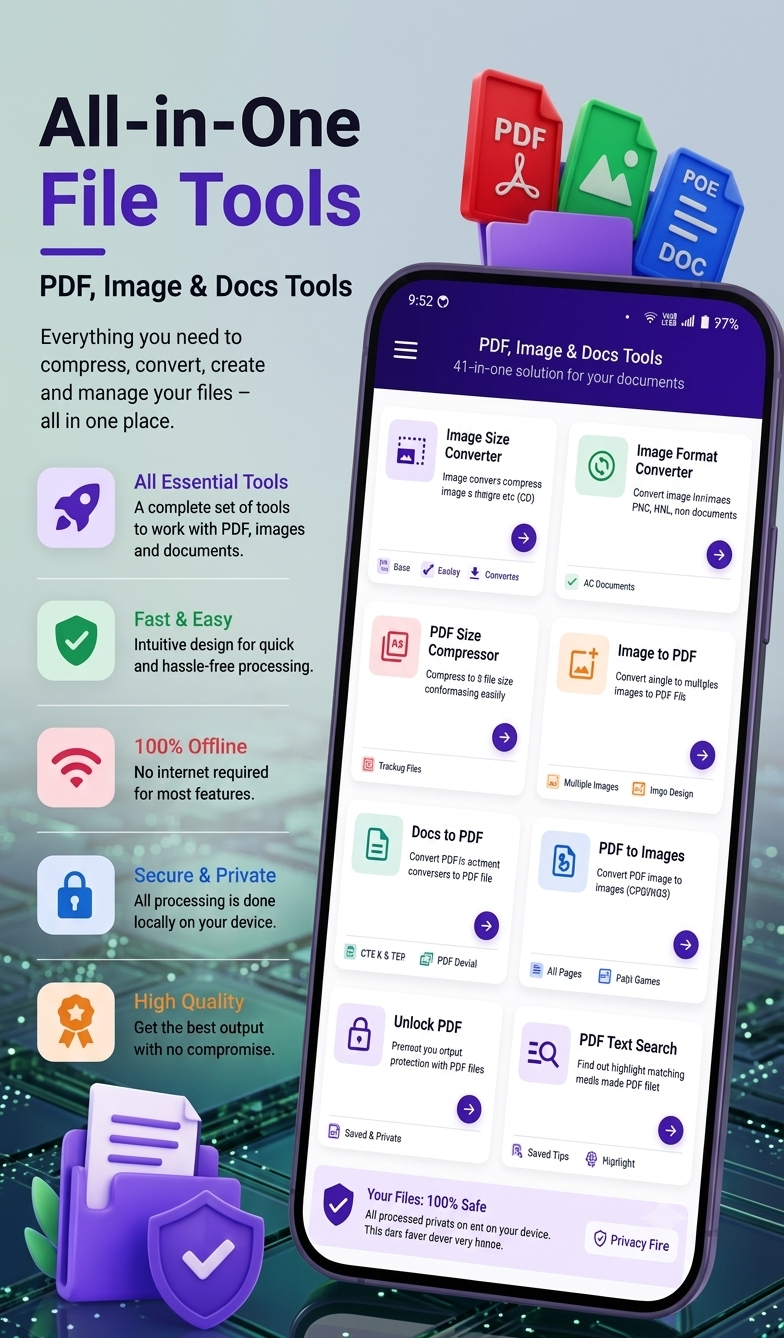
According to its Google Play listing, the app can create PDFs from images, compress images and PDFs, resize and crop images, convert image formats, convert PDFs to images, and convert DOC/DOCX and TXT files to PDF.
It can be useful for students, office workers, teachers, freelancers, and anyone who regularly works with documents and images.
⭐ Why Convert Images to PDF?
There are many situations where an image-to-PDF converter can be useful.
For example:
- 📄 Combining multiple scanned pages into one document
- 🧾 Creating a PDF from receipts
- 📚 Converting study notes into a PDF
- 📝 Sharing completed forms
- 🖼️ Combining several photos into one file
- 💼 Preparing documents for office work
- 📤 Sending multiple images as a single attachment
- 📁 Keeping important documents organized
Instead of sharing five or ten individual images, you can create one PDF and share it more conveniently.
📲 How to Convert Images to PDF on Android
The process is simple when using an image-to-PDF tool such as SmartFiles.
Step 1: Install SmartFiles
Download SmartFiles PDF & Image Tools from Google Play.
Step 2: Open the App
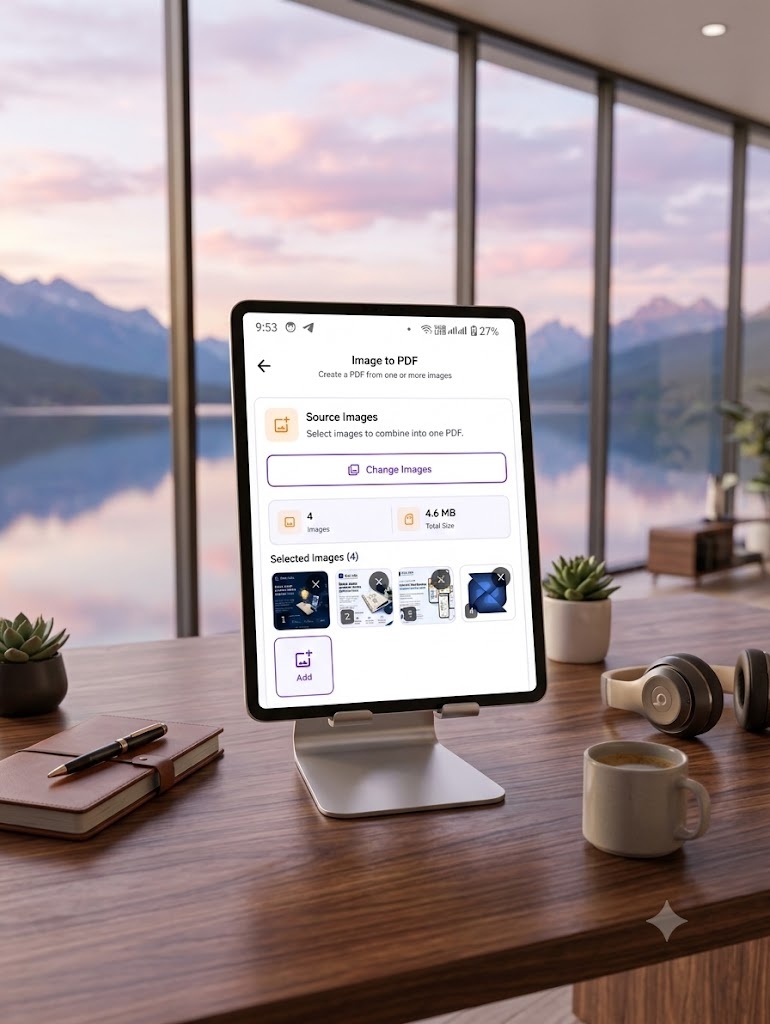
Launch SmartFiles on your Android phone and select the image/PDF tool related to creating a PDF from images.
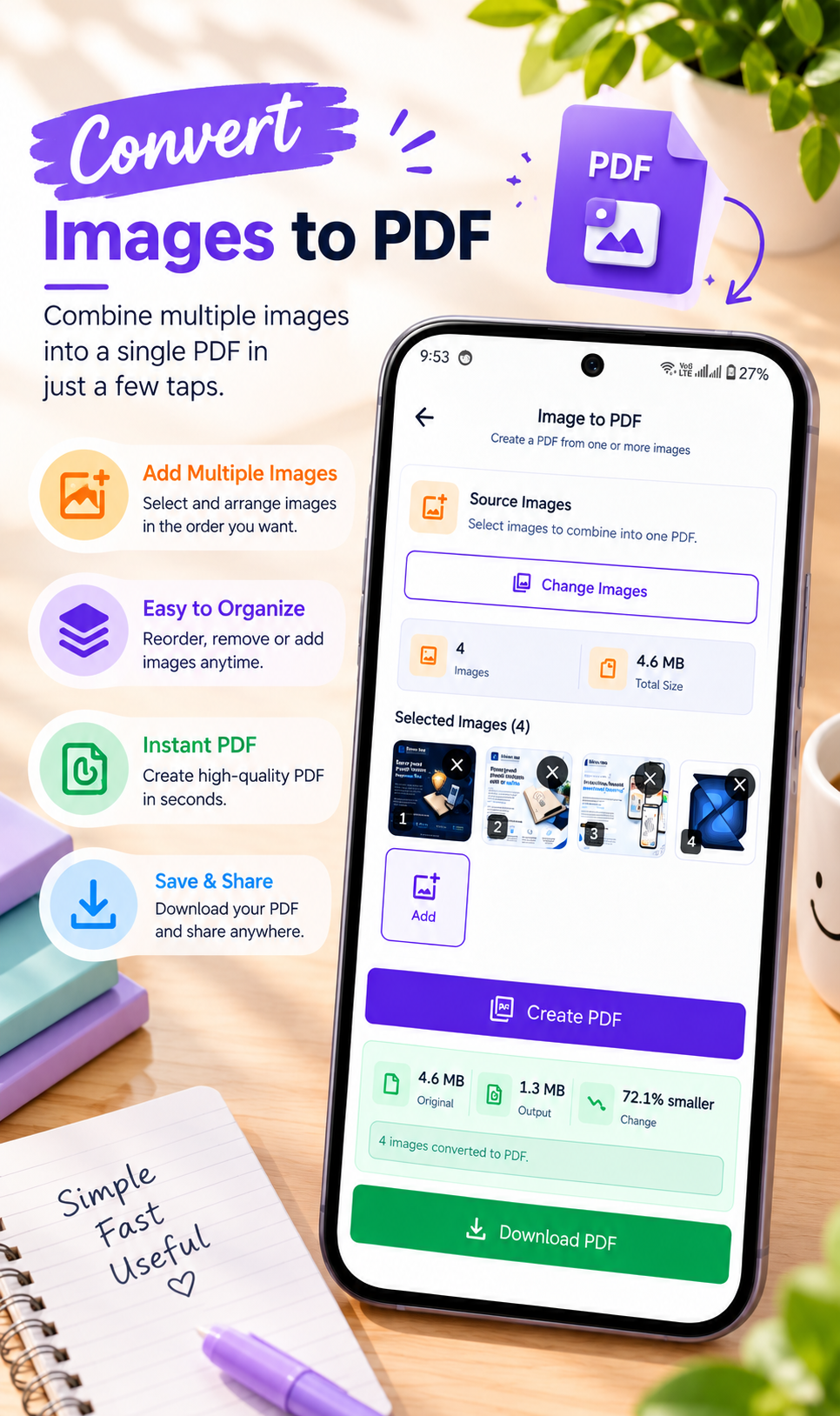
Step 3: Select Your Images
Choose one or multiple images from your phone’s storage.
You can select photos of documents, notes, receipts, screenshots, or other pictures that you want to combine into a PDF.
Step 4: Arrange Your Images
If you are converting multiple images, arrange the pages in the desired order so the final PDF appears correctly.
Step 5: Create the PDF
Use the image-to-PDF function to create your document.
The selected images are combined into a PDF file that you can save and share.
Step 6: Save or Share
Once the PDF has been created, save it to your device and share it through your preferred Android sharing option.
🔥 Key Features of SmartFiles
1. 🖼️ Image to PDF
One of the most useful features is the ability to create a PDF from one or multiple images.
2. 📄 PDF to Image
SmartFiles can also convert PDF pages into images, which can be useful when you need individual image files from a PDF.
3. 📉 Compress Images
Large images can take up considerable storage space. SmartFiles includes image compression tools designed to reduce image size while maintaining quality.
4. 📐 Resize Images
The app allows users to adjust image width and height before saving. This can be helpful when preparing images for documents or sharing.
5. ✂️ Crop Images
You can crop images before using them in your workflow, which is useful for removing unnecessary areas from photos.
6. 🔄 Convert Image Formats
The Google Play listing mentions support for converting between JPG, PNG, and WebP formats.
7. 📦 Compress PDF Files
SmartFiles also includes a PDF compression feature to help reduce PDF file size.
8. 🔎 Search PDF Text
The app includes a PDF text-search function for finding text inside PDF documents.
9. 📑 Document to PDF
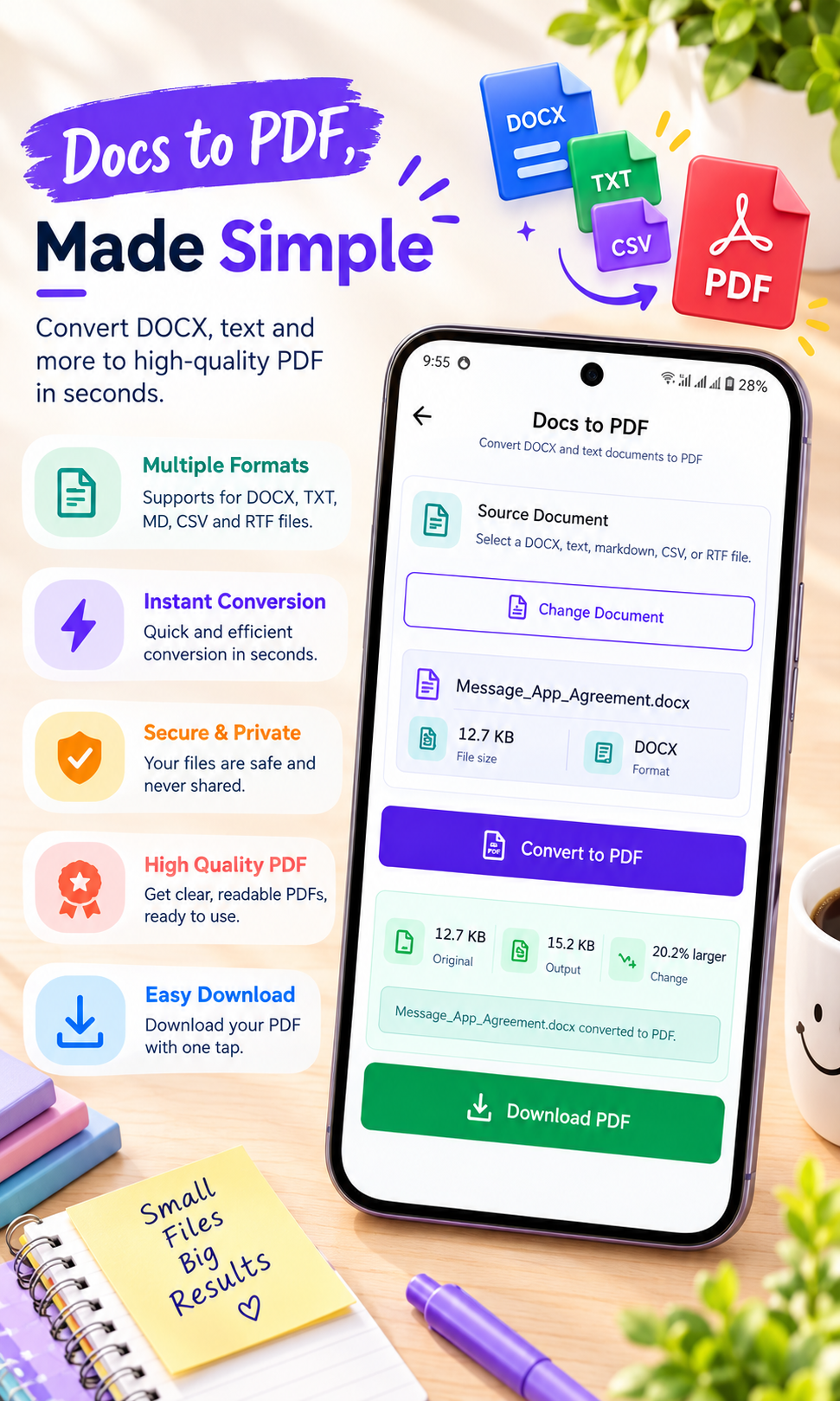
SmartFiles supports converting DOC, DOCX, and TXT files into PDF format.
10. 📴 Offline File Processing
The Google Play description states that most of the app’s functions work offline and that processing is performed directly on the device.
🎓 SmartFiles for Students
Students often have photos of handwritten notes, assignments, worksheets, or textbook pages.
Instead of sending every image individually, they can turn related images into a single PDF document and share it more conveniently.
For example:
Lecture Notes → Select Images → Create PDF → Save → Share
This can make document organization much easier.
💼 SmartFiles for Office Work
Office users can also benefit from image-to-PDF conversion.
Receipts, forms, printed documents, and photographed paperwork can be collected into a single PDF file for easier storage and sharing.
🧾 Create a PDF From Receipts
If you have several receipt photos, converting them into one PDF can make them easier to keep together.
For example:
Receipt 1 + Receipt 2 + Receipt 3 + Receipt 4 → One PDF
This is especially useful for keeping digital records.
📚 Create Study PDFs From Photos
Students can photograph pages of handwritten notes and combine those images into a single PDF.
This can create a simple digital study document without needing a computer.
For anyone searching for an easy Android app for image-to-PDF conversion, SmartFiles PDF & Image Tools provides image-to-PDF functionality along with other PDF tools.
🔐 Is SmartFiles an Offline App?
The Google Play listing describes SmartFiles as an offline file utility and says most functions work without an internet connection. It also says file processing takes place on the device.
However, users should always review the current Data Safety information on Google Play because privacy and data-handling disclosures can change over time. The current listing says the developer reports that the app may share device or other IDs with third parties and may collect device or other IDs; it also says data is encrypted in transit.
⚡ Benefits of Using an Image-to-PDF Tool
✔️ Saves Time
You don’t need to manually create a document on a computer just to combine several images.
✔️ Convenient on Android
You can work directly from your smartphone.
✔️ Multiple Tools in One App
SmartFiles combines image and PDF utilities instead of focusing on only one file-conversion task.
✔️ Useful for Different Users
The app’s Play Store description specifically mentions students, teachers, office workers, freelancers, and business users.
✔️ No Complicated Workflow
The app is designed around common file tasks such as image conversion, PDF creation, compression, and document conversion.
📌 Image to PDF vs Sharing Multiple Images
| Method | Advantage |
|---|---|
| Multiple Images | Easy to view individually |
| One PDF | Keeps related pages together |
| Image-to-PDF | Useful for documents and records |
| Compressed PDF | Can be easier to share when file size matters |
If several images belong to the same document, creating one PDF can make the files easier to organize.
💡 Tips for Creating Better PDFs
Before converting images to PDF, follow these simple tips:
- Use clear and readable photos.
- Keep documents properly aligned.
- Crop unnecessary background areas.
- Put pages in the correct order.
- Compress the PDF when the resulting file is too large.
- Check the final PDF before sharing.
- Keep important documents backed up.
📱 Who Can Use SmartFiles?
SmartFiles can be useful for:
- 👩🎓 Students
- 👨🏫 Teachers
- 💼 Office professionals
- 🧑💻 Freelancers
- 🏢 Business users
- 🧾 Small-business owners
- 📑 People managing documents
- 📱 Android users who frequently work with PDFs and images
🚀 SmartFiles PDF & Image Tools at a Glance
App Name: SmartFiles PDF & Image Tools
Developer: tech solver official
Platform: Android
Category: Tools
Main Use: PDF, image and document utilities
Image to PDF: Yes
PDF to Image: Yes
Image Compression: Yes
Image Resize: Yes
Image Crop: Yes
Image Format Conversion: Yes
PDF Compression: Yes
DOC/DOCX to PDF: Yes
TXT to PDF: Yes
Offline Features: Most functions are described as offline
Account Required: The Play Store description says no account is required.
📝 Final Thoughts
Converting images into PDF files can make document sharing and organization much easier on Android. SmartFiles PDF & Image Tools brings image-to-PDF conversion together with several other useful PDF, image, and document utilities.
Whether you want to combine scanned pages, create a PDF from photos, compress a file, resize an image, or convert documents into PDF format, SmartFiles provides several of these tools within one Android application.
For Tech Solver readers looking for a practical Android file utility, SmartFiles can be presented as an option for everyday PDF and image-related tasks.



Leave a Reply