How to Reduce PDF File Size on Android Without Losing Quality
PDF files are one of the easiest ways to share documents, forms, assignments, invoices, certificates, resumes, and scanned papers. However, high-resolution PDFs can sometimes become very large, making them difficult to upload, email, send through messaging apps, or store on your Android phone.
The good news is that you don’t always need to delete pages or significantly reduce the quality of your document. With the right PDF compression tool, you can reduce the file size while keeping the document readable and useful.
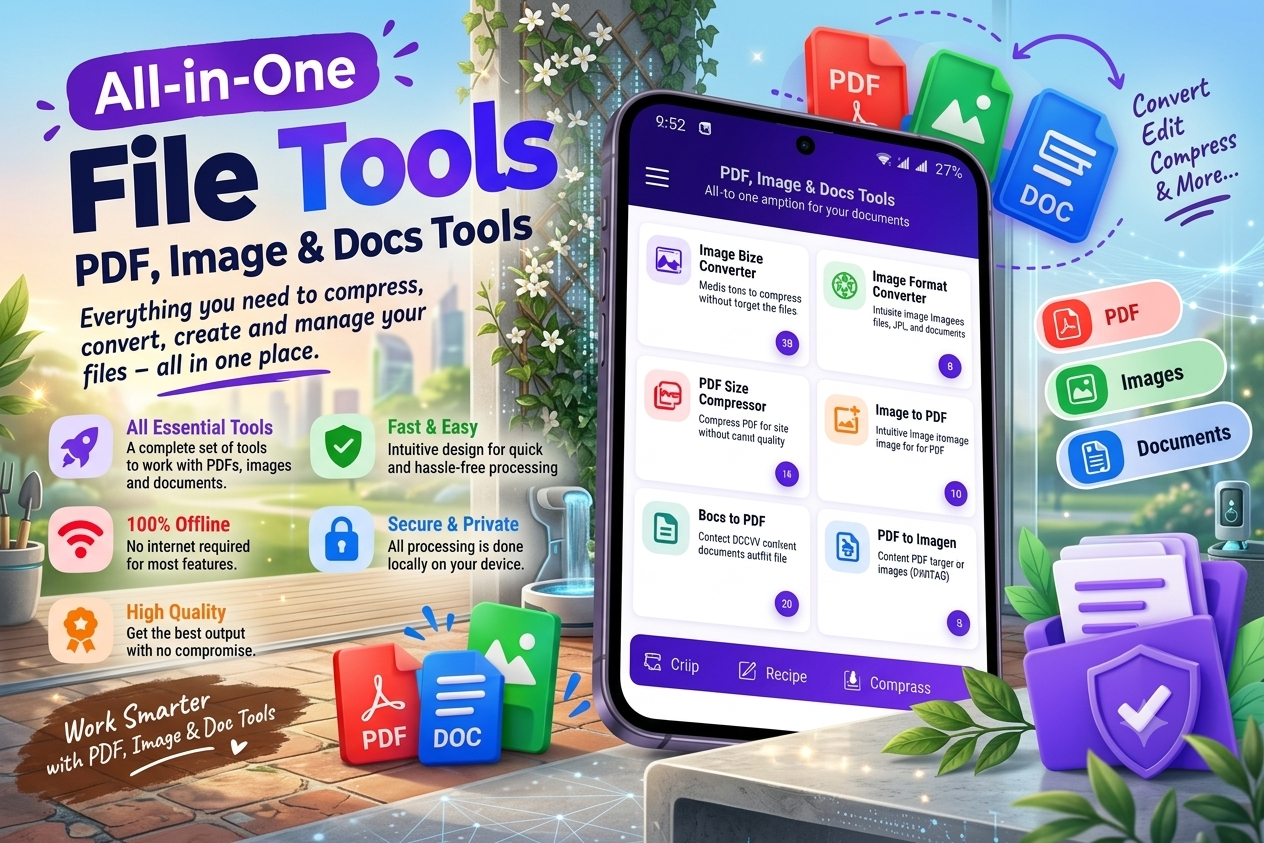
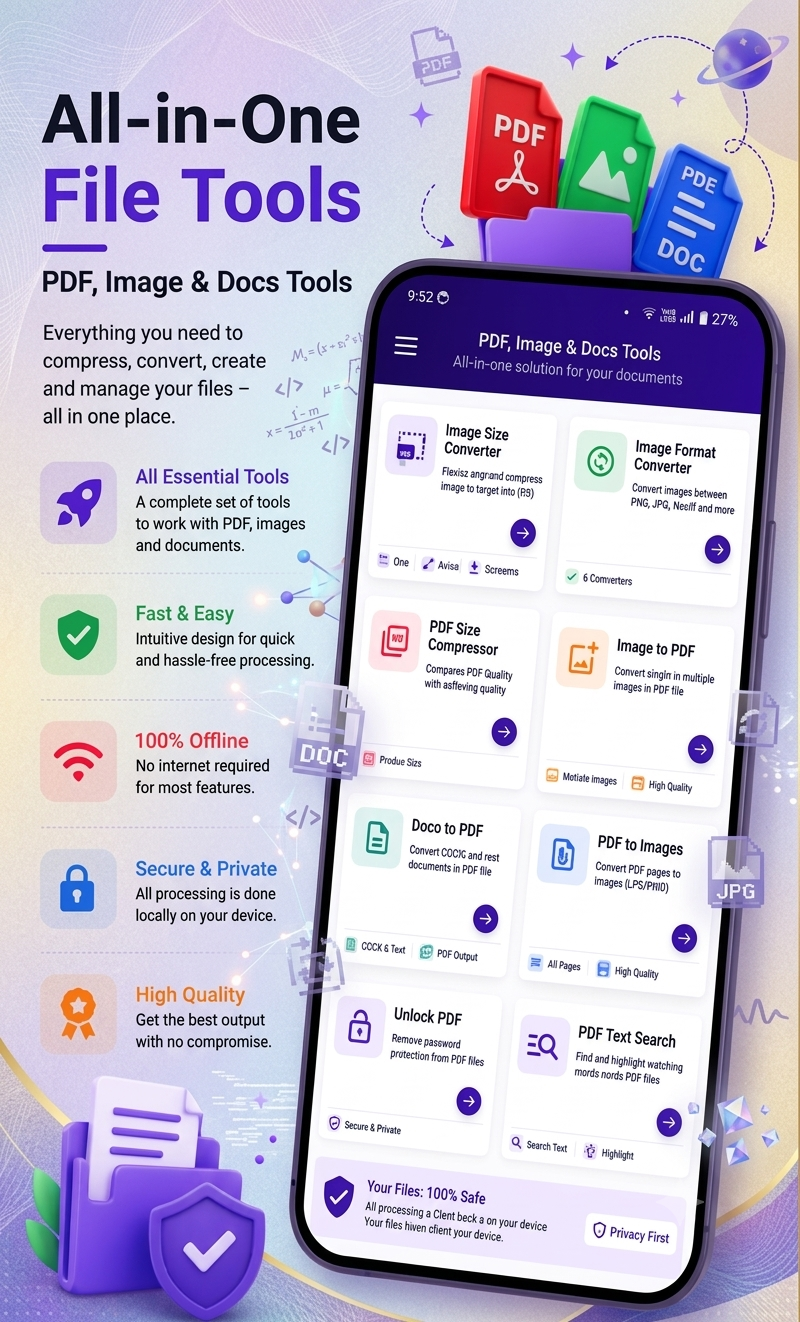
SmartFiles PDF & Image Tools is an Android utility designed to help users compress PDFs and images, convert files, create PDFs from images, and handle several everyday document tasks from one app.
What Does PDF Compression Mean?
PDF compression means reducing the amount of storage space a PDF requires.
For example, a scanned document containing large images may create a PDF that is several megabytes in size. Compression can optimize the images and other elements inside the document so that the final PDF takes up less storage space.
The goal is to find a good balance between:
- Smaller file size
- Readable text
- Clear images
- Good document quality
- Easy sharing
A good compression process should make the PDF more convenient to use without making the content difficult to read.
Why Do PDF Files Become So Large?
There are several reasons why a PDF can become unusually large.
1. High-Resolution Images
Scanned documents and photographs can contain large amounts of image data. When many high-resolution images are combined into one PDF, the file can quickly become large.
2. Scanned Documents
A PDF created from several camera scans may contain full-resolution photographs instead of optimized document images.
3. Multiple Pages
A 30-page document will naturally require more storage than a 3-page document, especially when every page contains images.
4. Uncompressed Images
Images inside a PDF may contain unnecessary data that can be optimized during compression.
5. Repeated or Unnecessary Content
Some PDFs may contain embedded elements that increase the file size without providing much visible benefit.
How to Reduce PDF File Size on Android
One of the simplest approaches is to use a dedicated PDF compression tool.
Step 1: Install a PDF Utility App
Choose a reliable Android application that supports PDF compression.
SmartFiles PDF & Image Tools is designed as an all-in-one file utility for PDFs, images, and documents. Its Google Play listing specifically includes a PDF compression feature.
Step 2: Select Your PDF
Open the app and choose the PDF document that you want to make smaller.
Before compressing it, check the original file size. This makes it easier to compare the result afterward.
Step 3: Choose PDF Compression
Select the PDF compression option available in the app.
The compression process is intended to reduce the size of the PDF while keeping the document usable.
Step 4: Save the Compressed PDF
After processing, save the new PDF to your device.
It is a good idea to keep the original PDF until you have checked the compressed version.
Step 5: Check the Final Quality
Open the compressed PDF and check:
- Is the text readable?
- Are images still clear?
- Are all pages present?
- Are tables and graphics visible?
- Is the file size smaller?
If everything looks good, you can use the compressed PDF for sharing or uploading.
How to Reduce PDF Size Without Losing Quality
The phrase “without losing quality” does not necessarily mean that a PDF can become dramatically smaller with absolutely no change in image data.
Instead, the goal is smart compression.
For text-heavy documents, compression can often reduce unnecessary data while keeping the text easy to read. Image-heavy PDFs may require a little more care because aggressive compression can make photographs or scanned pages appear blurry.
For the best balance, avoid using extremely aggressive compression when your document contains:
- ID cards
- Certificates
- Detailed diagrams
- Small printed text
- High-resolution photographs
- Important scanned documents
Always inspect the final document before deleting the original.
Why SmartFiles PDF & Image Tools Can Be Useful
SmartFiles brings several everyday file-processing functions into one Android application instead of requiring separate tools for different tasks.
According to its current Google Play listing, the app includes:
PDF Tools
- PDF compression
- PDF-to-image conversion
- Image-to-PDF creation
- PDF text search
- PDF password unlocking
Image Tools
- Image compression
- Image resizing
- Image cropping
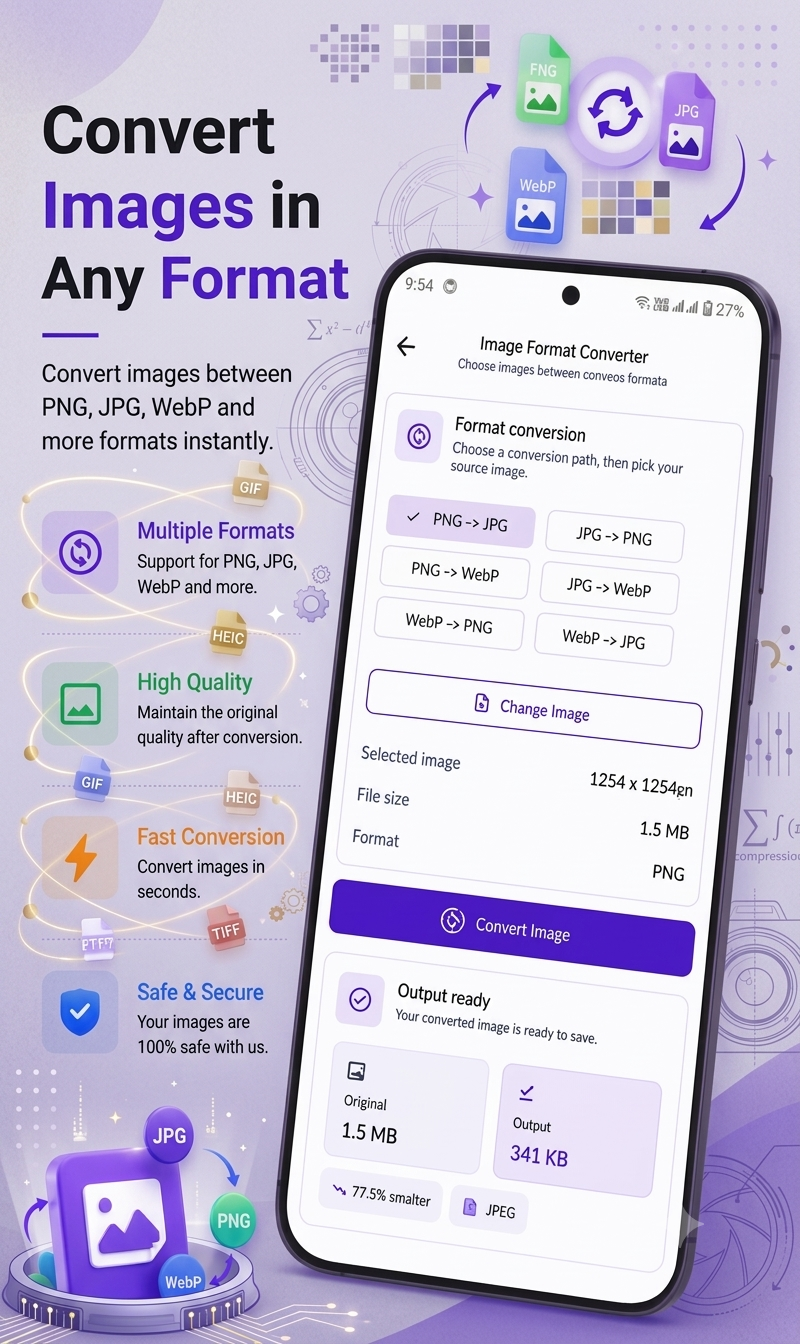
- JPG, PNG, and WebP conversion
- Creating PDFs from one or multiple images
Document Tools
- DOC to PDF conversion
- DOCX to PDF conversion
- TXT to PDF conversion
The listing also describes SmartFiles as an offline-oriented utility where most processing can be performed directly on the device.
Reduce PDF Size Before Sending It on WhatsApp or Email
Large PDFs can be inconvenient when you’re trying to share them.
For example, you may need to send:
- A college assignment
- A resume
- A job application
- An invoice
- A quotation
- A business document
- A scanned certificate
- A project report
- Study notes
Compressing the PDF before sharing can make the file easier to handle.
Instead of repeatedly trying to send an oversized document, you can first create a smaller version and then share it.
Reduce PDF Size for Online Forms
Many websites have restrictions on the maximum file size that can be uploaded.
For example, a form might accept a document only if it is below a specific size limit.
If your PDF is too large, compression can help bring the document closer to the required limit.
However, always check the website’s instructions before compressing important documents. Some applications may require a particular resolution or document quality.
Compress Images Before Creating a PDF
Another useful method is to optimize images before converting them into a PDF.
If you are creating a PDF from multiple photographs, unnecessarily large images can make the final PDF much bigger.
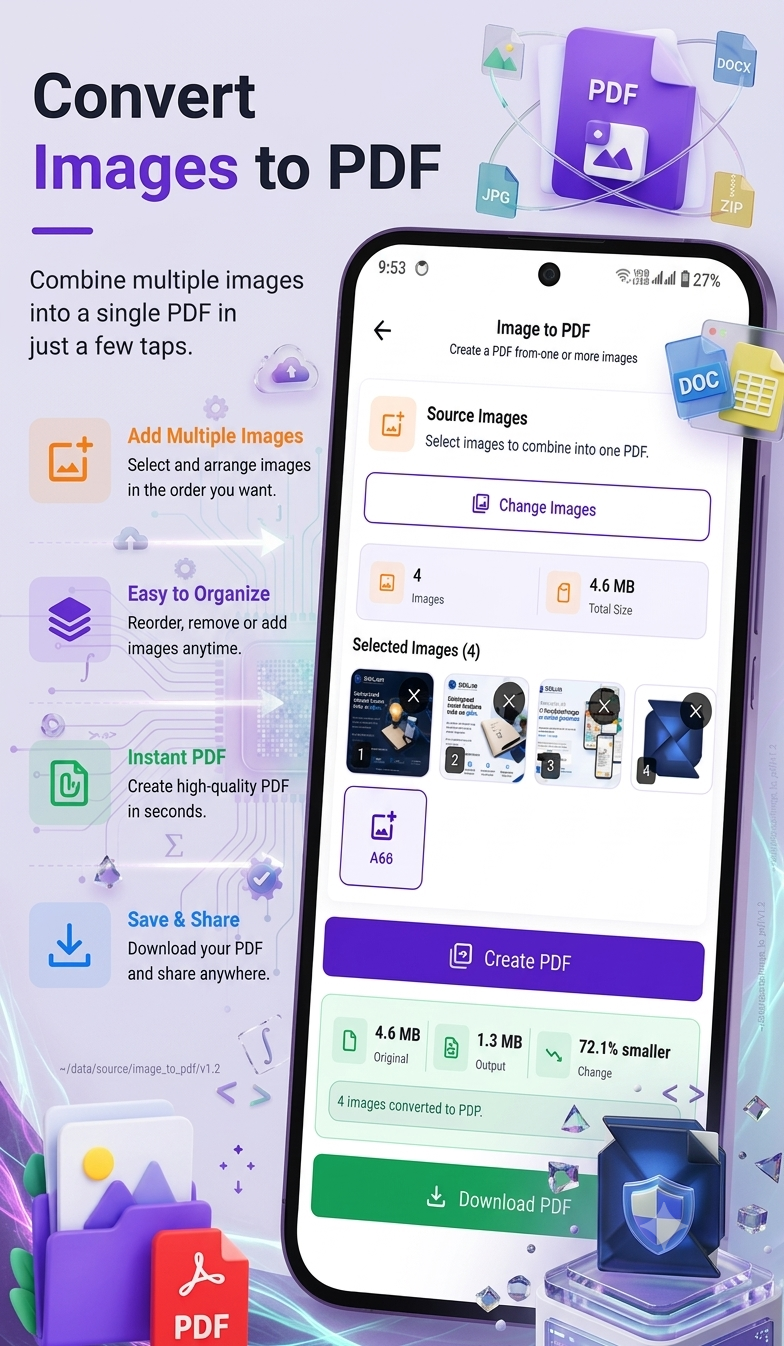
SmartFiles includes image compression and image resizing tools, as well as the ability to create a PDF from one or multiple images.
A practical workflow can therefore be:
Select Images → Resize/Compress Images → Create PDF → Check File Size
This can be particularly useful for scanned notes, receipts, forms, and photographs.
PDF Compression for Students
Students frequently work with PDFs for:
- Assignments
- Notes
- Project reports
- Question papers
- Study material
- Certificates
- Applications
Large documents can consume unnecessary storage space and may be difficult to upload to educational portals.
A PDF compression tool can therefore be useful for preparing smaller files before submission.
PDF Compression for Office Work
Office workers may regularly handle:
- Invoices
- Reports
- Contracts
- Presentations
- Business documents
- Scanned forms
- Client documents
Reducing unnecessary PDF file size can make document sharing more convenient and help keep digital storage organized.
PDF Compression for Freelancers and Small Businesses
Freelancers and small businesses often send documents to customers through email or messaging platforms.
A smaller PDF can be easier to send, download, and store.
SmartFiles is positioned on Google Play for students, office workers, teachers, freelancers, and business users who work with PDFs, images, and documents.
Tips for Maintaining PDF Quality
Here are some useful tips when compressing PDFs on Android:
Keep the Original File
Never immediately delete the original document. Keep it until you have verified the compressed copy.
Check Small Text
Large text may remain clear even after compression, while very small text can become difficult to read.
Check Images
Zoom into photographs, signatures, diagrams, and scanned documents to make sure they remain clear.
Avoid Excessive Compression
The smallest possible PDF is not always the best PDF. Choose a balance between file size and readability.
Use the Right Format
If you are creating a PDF from images, choose an appropriate image format and resolution before creating the final document.
Check the Final File Size
Always compare the original and compressed versions before sharing.
Can PDF Compression Make a PDF Blurry?
Yes, excessive compression can affect image quality.
Text-based content may remain highly readable, but photographs and scanned pages can show visible quality loss if the compression is too aggressive.
That’s why the best approach is to compress the document and then inspect the final result.
Can I Compress PDFs Offline on Android?
SmartFiles’ Google Play description says most of its file-processing features work offline and that files are processed directly on the device.
This can be useful when you are working with personal documents and don’t want to depend on an internet connection for routine file-processing tasks.
However, users should always review an app’s current permissions and Google Play data-safety information before using it with sensitive documents.
SmartFiles PDF & Image Tools: Main Features
Here is a quick overview of the features listed for SmartFiles:
| Feature | What It Does |
|---|---|
| PDF Compressor | Reduces PDF file size |
| Image Compressor | Makes images smaller |
| Image Resizer | Changes image dimensions |
| Image Cropper | Crops images before saving |
| Image Converter | Converts between JPG, PNG and WebP |
| Image to PDF | Creates PDFs from images |
| PDF to Image | Converts PDF pages into images |
| PDF Text Search | Searches text inside PDFs |
| PDF Unlock | Unlocks password-protected PDFs |
| DOC/DOCX to PDF | Converts documents into PDFs |
| TXT to PDF | Converts text files into PDFs |
| Offline Processing | Supports many tasks without an internet connection |
These features are based on the current Google Play listing.
Who Should Use SmartFiles?
SmartFiles can be useful for people who regularly work with:
Students: Compress assignments and create PDFs from images.
Teachers: Prepare and manage educational documents.
Office Workers: Convert and compress everyday business files.
Freelancers: Prepare smaller files for clients.
Business Users: Handle invoices, reports, and other documents.
Everyday Android Users: Manage PDFs and images without needing several separate utility apps.
Advantages of Using One File Utility
Using one application for several related tasks can make your workflow simpler.
Instead of switching between an image compressor, PDF converter, image-to-PDF app, and document converter, an all-in-one utility can provide several of these functions from one place.
SmartFiles is specifically designed around PDF, image, and document utilities.
Final Thoughts
Reducing PDF file size on Android doesn’t have to mean sacrificing readability.
The key is to use sensible compression and always check the final document before sharing or uploading it. For image-heavy PDFs, optimizing the images before creating the PDF can also make a significant difference.
SmartFiles PDF & Image Tools provides PDF compression alongside image compression, resizing, conversion, image-to-PDF creation, PDF-to-image conversion, and document-to-PDF tools. Its current Google Play listing also emphasizes offline file processing and local handling for many tasks.
For Android users who regularly work with PDFs, images, and documents, SmartFiles can be a convenient tool to keep these everyday file tasks together in one application.



Leave a Reply